Screen Layout
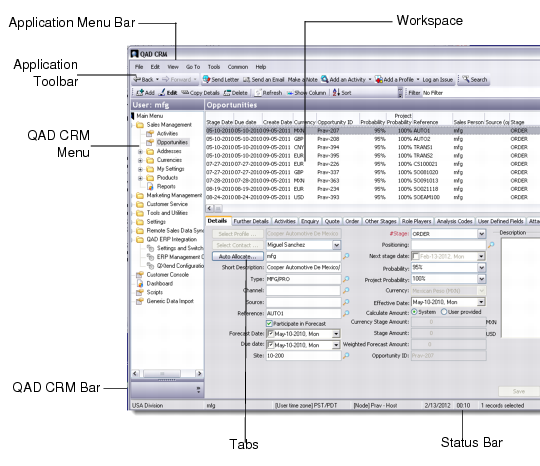
The system has a user-friendly interface that includes the following components:
• Application menu bar
• Application toolbar
• QAD CRM menu
• QAD CRM bars
• Workspace
• Tabs
• Pop-ups
Main Screen
You can resize the menu and workspace areas by dragging the vertical resize bar to the right or left. You can also resize the area displaying the bars by dragging the horizontal resize bar up or down.
Typically the workspace has two parts. The top half is a browser displaying data records for the selected module. The bottom half displays the selected record details in edit mode. To select multiple records in the browser, hold down the Ctrl key and click the records you want. To select a continuous block of records, click the first record, hold down the Shift key, and then click the last record.
A status bar at the bottom of the screen displays the company, user, user time zone, node name and type, client type, date, time, number of selected records, and software version.
Note: To make the QAD CRM user interface display correctly on your screen, set the size of text on your Windows setup to the default size—100%.