Make a Note
Notes are a useful method of taking down vital information regarding a particular profile or contact. Notes get updated to the Transaction History for that profile, and can be referred to at a later date.
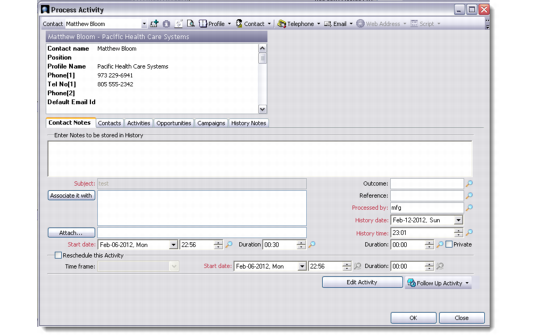
When you click this button on the toolbar, the Make a Note window displays. In this window, select the Profile or Contact for whom you want to make a note.
The Make a Note window also lets you perform the following functions:
• Add contact details for a new contact
• Refresh Profiles and Contacts information
• Set up user preferences for view columns
• Add attachments and make associations
• View profile details for selected profile
• View contact details for selected contact
• Add opportunity
• Insert selected details or an imported file
• Check spelling and grammar
Note: Press F7 to invoke the spelling and grammar check option. This option is available only for text-based fields. The system displays a confirmation message when the check is complete.
Once you make a note and save it, you can view it from the Profiles module in Activities|History.
Make a Note
The Make a Note window contains the following tabs:
Make a Note Tabs
Tabs | Action |
Contact Notes | Add your notes for the selected profile in the Contact Notes tab. Various look-ups are available to help you create note details. You can assign a follow-up activity, if required, by clicking on the relevant button at the bottom right. You can also mark a note as private by selecting the Private check box. |
Contacts | View information related to the contacts of the selected profile here. This tab also lets you add or edit a contact. |
Activities | View the activities associated with the contacts of the selected profile here. Two views at the bottom of this window let you view both planned activities and activity history. |
Opportunities | View the opportunities associated with the selected profile here. The views at the bottom right let you add descriptions and opportunity lines. |
Campaigns | View the campaigns associated with the selected profile here. |
History Notes | View associated history notes for the contact. |