Setting Up Recurrences
This module lets you set up recurring activities by entering details through the Recurrence option.
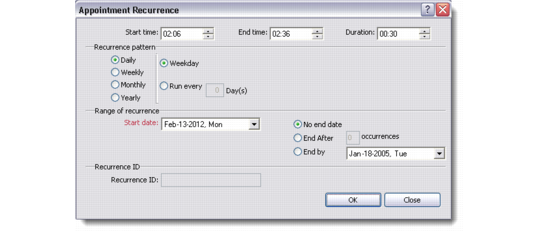
1 To set up a recurring activity, right-click the workspace and choose Recurrence. Alternatively, choose the Recurrence option from the File menu or click the Recurrence button from the toolbar. Depending on the activity type you select, the appropriate Recurrence screen displays.
Activity Recurrence for an Appointment Type Activity
2 In the Recurrence screen, enter the time details such as Start Time, End Time, and Duration.
3 Select a Recurrence Pattern for the activity type. The options are Daily, Weekly, Monthly, or Yearly. Depending on your selection, the recurring criteria area updates.
4 In the recurring criteria area, specify the required criteria for repeating the activity. For example, if you selected Weekly in the recurring type area and want the activity to repeat every Monday, select Monday in the recurring criteria area.
5 In the Range area, specify the period during which you want the activity to repeat. Once this period is over, the activity repetition also stops. Specify the start date of the period in the Start Date field. This field is mandatory. In the End Date field, select the date or the number of occurrences after which the activity period ends.
6 When you click Save, the system generates a Recurrence ID and the Recurrence button appears on the Activity Details screen.
Note: A new record gets created in the calendar for each recurring activity.
When you edit a recurring activity, the system displays a pop-up window to confirm whether the change is applicable to a particular instance or the entire recurrence series.
Open Recurrence Item