Synchronizing E-mails
The synchronizing e-mails function requires the integration with exchange server to be enabled. See
Maintaining Exchange Server Settings for details. The synchronization policies are maintained by the system administrator in Settings|Mail Server Integration|Settings and Switches.
If the automatic e-mail synchronization is enabled, the e-mails are synchronized automatically when the next synchronization is performed by QAD CRM Admin Service. The system administrator can set the frequency for synchronization.
The e-mails from Microsoft Outlook are reconciled by the e-mail address in QAD CRM. If the e‑mail address matches that of a contact in QAD CRM, the e-mail details are created as a history record in QAD CRM against that profile and contact.
If your system is not configured to synchronize e-mails automatically, you must do it manually.
Manually Synchronizing an E-mail to QAD CRM
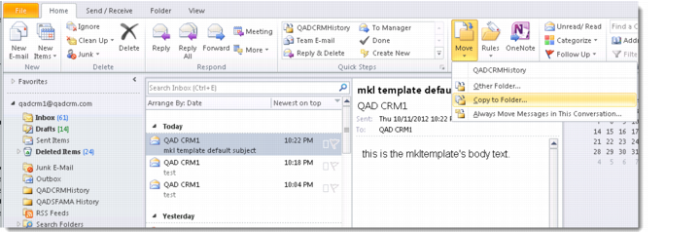
For the users who use Microsoft Outlook and Outlook Access, copy the e-mail from a CRM contact to the QADCRMHistory folder using the Copy to Folder option. The e-mail is brought into QAD CRM when the Admin Service checks for new e-mails from the exchange server.
Copy an E-mail to the QADCRMHistory Folder
To manually synchronize an e-mail from Mobile Microsoft Outlook and other mail clients using Active Sync, forward the e-mail from a CRM contact to the QAD Mail Room Address. You can get the address from the Emails tab in Settings|Mail Server Integration|Settings and Switches. In the Subject field of the forwarded e-mail, include the e-mail address of the original e-mail sender and the original subject. Use a pipe character (|) to separate the e-mail address and the subject.
Example:
Original Subject: Re: Quotation
Subject in the forwarded e-mail:
[email protected]| Re: Quotation