Searching Profiles and Contacts
As you use the system, over a period of time, you can have a large database of profile and contact details. When the list of profiles and contact persons becomes large, locating specific details becomes tedious.
The system provides a powerful search facility to help you locate specific profiles and contact persons. Using this feature, apart from finding the required profiles and contacts, you can also perform various tasks related to them. These tasks include editing profile and contact person records, copying the profile address label to a clipboard, and generating reports.
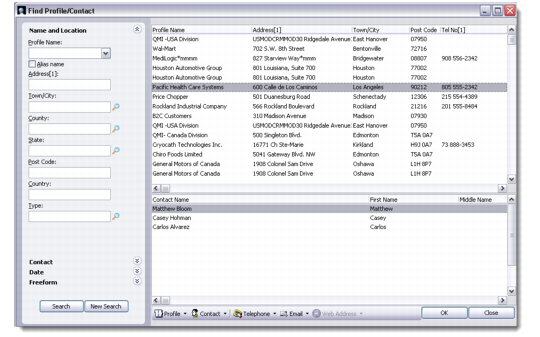
The Search a Profile or Contact facility finds and displays records that match the search criteria you specify. To start a search, choose Main Menu|Sales/Marketing Management|Addresses|Search a Profile or Contact.
Search a Profile or Contact
You can perform a search based on any of the criteria described in the following table.
Search Options in Profiles and Contacts
Search Criteria | Action |
Name and Location | Enter any or all of the listed fields that include profile or alias name, address, town/city, county, state, post code, country, and profile type. |
Contact | You can search for a contact by giving name details, position description, or mail groups the contact belongs to. |
Date | This search allows you to enter a date range, and displays all records created or modified during the selected period. It also helps to search profiles or contacts by their creation or modification dates. |
Freeform | Select the basis of the search by clicking a radio button. The available options are Profile, Contact, Site Address, and Transaction History. For example, you can perform conditional search for history text. Click the Transaction History radio button. Enter the field operator values as Notes contains Send Quotation. The system displays all records where the text “Send Quotation” appears for processed activities. You can also enter an associated condition. For example, you are looking for the profile type Architect. Select the Profile radio button. Select Type from the Field drop-down. Select a Condition and apply an appropriate value to it, as in the profile type begins with Ar. Click Search to display a list of profiles who are architects. |
Note: The system performs the search only on the basis of the open or highlighted tab. Information entered in other tabs is not taken into account.
You can define multiple search conditions using the Search a Profile or Contact facility.
Example: If you enter Town/City as New York and select Type as Customer, the system will match both. So only those profile records will display where Town/City matches New York and Type matches Customer.
You can also perform a search by using the Search button available on the CRM toolbar. This button is available for the All Profiles and Contact Persons sub-modules only. This search option picks preferences left to right, and displays records top to bottom. It also lets you specify conditions for an extended search.