Working with Profiles
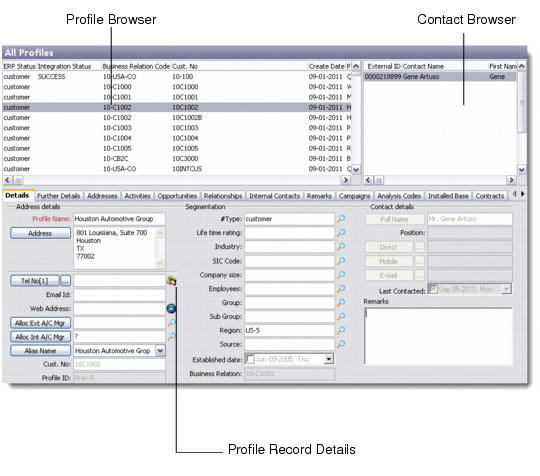
Choose Main Menu|Sales/Marketing Management|Addresses|All Profiles to open the All Profiles screen. This screen has three parts—the top half contains the profile and contact browsers while the bottom half displays profile record details.
The profile browser displays the list of profile records in the database, while the bottom half opens the selected record in edit mode. If you select multiple profile records from the browser, you can view details for the last selected record. The contact browser displays the contact details for the selected profile record. You can right-click this area and add, edit, copy, or delete contact details.
All Profiles
There are multiple ways to edit a profile record. Select the record and do one of the following:
• Click the Edit button on the toolbar.
• Right-click and choose Edit.
• Choose Edit from the File menu.
Note: Similar options are available for Add and Delete.
To view the list of profile records where the names start with a specific letter or character, click the appropriate letter or select the character from the drop-down list before the alphabet buttons. To view the list of all contact persons, click the All button after the alphabet buttons.
Note: You can choose to show or hide the alphabet buttons through the toolbar option View|Alpha Tabstrip.
You can add, modify, and delete profile records from the All Profiles sub-module. You can also send profile details to remote nodes for data synchronization purposes. If QAD ERP integration is enabled, profile information can also be sent to the QAD ERP application database using the Send to QAD ERP option.
You can access and edit details of the contacts associated with a selected profile from this sub-module directly. To do so, select a contact from the browser, and click the Contact button on the toolbar. Select the required tab. The Contact Details screen opens to let you view or edit contact details.