Filtering Standard Reports
The system lets you define filters for viewing standard reports. The filter criteria work in two ways. For some reports, the filter criteria can be defined from the report viewer itself; for others, it appears before the actual report is displayed.
The filter criteria can be defined from the report viewer directly by clicking the Filter button. This option works for the following reports:
• Activity Summary Report
• History Report
• Planned Activity Report
• Synchronization Status Report
• User Summary Report
After defining the filter settings, click View Report to display the report according to your specifications. Use the Filter button to adjust the display area for the actual report.
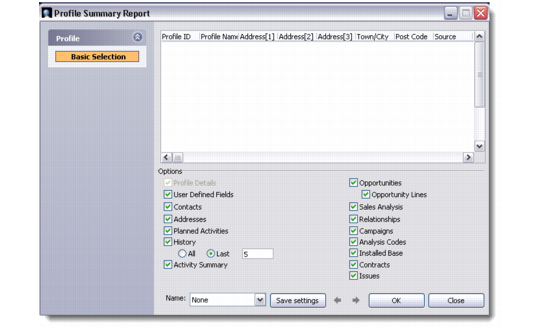
The Filter button does not appear on the toolbar for those reports where the selection criteria are defined before the report display. When you run these reports from the Reports screen, a filter settings window displays where you define the selection criteria. This option works for the following reports:
• Profile Summary Report
• Opportunity Report by Sales Rep
• Installed Base Report
Profile Summary Report - Filter Settings
If your QAD CRM system is integrated with the QAD ERP application, the Profile Summary Report filter settings window displays an additional filter called QAD ERP options.
As for standard reports, you can similarly filter all external reports.