Defining New Dashboards
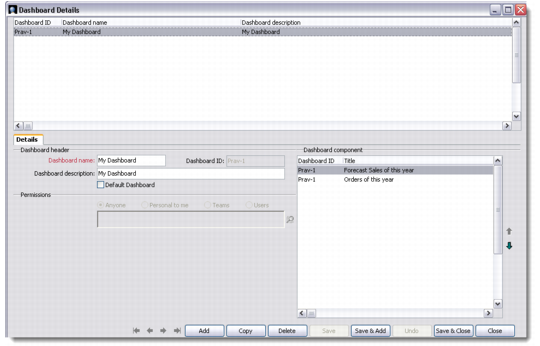
Click Edit on the dashboard toolbar to open the Dashboard Details screen. The Dashboard Details screen has two parts—the top half is a browser displaying the list of existing dashboards, while the bottom half opens the selected dashboard in edit mode.
To define a new dashboard, right-click in the browser area and choose Add.
Details
Use the Dashboard Header area to record basic details.
Dashboard Name
Enter a name for the new dashboard you are defining.
Dashboard ID
This is a system-generated, unique code that appears when you save the new dashboard details.
Dashboard Description
Enter a description for the dashboard you are defining.
Default Dashboard
Select this check box if you want the new dashboard to display as the default.
Dashboard Permissions
Select the appropriate radio buttons to indicate who will have permission to view the new dashboard.
Dashboard Component
Right-click to add a new component from the four options available—Activity Summary, Forecast Sales, Sales, and Top/Neglected Object. You can also copy a component from an existing dashboard. Use the up and down arrow keys to specify the placement of each component on the screen.
Dashboard Details