Creating Scripts
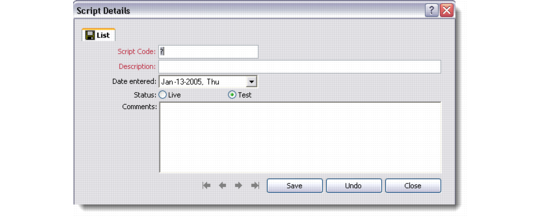
Use the Script Details dialog box to create a script.
1 From the application menu, choose Scripts. The List pane displays scripts currently defined in the system as a hierarchical tree.
2 With the root Available Scripts item selected, right-click the Scripts tree view and choose New Script from the menu.
Note: This menu also contains additional options for working with scripts. If an attempt is made to delete a script, an alert message displays.
Script Details
Script Code
Enter a unique code to identify the script.
Description
Enter a description of the script.
Date Entered
Enter the date on which the script was added to the system.
Status
Select a status for the script.
Test. Select this option to indicate the script is not yet ready for a live environment.
Note: It is recommended that you do not use a test script for live data collection: you will lose all previously collected answers once you convert a test script to a live script.
Live. Select this option to indicate the script is being used in a live or production environment.
Comments
Enter descriptive comments as required.
Note: To target information for existing scripts, click the name of the script in the List pane. The Target browse displays showing target information for the selected script, along with associated contacts and the date on which the script was run last.