Processing Scripts
After attaching the script to the profile/contact combination, the script can be processed. Processing a script entails using the script to guide your questions and capturing your target’s responses.
Important: It is recommended that you do not use a test script for live data collection: you will lose all response data once you convert a test script to a live script.
Scripts can be processed from the list of profiles/contacts in the Scripts module, from the Scripts tab in the All Profiles module, or from the Activities screen.
1 Do one of the following:
a To process a script from the Scripts module: From the application menu choose Scripts. Select a script from the browser on the left. Right-click the browser on the right and choose Process.
b To process a script from the Profile Details screen: Click the Scripts tab. Right-click the browser and choose Process.
c To process a script from the Activities screen, right-click the activity and choose Process.
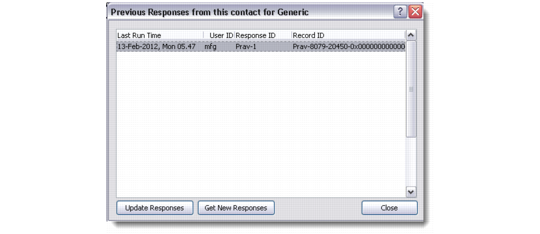
2 If previous responses exist, the Previous Responses box displays, showing the previous responses for the selected script and profile/contact. Otherwise this box does not display.
Previous Responses
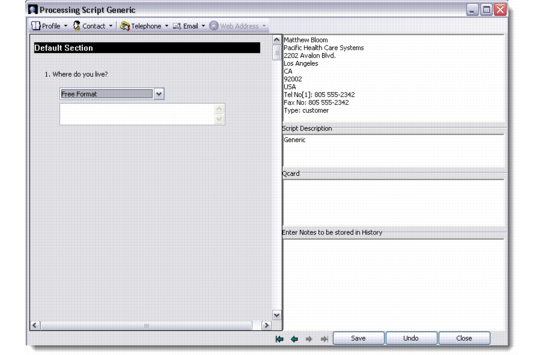
3 To update an existing response, select the response record and click Update Responses. To obtain fresh responses, click Get New Responses. The Processing Script dialog box displays.
Processing Script
4 Call the contact and follow the script to guide the interview and capture their responses.
5 Enter any information required in the Enter Notes to be stored in Transaction History. This information is available from the Activities tab of the profile.