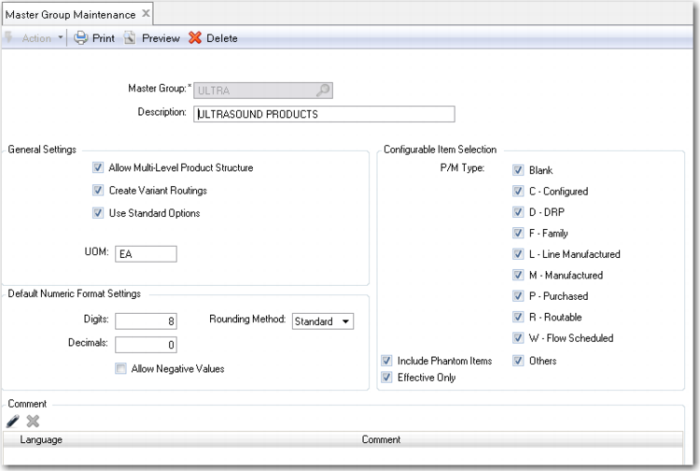
Master Group Maintenance
When you have defined different groups, you can categorize information in QAD Configurator. In other words, you can store and maintain various models separately, such as by product features, sales configuration rules, or product configuration rules.
When you create a group, you can also set up various defaults and settings that control the way QAD Configurator operates within this group only. For example, you can set up the default number of digits and decimals that are used for numeric variables and features created in the group. You can select a default rounding method. You can specify whether single-level or multi-level product structures are used. And you can specify whether to generate variant routings for products configured in a group.
Exercise 2: Master Group Maintenance
Use Master Group Maintenance to verify the default settings for using QAD Configurator or to enter them. Make sure that your entries are consistent with the data in the following table.
Field | Entry |
Master Group | ULTRA |
Description | Ultrasound Products |
General Settings | |
Allow Multi-Level Product Structure | Selected |
Create Variant Routings | Selected |
Use Standard Options | Selected |
UOM | EA |
Default Numeric Format Settings | |
Digits | 8 |
Decimals | 0 |
Allow Negative Values | Not selected |
Rounding Method | Standard |
Configurable Item Selection | |
P/M Type | Select all check boxes |
Phantom Item | Selected |
Effective Only | Selected |
Note: Many QAD Configurator menus contain information that belongs to a certain group. In this case, you can see the current group in the toolbar at the top of the screen.