General Rule Maintenance
If a rule applies to more than one item, we do not have to enter it for every item separately. Instead, we can define the rule and then link it to as many items as we want.
Exercise 9: General Rule Maintenance
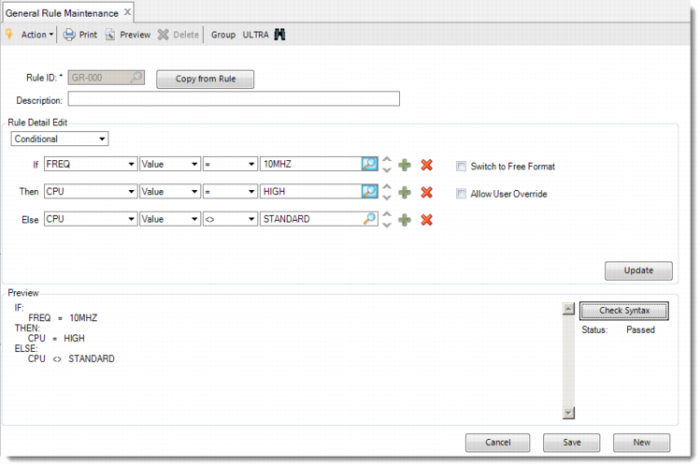
Run General Rule Maintenance and create the following rule by following the instructions.
Rule ID | Rule Syntax |
GR-000 | if frequency = 10MHz then CPU = high else CPU = standard. |
1 Enter GR-000 in the Rule ID field and press Enter.
2 In the Rule Editor pane, select Conditional rule type to display the If, Then, and Else statements.
3 In the If statement, select FREQ, Value, =; then click the Browse button and select 10MHz from the Variable Options box.
4 In the Then statement, select CPU, Value, =; then click the Browse button and select high from the Variable Options box.
5 In the Else statement, select CPU, Value, <>; then click the Browse button and select standard from the Variable Options box.
6 Click the Update button to display the rule you are composing in the Preview pane.
7 Click the Check Syntax button to check whether the rule syntax is correct. If the rule is valid, you can see the status Passed under the button. Otherwise, a Rule Check Configuration window pops up, displaying detailed error messages.
8 You have created a basic rule. Since we will not use this rule in our model, click Cancel to back-out from the rule without saving.
Note: You can also use rules to set defaults. For numeric features, you can set minimum, maximum, and multiple quantities. For example, if the unit type is top display, we can set the maximum height of the unit to 120.
We will now add a more complex rule which we will use in our model. This rule will use attributes. Enter the following rule:
Rule ID | Rule Syntax |
GR-001 | if U-type = Top Display then U-height:max = 120 and
U- depth:default = 100 and U-width:min = 60 else U-height:max = 200 and U-depth:default = 60 and U-width:min = 80 |