Item Rule Maintenance
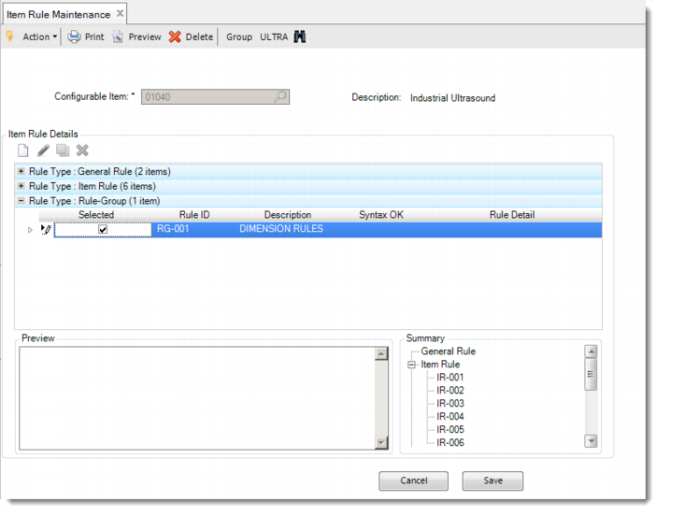
In Item Rule Maintenance, you can link general rules or rule groups to configurable items. You can also create new rules that apply for a specific configurable item. New item-specific rules can be entered directly or copied from a general rule.
Exercise 11: Item Rule Maintenance: Link Rule-Group
Use Item Rule Maintenance to link the rule group RG-001 to the Industrial Ultrasound by selecting it. Save it and see the Summary pane showing the link that you created.
Rule-Group ID | Item to link this rule to |
RG-001 | 01040 (Industrial Ultrasound) |
So far we have discussed how we can define general rules, how we can link general rules to items through rule groups and how we can link them to items directly. And we saw how we can define an item-specific rule by converting a general rule.
Item-specific rules can be entered directly — that is, without first entering a general rule and then modifying it. An item-specific rule that is entered directly only exists for that particular item and cannot be used elsewhere.
Exercise 12: Item Rule Maintenance: Create Item Rule
We now want to add the rules for the various levels of configurable items. Run Item Rule Maintenance to add the item-specific rules as follows. Some of the rules for item 50020 require the use of attributes.
Item | Rule ID | Item-Specific Rule |
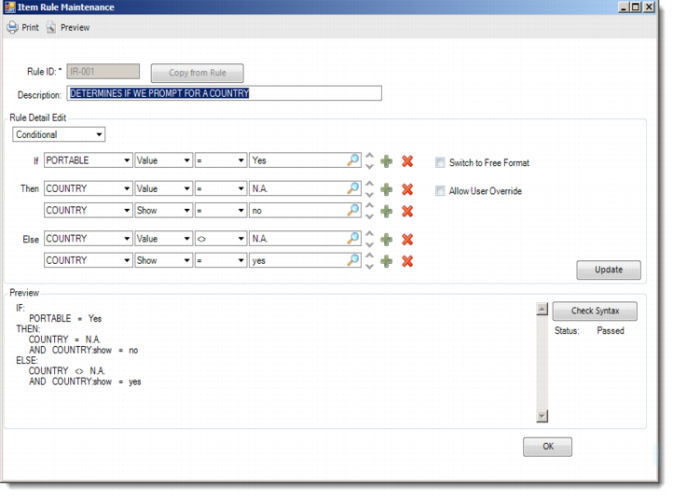
01040 | IR-001 | if portable = Yes then country = N.A. and country:show = No else country <> N.A. and country:show = Yes |
01040 | IR-002 | If backup = No then backup-type = N.A. else backup-type <> N.A. |
01040 | IR-003 | ASSIGN: model=1 |
50020 | IR-501 | If painted = Stainless then U-color = N.A.and U-Color:show = No else U-color <> N.A. and U-color:show = Yes |