General Rule Table Maintenance
Using General Rule Table Maintenance you can define general rule tables. They can be linked to one or more items later on.
Exercise 15: General Rule Table Maintenance — Manual entry
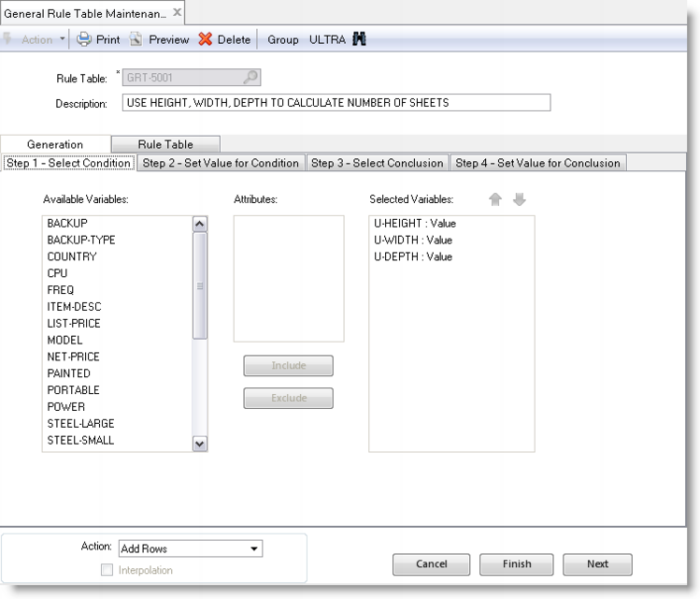
Run General Rule Table Maintenance. Enter the table ID and a description. Now go to Step 1 and select the variables as follows (you can select several condition variables at the same time).
Rule Table | Condition Variables |
GRT-5001 | U-height (value) U-length (value) U-width (value) |
Press Next twice to skip Step 2 and go to Step 3. Select the result variables as follows (again, you can select several condition variables at the same time).
Rule Table | Result Variables |
GRT-5001 | steel-small (value) steel-large (value) |
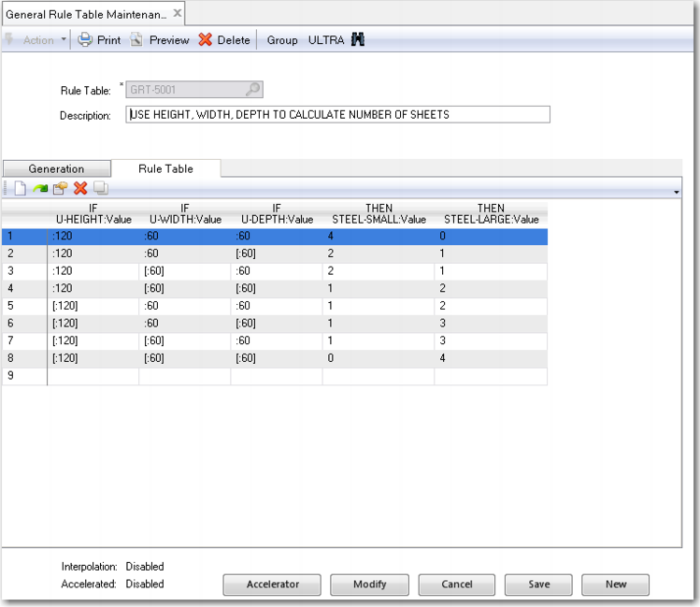
Press Finish. The system informs you that no records have been created automatically. Then go to the Rule Table tab.
Now enter these rules in the table:
Row | IF U-height: Value | IF U-width: Value | IF U-depth: Value | THEN steel-small: Value | THEN steel-large: Value |
1 | [:120] | [:60] | [:60] | 0 | 4 |
2 | [:120] | [:60] | :60 | 1 | 3 |
3 | [:120] | :60 | [:60] | 1 | 3 |
4 | [:120] | :60 | :60 | 1 | 2 |
5 | :120 | [:60] | [:60] | 1 | 2 |
6 | :120 | [:60] | :60 | 1 | 1 |
7 | :120 | :60 | [:60] | 2 | 1 |
8 | :120 | :60 | :60 | 4 | 0 |
(Row 1 says: If housing-U > 120 and U-width> 60 and U-depth > 60, then steel-small =0 and steel-large = 4.)
Have a look at the formula by choosing the Preview button on the toolbar. It shows the contents of the selected row, in the form of a complex rule.
Some special keys for navigating through the Table and for doing some simple actions are listed in the following table.
Keyboard Keys | Meaning |
Arrow key up | Go one cell up |
Arrow key down | Go one cell down |
Page Up | Go 12 cells up (if available) |
Page Down | Go 12 cells down (if available) |
Home | Go to the first row in the rule table |
End | Go to the last row in the rule table |
Tab | Go one column to the right |
Shift+Tab | Go one column to the left |
Ctrl+G | Go to the row with the given row number |
Ctrl+F | Start the Search and Replace function |
Exercise 16: General Rule Table Maintenance: Auto-Generation
General Rule Table Maintenance also enables you to add rows (rules) to a table or to delete rows from a table in an easy way. It is especially useful when the rules you want to add or delete are reflecting most combinations of input (If) and output (Then) criteria.
Enter the following rules in the table GRT-002:
Row | IF country: Value | IF freq: Value | IF CPU: Value | THEN power: Value |
1 | AUSTRALIA | 500kHz | Standard | Standard |
2 | AUSTRALIA | 10MHz | High | Smart |
3 | UNITED KINGDOM | 500kHz | Standard | Standard |
4 | UNITED KINGDOM | 10MHz | High | Smart |
5 | UNITED STATES | 500kHz | Standard | Standard |
6 | UNITED STATES | 10MHz | High | Smart |
Run General Rule Table Maintenance. Enter the table ID (GRT-002) and a description.
1 Select the variables as follows. You can select several condition variables at the same time.
Rule Table | Condition Variables |
GRT-002 | country (value) freq (value) CPU (value) |
2 Select the following values:
• country is AUSTRALIA, UNITED KINGDOM, or UNITED STATES
• freq is either 500kHz or 10MHz
• CPU is either Standard or High Performance
Note: The options for the variable country are provided through a browse. Click the Add Value button to manually add the required countries.
3 Select the result variables as follows:
Rule Table | Result Variables |
GRT-002 | power (value) |
4 Select power as Standard.
Note: Because power is a result variable and because you are adding rows, you can only enter one option for power.
The system generates all possible combinations of the options you entered and adds a rule to the table for every combination it created. It also reports the number of rows it has added to the table. Click OK to close this message and move to the Rule Table tab. The table contains 12 rows.
Now you can manually edit the rules. Delete the rules that have been created that you do not need. Manually change the cells in which power does not have the correct value.
Note: When you delete a row, the system updates the numbers of the remaining ones. Therefore, it is better to delete the rows in descending order. To delete a rule (row), position the cursor in the cell containing the row number, click the mouse to select the row, then press the Delete button on the toolbar.
Any rules added automatically to a rule table can be modified manually at any time.
Experiment a little with the different formats of the entries. See the list of possible formats that was given earlier. To enter something in a cell you can type it directly in the cell, or select it from the option list you can switch on using the Options icon on the toolbar. You can enter the straight brackets by hand or click the Exclusion check box in the option list. You can also create lists by highlighting more than one option in the option list. For other special symbols, type them manually. We do not link this general rule table to any item.