Questionnaire Sequence Maintenance
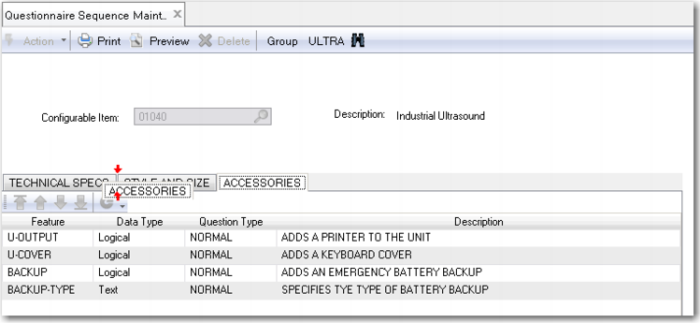
Configuration Analyzer determines the question sequence in the questionnaire. Questionnaire Sequence Maintenance lets you manually rearrange the questions.
Exercise 27: Questionnaire Sequence Maintenance
Run Questionnaire Sequence Maintenance and define the feature order.
Exercise 28: Configurator Questionnaire
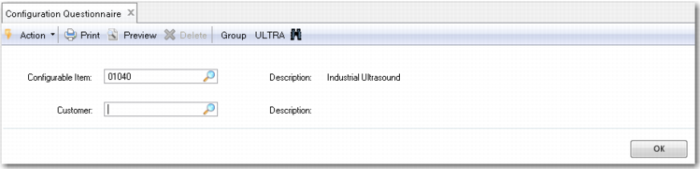
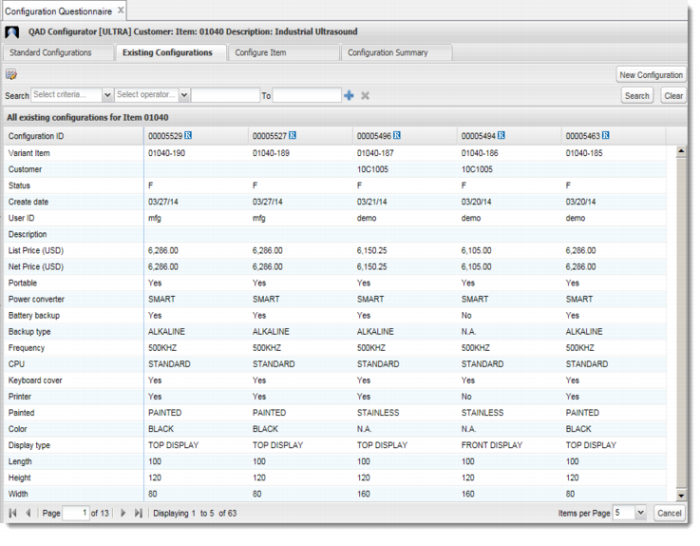
Run Configuration Questionnaire. Select the Industrial Ultrasound (01040), leave the Customer field blank and click the OK button. You can see a list of Configuration IDs of previously created configurations, along with their variant item number (if available) and some other characteristics. If there are no existing configurations, the list is empty.
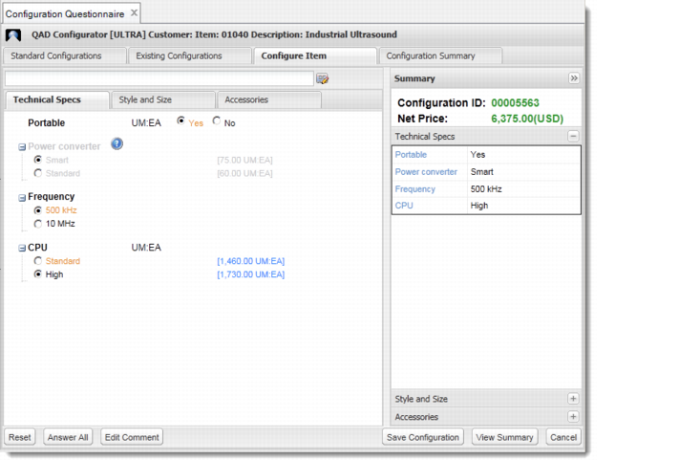
Choose New Configuration. The window you are looking at now contains the actual questionnaire. The left section of the screen displays the questions specified using the programs in the Sales Configuration menu. On the right side, you can see a summary panel.
You can customize the questionnaire settings whether to display temporary and background questions. To customize the questionnaire, click the Customize icon next to the message bar in the Configure Item screen.
In the Configure Item screen, questions are grouped under corresponding functional group tabs.
Note: When there are multiple language records for functional group names, option questions, option answers, and user messages, the questionnaire shows in the language of the user who runs the questionnaire.
As a questionnaire respondent, you can switch among different functional group tabs to view and answer questions. If no functional group is defined, all questions are listed under a single tab.
To automatically answer the questionnaire, click the Answer All button to answer all the questions using their default options. For questions with no default answers, the first option is used. Errors occur when you provide an invalid value for an answer or when your answer violates option dependency rules. In this case, an alert icon appears next to the question and the message bar displays relevant error messages. Fix all errors to successfully complete the questionnaire.
Now create a configuration by answering the questions. Note how the answer to one question can affect the list of feasible answers to other questions.
After you have answered all questions, click View Summary. In the Summary screen, you can review answers that you have provided, save your configuration, view similar configurations, and finally create a variant item based on your configuration.
To submit your completed configuration, click the Save Configuration button at the bottom of the Configuration Summary screen. A new configuration record is created with a new configuration ID.
Note: Different combinations of configuration-selection, auto-select, and configuration-retention values in Configurable Item Maintenance determine how the system behaves when a configuration is saved and how variant items are created.
Your current configuration is displayed on the left of the Existing Configurations screen with all the configurable item questions and the answers you have provided.
Create a variant from your new configuration by clicking the C icon on the Variant Item row.