Pricing
>
Pricing: Use Pricing Without Pricing Rules
Pricing: Use Pricing Without Pricing Rules
Exercise 33: Use Pricing Without Pricing Rules
Before you enter the data, read the flow of the exercise:
• Calculate the price of a variant of item 01040. We base the price of a variant item on the technical specifications, the style, and the accessories selected to illustrate the pricing functionality.
• To include the steel that is used to build the housing in the price of the variant item, we assign pricing parts to the variables steel-large and steel-small. As these variables are numeric, select the Quantity Based check box in Variable Maintenance. In this way, QAD Configurator interprets the value entered in the questionnaire as the number of units of the component.
• The prices of the remaining features are incorporated by linking the respective items as pricing parts to the options that can be in the questionnaire.
• This exercise does not contain pricing rules. The use of pricing rules is illustrated in the next exercise.
The items which are used in this example have selling prices defined in Item Master Maintenance.
Note: QAD Configurator supports best pricing so you can also use Price List Maintenance (1.10.1.1) in the Master Data module to define list prices and discounts for pricing parts.
Run Variable Maintenance and add the following pricing information to the variables:
Variable | Pricing Part | UM | Quantity Based |
steel-large | 60091 | EA | Selected |
steel-small | 60090 | EA | Selected |
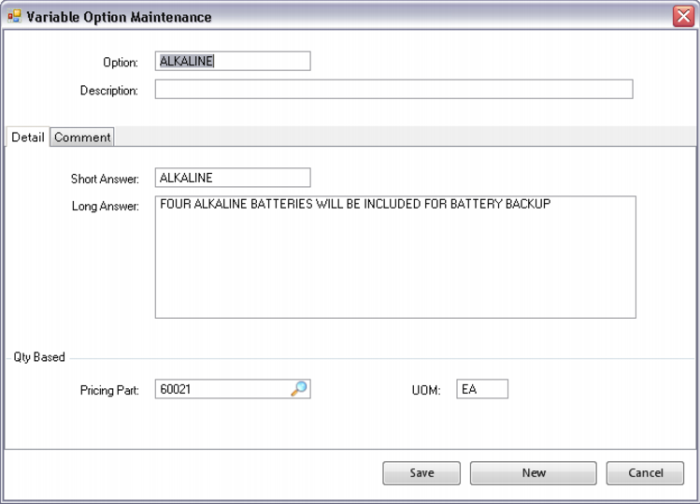
Run Variable Maintenance and add the following pricing information to the existing options:
Variable | Option | Pricing Part | UM |
backup-type | Alkaline | 60021 | EA |
| NiCd | 60023 | EA |
| Lithium | 60022 | EA |
CPU | High | 60052 | EA |
| Standard | 60050 | EA |
Freq | 500kHz | 50002 | EA |
| 10MHz | 50001 | EA |
Portable | Yes | 60005 | EA |
Power | Smart | 60089 | EA |
| Standard | 60088 | EA |
U-color | Black | 60061 | GL |
| White | 60020 | GL |
| Standard | 60062 | GL |
U-cover | Yes | 60015 | EA |
U-output | Yes | 60008 | EA |
Note: Run Feature Maintenance to specify pricing information for the feature options that do not have Std Options selected. It is not necessary to Run Feature Maintenance in this exercise because all the feature options we are using for pricing have Std Options selected.
Run Variable Maintenance and define two new numeric variables in which the total best list unit price and the total best net unit price of the configuration can be stored.
Variable | Data Type | Extent | Question/Temporary | Question Type | Functional Group |
list-price | Numeric | 1 | Question | Special | Technical Specs |
list-price | Numeric | 1 | Question | Special | Technical Specs |
Now run Configurable Item Maintenance. Select the Industrial Ultrasound (item 01040) and enter the following data:
Item | Calculate Configuration Price | List Price Variable | Net Price Variable |
01040 | Selected | list-price | net-price |
The last two entries tell QAD Configurator to store the best list unit price and the best net unit price of the configuration in the variables list-price and net-price respectively. QAD Configurator automatically converts the variables list-price and net-price to features of the item so you do not have to link them to an item yourself first. You can use these features for all kinds of purposes. For instance, for calculations or to assign one of these prices to the Price field of the variant item (using Variant Item Data Rule Maintenance).
Run the Configuration Analyzer for item 01040.
Run Variant Item Data Rule Maintenance. The system stores the best net price of the configuration in the pt_price field of the variant item by entering the following assignment rule.
Item | Field | Assignment Rule |
01040 | pt_price | net-price |
Now run Configuration Questionnaire for item 01040 and select New Configuration.
Answer the questions for frequency, CPU, portable and the accessories. While you do so, check the following:
• View the Summary pane. The price of the configuration in the Summary pane changes when questions on the frequency, CPU, portable, or on the accessories are answered. The price is updated.
• The price of the configuration in the Summary pane only increases by the price of one unit of the selected battery. The product structure states that four batteries are required. A later exercise deals with the price of multiple batteries.
• Even though the question type of the features net-price and list-price is normal, these two features are not displayed in the questionnaire.
• Click the Customize icon next to the message bar in the Configure Item screen. A Customize screen appears. Experiment with the different values in the Price Type list.
• List Price: Displays the best list price of the pricing part associated with the current option multiplied by the current value of the pricing quantity.
• Net Price: Displays the best net price of the pricing part multiplied by the current value of the pricing quantity.
• Discount: Displays the discount percentage for the option. The discount in the Summary pane displays the discount percentage for the total configuration including only the questions that are answered.
• Manual Price List: Displays the ID of any manual price lists that have been selected. Manual price lists are covered later in the training.
• The price of the configuration displayed in the questionnaire is always the price of one unit of the configuration.
Now make sure that Price Type is set to Net Price, answer all questions, memorize the price of the configuration as shown in the Summary pane, and create a variant item.
Finally, run Item Master Inquiry (1.4.2) in the Master Data module for the created variant item. Check that the net price of the configuration is now stored in the Price field of the variant item.
Some points to be aware of:
• If you start the questionnaire from the sales order line and enter the quantity, the field values of List Price, Discount and Net Price fields are for one item unit.
• The price displayed in the Summary pane can differ from what you expect because unseen background features (if any) can have pricing information as well.
• You can view the temporary and background features by selecting the Show Temporary Questions and Show Background Questions check boxes in the Customize screen.
• It is not compulsory to enter a variable in the List Price Variable and Net Price Variable fields in Configurable Item Maintenance. If you do not enter anything, the best list unit price and the best net unit price of the configuration are still calculated and displayed in the Summary pane but not stored.