QAD Enterprise Asset Management 2017.1
>
User Guide
>
Navigation
>
Logging in to EAM
Logging in to EAM
You may use multiple logins, depending on your responsibilities. Login credentials determine access privileges.
• The user ID determines permissions. For example, a system administrator accesses more EAM system features than an inventory clerk does.
• Each site has specific security settings. Logging in to multiple sites can require multiple types of permissions.
Note: Your monitor display may differ from the images in this documentation due to security settings.
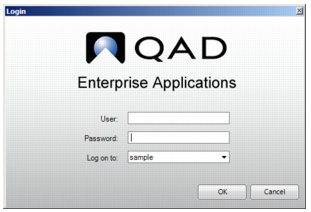
1 Double-click the QAD Enterprise Applications desktop icon.
2 Enter a user ID or e-mail address and password.
Note: The Password field is case sensitive, but the User field is not.
3 Accept the default domain.
4 Click OK.
QAD Enterprise Applications Login
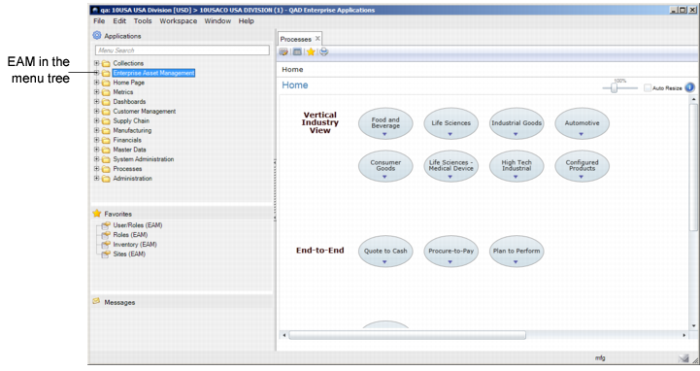
The QAD Enterprise Application main window opens, with the Enterprise Asset Management folder in the menu tree.
QAD Enterprise Application Main Interface