Issue Parts to a Work Order
If repair parts are needed for a work order, you can issue parts to that work order.
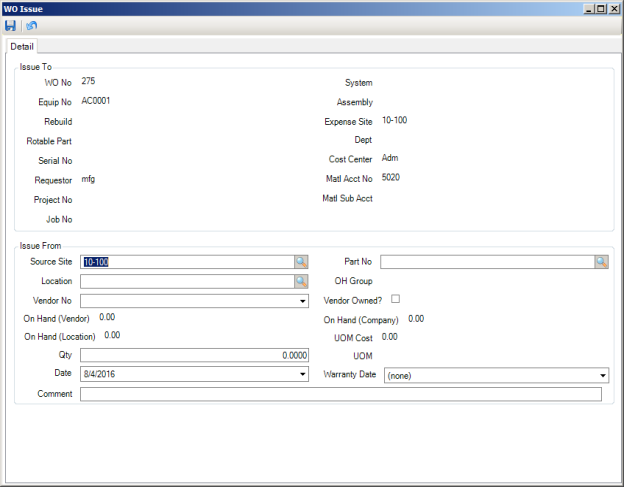
Follow these steps to issue parts to a work order:
1 Open the work order and select Issue Parts from the WO Action menu.
2 The WO Issue window opens. Enter the necessary information in the Issue From section.
WO Issue
Issue To
The data displayed in the Issue To fields defaults from the work order.
WO No
The default work order number to which to directly charge the part.
System
If you issue the part transaction against a piece of equipment with corresponding system codes, you can charge the part to this system as well as to the piece of equipment.
Equipment Number
The default equipment number to which to directly charge the part.
Assembly
A second code—the system code being established first—identified with a part issue transaction associated with a piece of equipment after the part is issued to that equipment.
Rebuild
If the work order was created to repair a rotable part, this field displays the rebuild location for the part.
Expense Site
This field defaults to the site on the work order.
Rotable Part
If the work order was created to repair a rotable part, this field displays the rotable part number.
Department
The department against which to charge the cost on the part expense.
Serial Number
If the work order was created to repair a rotable part, this field displays the serial number for the rotable part that is being repaired.
Cost Center
The cost center used when issuing and expensing the part.
Requestor
The user ID of the person requesting the part.
Matl Acct No
The sub-account number used when issuing the part.
Project Number
The capital or expense project number to which to issue the part.
Matl Sub Account Number
The sub-account number used with an account number when issuing the part.
Job Number
The job number (within a capital or expense project) to which to issue the part.
Issue From
Source Site
This editable field displays the current site.
Part Number
The part number to be issued to this work order.
Location
Select the location from which the part is issued. If there is more than one location available for this part, a list displays all the valid locations.
OH Group
Overhead Group. The part’s overhead group. You only need to specify an overhead group if your issuing procedure requires one. Select the overhead group to automatically add the predetermined cost to the part.
Vendor No
If the Vendor Owned? check box is selected, the system populates this field with the primary vendor for this part.
Vendor Owned?
Select this check box to indicate that a vendor owns the part. If this check box is cleared, the OH quantity is considered to be company owned.
On Hand (Vendor)
Using the information linked to the vendor specified in the Vendor field, this field displays the available OH quantity for the vendor-owned part.
On Hand (Company)
Displays the available on-hand quantity for the company-owned part.
On Hand (Location)
The quantity of parts that are available in the selected location that can be issued.
UOM Cost
This part’s cost per unit.
Quantity
Enter the quantity of parts to issue.
UOM
The unit of measure in which the selected part is issued.
Date
Today’s date.
Warranty Date
This field is reserved for a future use.
Comment
Enter comments about this action.
3 After entering the necessary information, click Save. The part is issued to the work order.
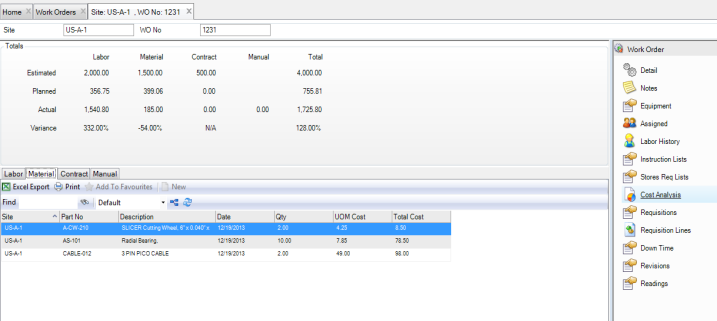
4 You can view the list of parts that have been issued to the work order in the Cost Analysis submenu on the Material tab.
Parts Issued to a Work Order
Issue Tools to a Work Order
If a tool is needed for a work order, you can issue tools to that work order.
Follow these steps to issue tools to a work order:
1 Open the work order and select Issue Tools from the WO Action menu.
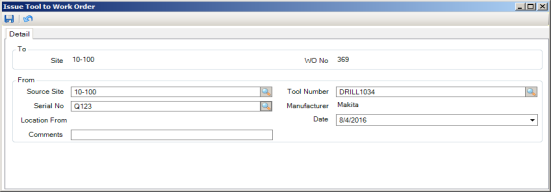
2 The Issue Tool to Work Order window opens. Enter the necessary information in the From section.
Issue Tool
Source Site
This editable field displays the current site.
Tool Number
The tool number to be issued to this work order.
Serial No
The serial number of the tool to be issued to this work order.
Note: You cannot issue a serialized tool that has a Location Status of Inspection or one that is entered on an open PM or CM WO.
Manufacturer
The serialized tool’s manufacturer, defaulted from the serial number.
Location From
The location from which to issue the tool, defaulted from the serial number.
Date
Today’s date.
Comment
Enter comments about this action.
3 After entering the necessary information, click Save. The tool is issued to the work order.
4 You can view the list of tools that have been issued to the work order in the Cost Analysis submenu on the Material tab.