User/Roles
Use this module to link users to roles in their required sites.
User/Roles Browse
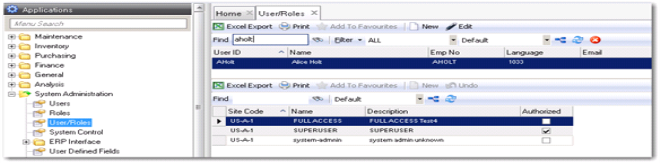
Access this browse from System Administration|User/Roles. Use it to organize and display records, to edit or create new records, or to export data to Excel.
The User/Roles browse consists of the top browse, listing users, and the lower browse, listing roles for each site.
User/Roles Browse
User/Roles Right-Click Menu
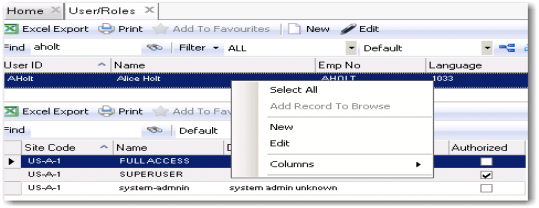
The right-click menu contains administrative functions and options from the Action menu.
User/Roles Right-Click Menu
Select All
Use Select All to highlight all the user records in the browse.
New
Use New to open the user/roles record detail to create a record.
Edit
Use Edit to open the user/roles record detail to edit the selected record.
Columns
A list of columns available to the browse displays here. Select a column header to display it. Clear the column header to hide it.
Creating a User/Role
1 Highlight the user in the upper browse. EAM displays available roles and sites for that user.
2 Select the check box to add a role. Authorized roles display predefined user permissions.
Note: If you highlight a user in the upper browse to add roles and nothing displays in the child browse, the user has not been assigned to any site in EAM. Go to System Administration|Users|User Site submenu to designate sites for this user.
Editing a User/Role
1 Highlight the user in the upper browse. EAM displays available roles and sites for that user.
2 Select the check box to add a role. Clear the check box to remove a role. Authorized roles display predefined user permissions.