Download
There are 12 shared tables in EAM. They are: Account, Sub Account, Cost Center, GL Calendar, Currency, Bill To, Ship To, Project, Vendor, Standard Clauses, and Terms. Update EAM with information from some or all of these shared tables.
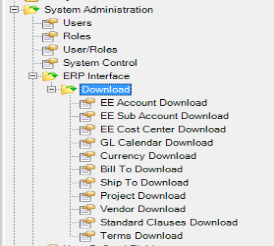
ERP Interface|Download
Note: When you are connected to a QAD EE database, the Account, Sub Account, and Cost Center options are listed as EE Account, EE Sub Account, and EE Cost Center.
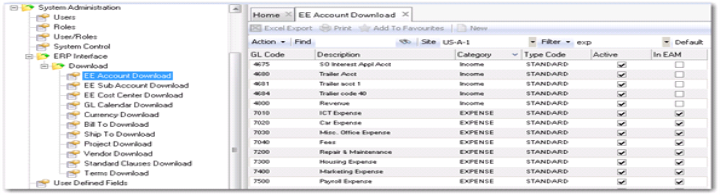
Account Download Browse
Access this browse from System Administration|ERP Interface|Download|Account Download. Use it to organize and display records, to access supporting functions, and to download new records.
The account download module allows users to download either all or to select account numbers to use in EAM. Downloading account numbers from QAD ERP also downloads corresponding sub-account and cost center relationships, which are then found at Finance|Accounting|Accounts.
Downloading a Single Account Code
1 Enter a complete or a portion of an account code in Find. Use Find to search for specific records. Find searches the column on the far left.
2 Highlight the required record in the browse, click Action, and select Download Account.
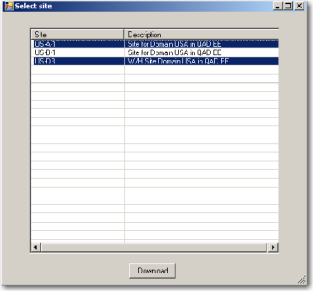
3 EAM presents the Select Site screen. Choose the sites to update with the downloaded data and click Download.
Downloading Multiple Account Codes
1 Enter a portion of an account code, description, or type in Find.
2 Highlight the required records in the browse using Shift to select a range or Ctrl to highlight non-sequential records, click Action, and select Global Download Account.
3 EAM presents the Select Site screen. Choose the sites to update with the downloaded data, click Download.
Account Download Browse
Account Download Select Site
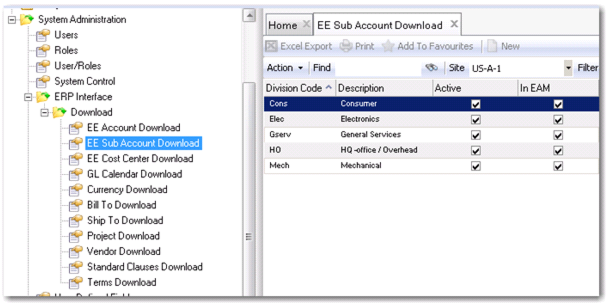
Sub Account Download Browse
Access this browse from System Administration|ERP Interface|Download|Sub Account Download. Use it to organize and display records, to access supporting functions, and to download new records.
The sub-account download option allows you to download either all or selected sub-account numbers to use in EAM. The download of sub-account numbers from QAD ERP also downloads corresponding account and cost center relationships, which are then found at Finance|Accounting|Sub Accounts.
Downloading a Single Sub-Account Code
1 Enter a complete or a portion of a sub-account code in Find. Use Find to search for specific records. Find searches the column on the far left.
2 Highlight the required record in the browse, click Action, and select Download Sub Account.
3 EAM presents the Select Site screen. Choose the sites to update with the downloaded data.
Downloading Multiple Sub-Account Codes
1 Enter a portion of a sub-account code, description, or type in Find.
2 Highlight the required records in the browse using Shift to select a range or Ctrl to highlight non-sequential records, click Action, and select Global Download Sub Account.
3 EAM offers the Select Site screen. Choose the sites to update with the downloaded data.
Sub Account Download Browse
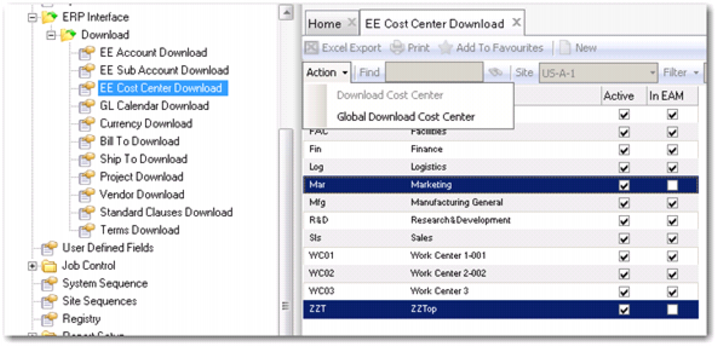
Cost Center Download Browse
Access this browse from System Administration|ERP Interface|Download|Cost Center Download. Use it to organize and display records, to access supporting functions, and to download new records.
The cost center download option allows you to download either all or selected cost centers to use in EAM. The downloading of cost centers from QAD ERP also downloads corresponding accounts and sub-account relationships that are then found at Finance|Accounting|Cost Centers.
Downloading a Single Cost Center
1 Enter a complete or a portion of a cost center code in Find. Use Find to search for specific records.
2 Highlight the required record in the browse, click Action, and select Download Cost Center.
3 EAM offers the Select Site screen. Choose the sites to update with the downloaded data.
Downloading Multiple Cost Centers
1 Enter a portion of a cost center code in Find.
2 Highlight the required records in the browse using Shift to select a range or Ctrl to highlight non-sequential records, click Action, and select Global Download Cost Center.
3 EAM offers the Select Site screen. Choose the sites to update with the downloaded data.
Cost Center Download Browse
Note: When the In EAM column’s check box is selected on the Account, Sub Account, or Cost Center Download screen, the codes have been downloaded to a site, but not necessarily to your current site.
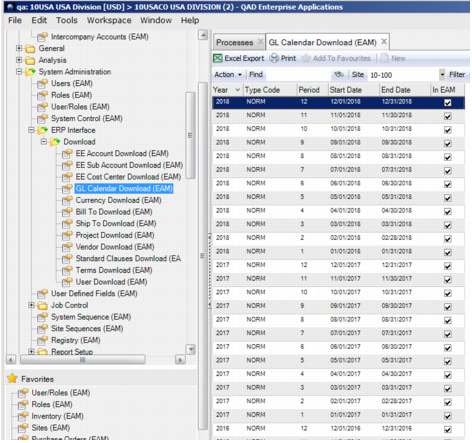
GL Calendar Download Browse
Access this browse from System Administration|ERP Interface|Download|GL Calendar Download. Use it to organize and display records, to access supporting functions, and to download new records.
The GL calendar download option allows you to download either all periods or selected GL calendar periods (or months) to use in EAM, found at Finance|Accounting|GL Calendar. The system displays the GL periods as they have been set up in QAD ERP.
Downloading a Single GL Calendar Period
1 Enter a year in Find. Use Find to search for specific records.
2 Highlight the required record in the browse, click Action, and select Download GL Calendar Period.
Downloading Multiple GL Calendar Periods
1 Enter a year in Find.
2 Highlight the required records in the browse using Shift to select a range of periods, click Action, and select Global Download GL Calendar.
GL Calendar Download Browse
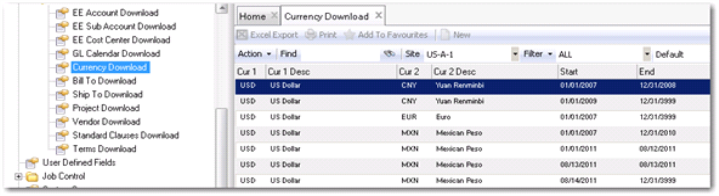
Currency Download Browse
Access this browse from System Administration|ERP Interface|Download|Currency Download. Use it to organize and display records, to access supporting functions, and to download new records.
The currency download option allows you to download either all rates or to select currency exchange rates to use in EAM, found at Purchasing|Currency. The currency download option from QAD ERP also downloads currency codes to EAM and the exchange rate relationships between those currency codes.
Downloading a Single Currency Exchange Rate
1 Enter a complete or a portion of a currency code in Find. Use Find to search for specific records.
2 Highlight the required record in the browse, click Action, and select Download Currency.
Downloading Multiple Currency Exchange Rates
1 Enter a portion of a currency code in Find.
2 Highlight the required records in the browse using Shift to select a range or using Ctrl to highlight non-sequential records, click Action, and select Global Download Currency.
Currency Download Browse
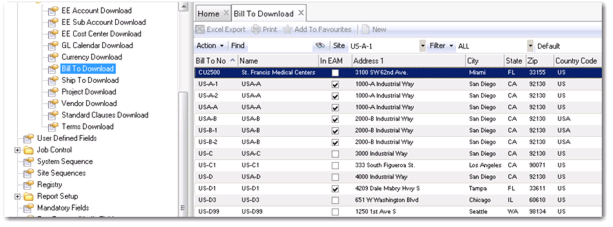
Bill To Download Browse
Access this browse from System Administration|ERP Interface|Download|Bill To Download. Use it to organize and display records, to access supporting functions, and to download new records.
The Bill To download option allows users to download either all bill to records or to select bill to address and contact data to use in EAM (Purchasing|Codes|Addresses|Bill To).
Downloading a Single Bill To Record
1 Enter a complete or a portion of a bill to code in Find. Use Find to search for specific records.
2 Highlight the required record in the browse, click Action, and select Download Bill To.
Downloading Multiple Bill To Records
1 Enter a portion of a Bill To code in Find.
2 Highlight the required records in the browse using Shift to select a range or Ctrl to highlight non-sequential records, click Action, and select Global Download Bill To.
Bill To Download Browse
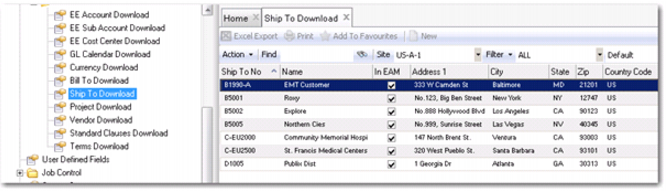
Ship To Download Browse
Access this browse from System Administration|ERP Interface|Download|Ship To Download. Use it to organize and display records, to access supporting functions, and to download new records.
The Ship To download option allows you to download either all ship-tos or selected ship to addresses and contact data to use in EAM (Purchasing|Codes|Addresses|Ship To).
Downloading a Single Ship To Record
1 Enter a complete or a portion of a ship to code in Find. Use Find to search for specific records.
2 Highlight the required record in the browse, click Action, and select Download Ship To.
Downloading Multiple Ship To Records
1 Enter a portion of a Ship To code in Find.
2 Highlight the required records in the browse using Shift to select a range or Ctrl to highlight non-sequential records, click Action, and select Global Download Ship To.
Ship To Download Browse
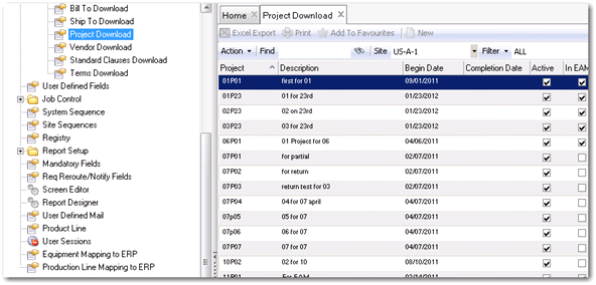
Project Download Browse
Access this browse from System Administration|ERP Interface|Download|Project Download. Use it to organize and display records, to access supporting functions, and to download new records.
The project download option allows you to download either all projects or selected projects to use in EAM. The project data downloaded from QAD ERP is found at Finance|Projects.
Downloading a Single Project
1 Enter a complete or a portion of a project code in Find. Use Find to search for specific records.
2 Highlight the required record in the browse, click Action, and select Download Project.
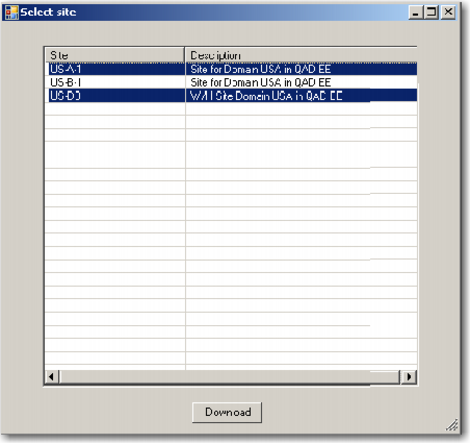
3 EAM offers the Select Site screen. Choose the sites to update with the downloaded data.
Downloading Multiple Projects
1 Enter a portion of a project code in Find.
2 Highlight the required records in the browse using Shift to select a range or Ctrl to highlight non-sequential records, click Action, and select Global Download Project.
3 EAM presents the Select Site screen. Choose the sites to update with the downloaded data.
Project Download Browse
Project Download Select Site
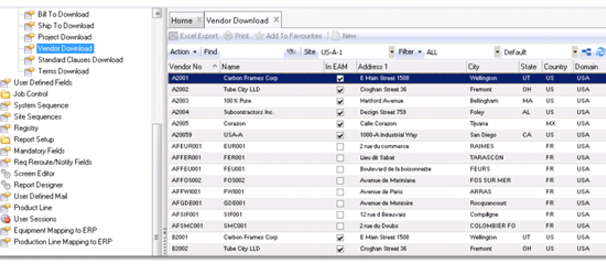
Vendor Download Browse
Access this browse from System Administration|ERP Interface|Download|Vendor Download. Use it to organize and display records, to access supporting functions, and to download new records.
The Vendor download option allows you to download either all vendors or selected vendor data to use in EAM (Purchasing|Vendor).
Downloading a Single Vendor Record
1 Enter a complete or a portion of a vendor code in Find. Use Find to search for specific records.
2 Highlight the required record in the browse, click Action, and select Download Vendor.
Downloading Multiple Vendor Records
1 Enter a portion of a vendor code in Find.
2 Highlight the required records in the browse using Shift to select a range or Ctrl to highlight non-sequential records, click Action, and select Global Download Vendor.
Vendor Download Browse
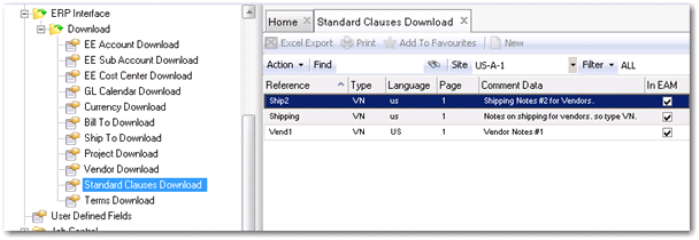
Standard Clauses Download Browse
Access this browse from System Administration|ERP Interface|Download|Standard Clauses Download. Use it to organize and display records, to access supporting functions, and to download new records.
The standard clauses download option allows you to download either all standard clauses or selected standard clauses to use in EAM (Purchasing|Standard Clauses).
Downloading a Single Standard Clause Record
1 Enter a complete or a portion of a standard clauses code in Find. Use Find to search for specific records.
2 Highlight the required record in the browse, click Action, and select Download Standard Clauses.
Downloading Multiple Standard Clauses Records
1 Enter a portion of a standard clauses code in Find.
2 Highlight the required records in the browse using Shift to select a range or Ctrl to highlight non-sequential records, click Action, and select Global Download Standard Clauses.
Standard Clauses Download Browse
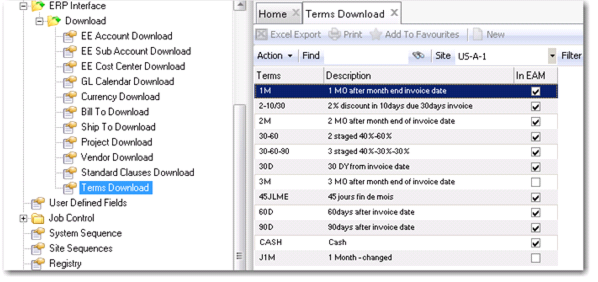
Terms Download Browse
Access this browse from System Administration|ERP Interface|Download|Terms Download. Use it to organize and display records, to access supporting functions, and to download new records.
The terms download option allows you to download either all terms or selected terms to use in EAM (Purchasing|Codes|Terms).
Downloading a Single Terms Record
1 Enter a complete or a portion of a terms code in Find. Use Find to search for specific records.
2 Highlight the required record in the browse, click Action, and select Download Terms.
Downloading Multiple Terms Records
1 Enter a portion of a terms code in Find.
2 Highlight the required records in the browse using Shift to select a range or Ctrl to highlight non-sequential records, click Action, and select Global Download Terms.
Terms Download Browse