User-Defined Fields
Use this module to add specialized fields. There are 80 user-defined fields in EAM. Modules with user-defined fields are Employee, Equipment, Inventory, Project, Job, Purchase Order, Requisition Line, Vendor, and Work Order. Each has at least ten user-defined fields. There are two lookup tables, integer fields, decimal fields, and at least two alphanumeric fields (not validated against any table). There is a date field and a logical field. These provide significant flexibility for tracking user-defined information against specific records in EAM.
Changes to the field labels for employee, equipment, inventory, project, job, purchase order, requisition line, vendor, and work order are displayed on the User Defined tab in that module. Changes to the field label for Character 1 or Character 2 are also displayed on the User Defined tab in that module. In addition, the change is shown in the codes folder for that module. For example, if the field label for equipment character 1 is changed, EAM displays the field label change as the name of the file folder at Maintenance|Equipment|Codes|Equipment|.
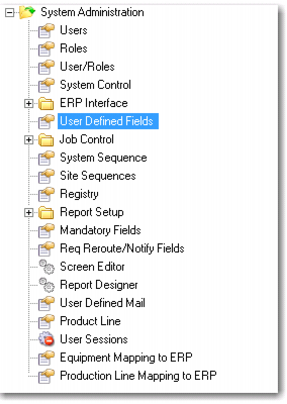
User Defined Fields Option
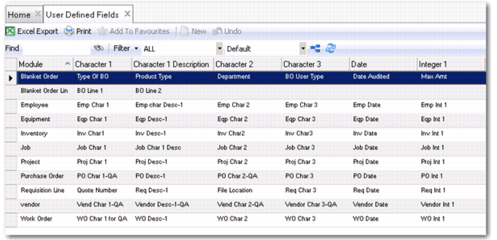
User Defined Fields Browse
Access this browse from System Administration|User Defined Fields. Use it to organize and display records, to access supporting functions, and to edit or create new records.
User Defined Fields Browse
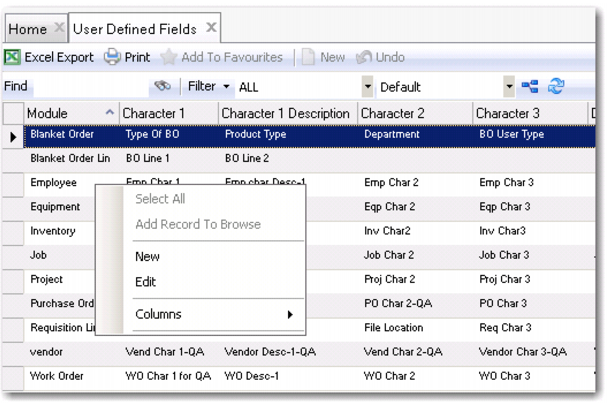
User-Defined Fields Right-Click Menu
The right-click menu contains administrative functions.
User-Defined Fields Right-Click Menu
New
Use New to open the user-defined record detail to create a record.
Edit
Use Edit to open the user-defined record detail to edit the selected record.
Columns
A list of columns available to the browse displays here. Select a column header to display it. Clear the column header to hide it.
Creating a User-Defined Field
1 Double-click the User Defined Fields option to display the User Defined Fields browse. This browse lists the modules that allow you to add a user-defined field, along with the field labels to edit or add.
2 Add a field label.
3 Close the user-defined fields browse by clicking the X on the top of the browse.
Editing a User-Defined Field
1 Double-click the User Defined Fields option to display the User Defined Fields browse. This browse lists the modules that allow you to add a user-defined field, along with the labels.
2 Edit a field label. Close the user-defined fields browse by clicking the X on the top of the browse.