Job Control Application
The Job Control Application is located under the System Administration module. Use this module to set up and schedule routine EAM functions as customized jobs. When these procedures or jobs are scheduled, they automatically run in the background at the appointed time by the Job Controller process. The Job Controller is a stand-alone Progress process that reads a list of jobs to run from the EAM database and spawns the jobs as stand-alone Progress sessions.
There are three submodules found in the Job Control Application: Job Control, Job Program, and Job Log.
Job Control Application
Job Control
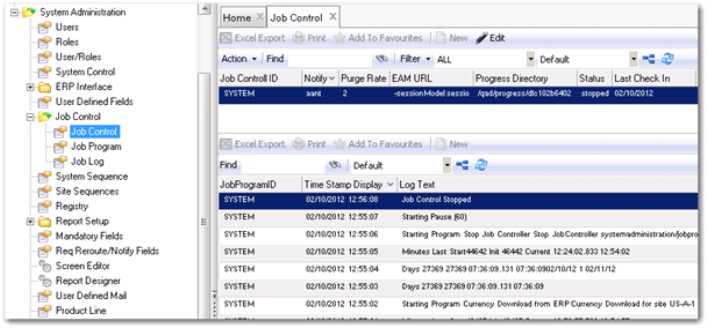
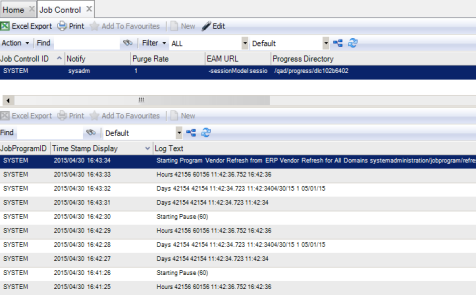
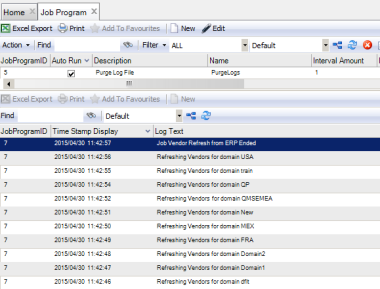
Job Control programs are written to perform specific routine EAM procedures. The Job Control programs are defined in the Job Program upper browse. The lower browse cannot be updated and displays the Job Control Log.
Job Control Browse
Access this browse from System Administration|Job Control|Job Control. Use it to organize and display records, to access supporting functions, and to edit records.
Job Control Browse
Job Control Action Menu
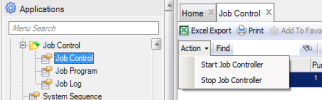
Choices available on this menu vary depending on context. Access the Action menu from the toolbar or from the right-click menu.
Job Control Action Menu
Start Job Controller
Use Start Job Controller to begin the Progress process that reads the list of jobs to run, and spawns them as stand-alone Progress sessions.
Stop Job Controller
Use Stop Job Controller to halt the Progress process sessions. This action does not terminate the jobs currently running, but prevents them from running again.
Job Control Right-Click Menu
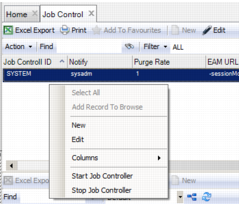
The right-click menu contains administrative functions and options from the Action menu.
Job Control Right-Click Menu
Edit
Use Edit to open the Job Control screen to edit the job control record.
Columns
A list of columns available to the browse displays here. Select a column header to display it. Clear the column header to hide it.
Start Job Controller and Stop Job Controller are options from the Job Control Action menu.
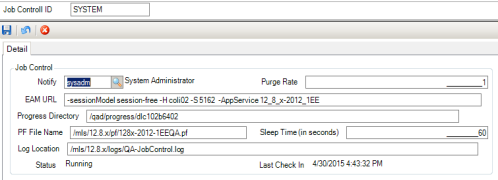
Job Control Record Detail
The record detail contains information about the job control record. The job control record name or job control ID displays over the Detail tab. There is only one job control record per database.
Editing the Job Control Record
1 Double-click the record from the browse or click Edit to open the Job Control record detail.
2 Verify the job control name.
3 Enter information in relevant fields on the Detail tab.
4 Click Save.
Job Control Record Detail
Notify
Enter the user or group of users to receive e-mail each time the job is run and completed. A lookup filters users in the user and mail groups.
Purge Rate
Enter the number of days to keep log records; for example, 45 purges log messages older than 45 days.
EAM URL
Enter the connection string for the EAM appserver broker.
Progress Directory
Enter the actual Progress root directory, usually ending in /dlc.
PF File Name
Enter the full path including the .pf file name.
Sleep Time
Enter the number of seconds the job starter sleeps between looking for jobs to run. Set this to something other than 0. The typical setting is 60 seconds.
Log Location
Enter the absolute path where job control logs are found and stored.
Status
EAM displays the status of the Job Controller: Running, Stopped, Starting, or Stopping. Typically, the Job Controller is Running or Stopped. It is in the Stopping status briefly when the Stop Job Controller action is selected.
Last Check In
EAM displays the last date and time the Job Controller checked in.
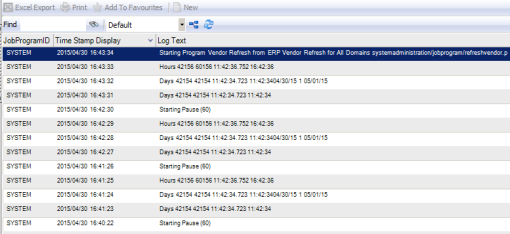
The lower browse displays the Job Program ID, Time Stamp Display, and Log Text. Additionally, the Log Level and Time Stamp can be displayed, if needed.
Job Control Lower Browse
Job Program
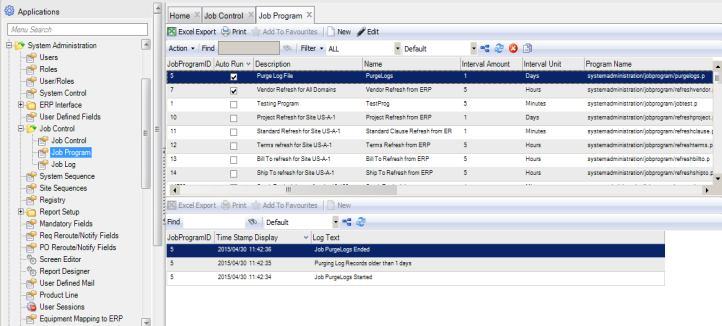
The Job Program consists of an upper and a lower browse. These programs are written to perform specific routine EAM procedures. The Job Control programs are defined in the Job Programs upper browse. The lower browse displays the Job Program Log.
Job Program Browse
Access this browse from System Administration|Job Control|Job Program. Use it to organize and display records, to access supporting functions, and to edit records.
Job Program Browse
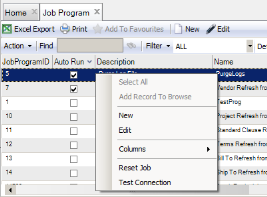
Job Program Right-Click Menu
The right-click menu contains administrative functions.
Job Program Right-Click Menu
Edit
Use Edit to open the Job Program screen to edit the job program record.
Columns
A list of columns available to the browse displays here. Select a column header to display it. Clear the column header to hide it.
Reset Job
Changes the job status from Running to Error. This allows the job controller to begin the job again at the next scheduled start time.
Test Connection
*Loads the parameters for the highlighted job and attempts to connect to the AppServer with the login information. If it is successful, the job status is Tested. If it is not successful, the job status is Error. The Job Log contains all of the information regarding the parameters and any possible errors that might occur during the Job Connection Test.
Editing the Job Program record
1 Double-click the record from the browse or click Edit to open the Job Program ID record detail.
2 Verify the job program ID.
3 Enter information in relevant fields on the Detail tab.
4 Click Save.
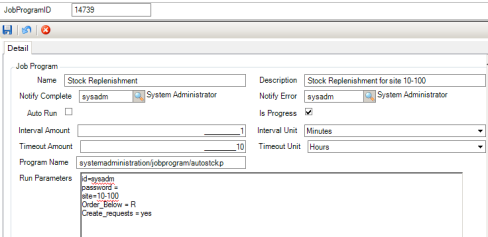
Job Program Record Detail
Name
Enter or update the name of the job program.
Description
Enter or update the description of the job program.
Notify Complete
Enter the user or group of users to notify with e-mail notifications when this job program is completed.
Notify Error
Enter the user or group of users to notify with e-mail notifications when this Job Program runs into a problem and does not run successfully.
Auto Run
Select this check box to have the Job Controller run this job automatically. Clear this check box to have the Job Controller ignore this job.
Is Progress
Clear this check box to have the Job Controller execute this job from the command line exactly as typed in the Program field.
Interval Amount
Enter the number of units between runs.
Interval Unit
EAM displays the unit options available in a drop-down menu: Minutes, Hours, or Days. Select the proper unit for this job.
Timeout Amount
Enter the number of units of time before the job stops running whether it is complete or not.
Timeout Unit
EAM displays the unit options available in a drop-down menu: Minutes, Hours, or Days. Select the proper unit for stopping this job.
Program Name
Review the program name for this job.
Run Parameters
Enter the free-form parameters for this job. A user ID and password are required for any job that uses an EAM Application Programming Interface (API). Many of the EAM jobs use APIs, which are used to call programs both internal and external to EAM. To ensure access to the EAM AppServer, an EAM user ID and password must be noted.
Enter the user ID parameter using the format “id=xxxxxxxxxxxx”, where xxxxxxxxxxxx is the desired user ID.
Enter the password parameter using the format “password= xxxxxxxxxxxxxxxx”, where xxxxxxxxxxxxxxxx is the user’s password.
Note: Because many organizations require EAM users to establish user IDs and passwords, it is recommended that you set up a virtual user. Virtual users serve a specific purpose and are not representative of or linked to an employee. For example, you could add a user “JOBCUSER” with a password of “jobcuser”.
Job Program Record Detail - Status Section
Last Start
EAM displays the last date and time the job started.
Last End
EAM displays the last date and time the job ended.
Last Run Status
EAM displays the status of this job program: Running, Completed, Error, or [blank]. Typically, the job program is in a status of Running or Completed.
Last Check In
EAM displays the last date and time the job was checked in. The Job Logger performs this check automatically or it is performed at-will by each job program.
Is System
Check box cannot be deleted but can be copied. This is a read-only field.
The lower browse displays the Job Program ID, Time Stamp Display, and Log Text. Additionally, the Log Level and Time Stamp can be displayed, if needed.
Job Program Lower Browse
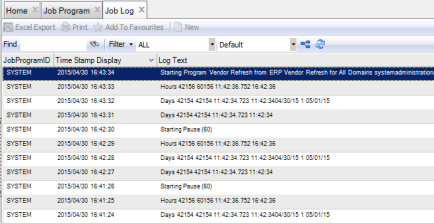
Job Log Browse
Job Log Browse
Access this browse from System Administration|Job Control|Job Log. The browse displays the same information shown on the lower browse of the Job Program screen, but for all job programs.