Mandatory Fields
Use this module to indicate that the user must provide data for critical fields. Mandatory fields are fields that must be populated before an action is taken such as save, put a purchase on order, or close a work order.
Mandatory Fields Browse
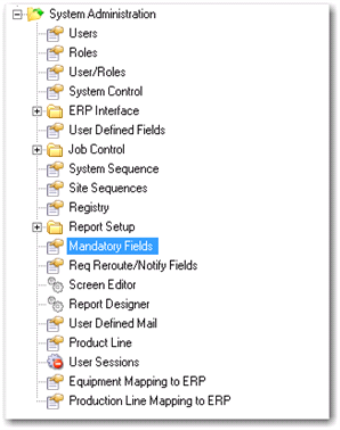
Access this browse from System Administration|Mandatory Fields. Use it to organize and display records, to access supporting functions, and to edit or create new records.
Mandatory Fields Option
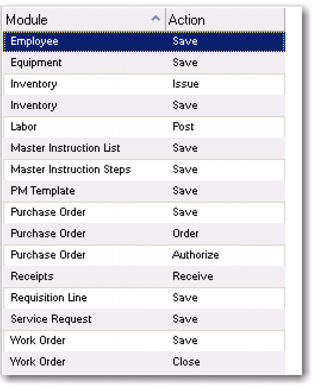
Mandatory Field Browse
Note: You cannot update any of the fields in the upper browse. However, you can change the order of the columns displayed in the upper and lower browses and save those settings.
Creating a Mandatory Field
The upper browse lists existing actions within each module that can be set up as required.
1 Select the site from the upper browse.
2 Select the action within the module from the upper browse.
3 The lower browse lists corresponding fields and indicates whether they are mandatory for the selected module and action.
4 Select the check box to add a mandatory field.
5 Close the mandatory fields browse by clicking the X on the Mandatory Fields tab at the top of the window.
Editing a Mandatory Field
To modify mandatory fields, highlight the module and action.
1 Select the site from the upper browse.
2 The lower browse lists corresponding fields and indicates whether they are mandatory for the selected module and action.
3 Select the check box to add a mandatory field. Clear the check box to make a field optional.
Note: Some check boxes cannot be made optional because other settings within QAD require that they remain mandatory. For example, when Buyer/Commodity Purchasing? is selected on the Domain|Inventory tab, you cannot clear the Commodity field for Inventory within the Mandatory Fields browse.
4 Close the mandatory fields browse by clicking the X on the top of the window.
Note: Since mandatory fields are modified at the site level, any changes you make apply only to that particular site.
Note: Buyer/Commodity Purchasing automatically sets the Buyer and Commodity fields to mandatory when saving both Inventory and Requisitions. If you turn off Buyer/Commodity Purchasing, EAM clears the mandatory requirements for both Buyer and Commodity. You must reapply mandatory settings for those fields individually for Inventory and Requisitions, if needed.