Setting Up Many of the Same Type of Location
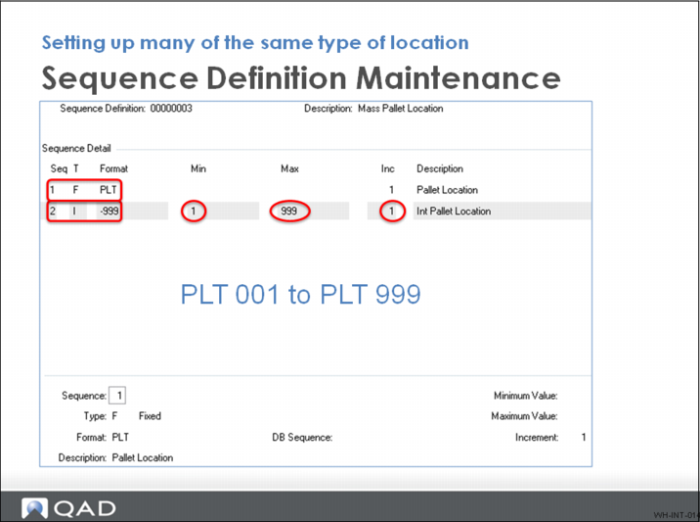
Use Sequence Definition Maintenance when required to setup many locations of the same type. Sequence Definition Maintenance lets you define how controlled sequences of numbers are structured.
The program lets you specify the format and range of the location identifiers when you use Mass Location Maintenance to create a number of storage locations. You can specify the type of sequence such as integer, character, fixed, date, and so on as well as the format.
The first sequence is Type F (fixed) and is the prefix of the label. The second sequence is the variable integer. In this case, the integer is three digits starting at 1 and ending at 999 with a increment of 1. You can have more than 2 sequences but remember the location field capacity is 8 characters.
There are five frames and six fields in Sequence Definition Maintenance used for configuration.
Setting Up Many of the Same Type of Location (Continued)
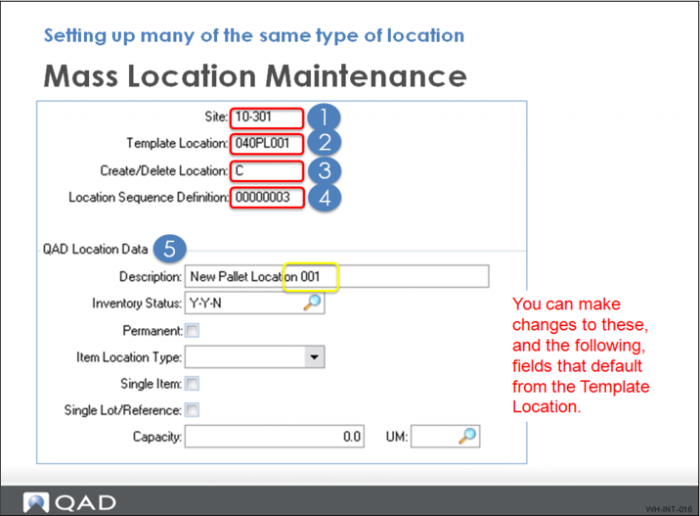
In Mass Location Maintenance, you:
1 Enter the site for the new locations.
2 Enter the Template Location. This is location already set up in QAD Warehousing and should have similar characteristics.
3 The Create/Delete Location field determines whether you can create or delete a location. To create locations, you need a template location defined; however, a template location is not required to delete locations.
4 Select the sequence definition you use to create the locations.
5 Adjust the fields in the remaining frames to customize the new locations.
The description you enter here defaults to all new locations created. It is a good idea to keep this generic rather than assign a number.
6 Click through all frames (mandatory) before selecting Back to trigger the mass location creation process.
Setting Up Many of the Same Type of Location (Continued)
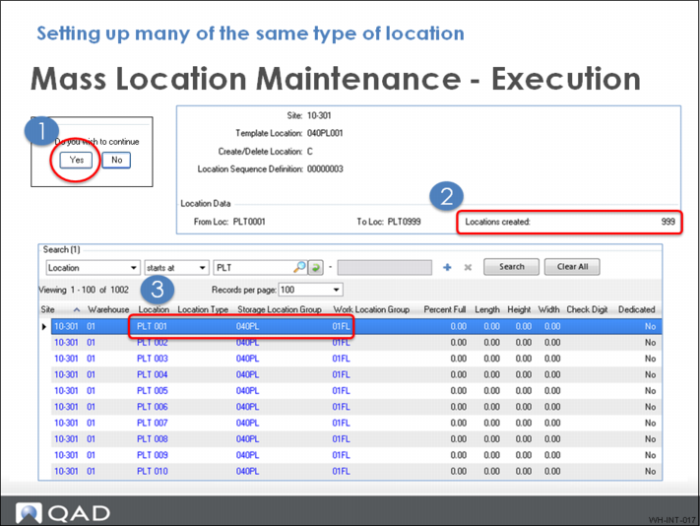
1 Select Yes at the frame that prompts, Do You Wish to Continue?
The next frame displays the number of locations created.
2 View the newly created locations in Warehouse Location Browse.
3 Once the new location parameters are defined, click Next to proceed to the next frame.