Exercise 2: Create New Repetitive Item
You will create a new Item, 50015, the Acoustic Transducer Quattro, by copying the 50010 and making some modifications.
1 Use Item Master Copy (1.4.12) to copy the 50010 to the 50015, change the description to Acoustic Transducer 4X. Accept all other defaults.
In the second frame delete the S in the Lot/Serial field, accept all other values.
Accept shipping data by clicking Next.
In planning data set the Order Quantity to 100.
Click Next through the cost frames.
2 Use Routing Copy (14.13.6) to copy the route of the 50010 to 50015, all operations.
3 Use Routing Maintenance (Rate Based) (14.13.2) to modify the route of the 50015. For operation 10, make the description Assy. 1 electrode. Uncheck Milestone Operation. Set the Hourly Production Rate to 100 units per hour. In the pop up window check both Move Next Operation and Auto Labor Report. This will set up the item for fully automatic reporting.
4 For operation 15, change the work center to 1000, the description to Assy 2nd electrode. Uncheck Milestone Operation. Make the run rate 100 and Uncheck the Comments box. In the pop up window check both Move Next Operation and Auto Labor Report.
5 For operation 20, change the work center to 1000, the description to Assy 3rd electrode. Uncheck Milestone Operation. Delete the setup time and set the run rate to 100, In the pop up window check both Move Next Operation and Auto Labor Report.
6 Add operation 25, make the work center to 1000, the description to Assy 4th electrode. Check Milestone Operation box. Set the run rate to 100. In the pop up window check both Move Next Operation and Auto Labor Report. Note the last operation in any route must be a milestone.
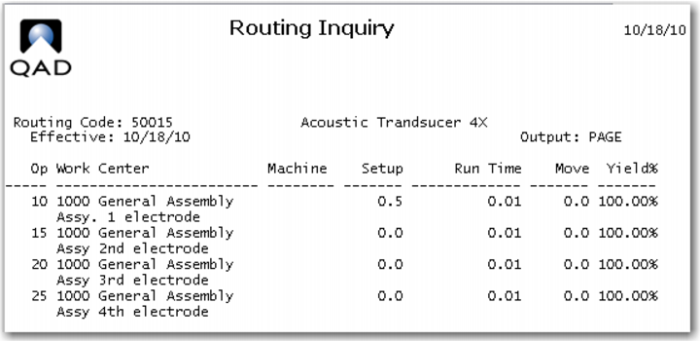
7 Review your work with Routing Inquiry (14.13.3). It should look like this.
8 Use Product Structure Copy (13.9) to copy the structure of the 50010 to the 50015. Note that each of the electrodes 60012 has a reference code.
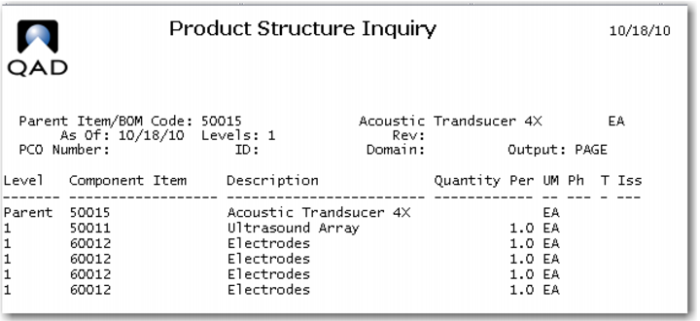
9 Use Product Structure Maintenance (13.5) to modify the structure of the 50015. Delete the electrodes, 60012, from position 6 and 5. Assign electrode position 1 to operation 10. electrode 2, to operation 15, number 3 to operation 20 and number 4 to operation 25. The ultra sound array should already be assigned to operaion10. Check your work with Product Structure Inquiry (13.6) set for one level. It should look like this.
10 Use Item Inventory Data Maintenance (1.4.5) for the 60012, delete the L from the Lot/Serial Control: field.
11 Use Product Structure Maintenance (13.5) to modify the structure of the 50011, change the quantity of the 60010 to 100. Save your work.
12 Use Item Inventory Data Maintenance (1.4.5) for the 50011, delete the S from the Lot/Serial Control: field.
13 Use Item Planning Maintenance (1.4.7) to change the yield for the 50011 Ultrasound Array from 95% to 100%.
14 Use Routing Maintenance (14.13.1) to change the yield for the 50011 Ultrasound Array in operation 10 yield from 95% to 100%.
15 Use Item Cost Maintenance (1.4.9) for the 60010, 60011 and the 60012 set the GL standard cost of each to 1.00. Be sure to use the GL Cost Data Set for Site 10-100.
16 Use Work Center Maintenance (14.5) for work center 1000. Change the following values as shown in the table.
Machine Burden Rate: | 1.00 |
Setup Rate: | 10.00 |
Labor Rate: | 5.00 |
Labor Burden Rate: | 1.00 |
Labor Burden%: | 0.0 |
17 Use Routing Cost Roll Up (14.13.13) for Site 10-100 and the Standard Cost Set and Item 50015, to roll up the routing costs.
18 Use Product Structure Cost Roll Up (13.12.13) for Site 10-100 and the Standard Cost Set and the Item 50015, to roll up the component costs.
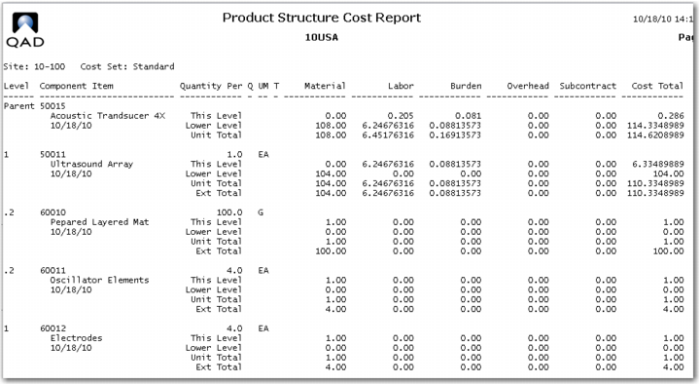
19 Review your work Using Product Structure Cost Report (13.12.4).
20 Use Simulated Picklist Item Check (13.8.17) for item 50015. Check to see if there is enough inventory to build 5,000 of the item 50015.
21 Use Unplanned Receipts (3.9) to receive 5,000 of item 50011 and 20,000 of item 60012.