Exercise 4: Subcontract Operations in Repetitive
In this exercise, you will set up a repetitive order with a subcontract operation and link the operation to a scheduled purchase order. In repetitive manufacturing with daily production and subcontract operation, using scheduled orders makes it very easy to track and cost WIP as it moves out to the vendor and back to your next production operation.
1 You will use item 50010, the Acoustic Transducer, for this exercise. It has three operations, the middle one being a subcontract operation. Use Item Inventory Data Maintenance (1.4.5) for the 50010 and delete the S in the Lot/Serial Control field.
2 Review the routing for item 50010 using Routing Maintenance (14.13.1). Note that operation 15 occurs in work center 2270, which is a subcontract work center. It has no standard times, but does have a subcontract lead time and a subcontract cost of 0.20. It is flagged as a milestone, meaning you want its completion reported. You can Uncheck the comments box. In the second frame the Move Next Operation is checked and there is not a WIP item.
3 Review the routing for item 50010 operation 10. Milestone is Checked as you always want to report the operation before a subcontract operation. In the second frame you will Uncheck the Move Next Operation box as you want the quantity reported to remain in WIP at this operation while the work is outside the company. It will be moved to the operation after the subcontract operation when the items are received back.
4 This item is set up for WIP Lot Trace. Use Routing Registration Maintenance (3.22.13.1) for Routing Code 50010. Click Next until the Delete Button appears, Delete the record.
5 Create the cumulative work order. As you do not have a repetitive schedule the easy way to create the cumulative order is to report production.
Use Backflush Transaction (18.22.13), employee 10-EMP02, effective date, today, site 10‑100, item 50010, operation 10, routing and BOM code 50010. Note the ID number assigned. Report 100 units processed.
Review WIP Status Report for your ID. It should show 100 units processed at operation 10 and 100 as the Current Quantity.
6 Set up the Scheduled Order. When using discrete purchase orders you can set up a WIP Item code for the service you are purchasing. This allows you to put that item code on the WIP Item field of the operation and as the line item on the subcontract purchase order. However, with a Scheduled Subcontract Order, the line item will include the work order ID and the operation number.
Use Supplier Scheduled Order Maintenance (5.5.1.13) to set up the subcontract supplier schedule. You will need to enter the supplier code in the second field before the system will assign the PO number automatically. Use supplier 10PLATSP, Plating Subcontractor-USA. Note the PO number assigned.
In the first frame change the AP site to 10-100. Accept all other values at default. Click Next at Tax Usage.
In the Item frame enter 50010, Ship To Site 10-100, and Line 1. Advance to the next frame. In the Unit Cost field enter 0.20. In the Type field enter S for subcontract. In the Work Order ID: field enter your cumulative order ID. In the Operation field enter 15. Click Next through the last frame.
7 In the real world, you would use the Subcontract Shipping Transactions to ship items to your vendor. In this case, however, you will take a shortcut.
Use Purchase Order Receipt (5.13.1) to receive 100 units against your PO. Note the header defaults to Move Next Operation. Advance to the line item frame, enter line 1 and receive 100 units. You will see a warning that there is no active schedule.
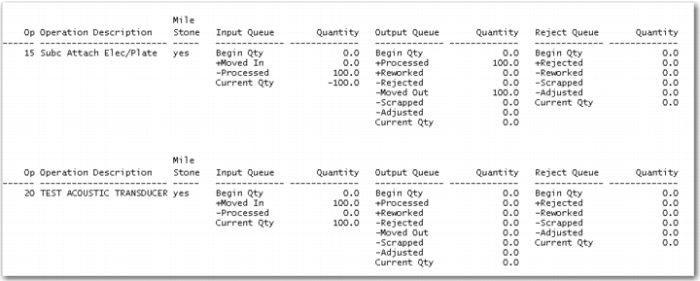
Review the WIP Status Report, you see the 100 units processed and moved out at operation 15 and moved in at operation 20.
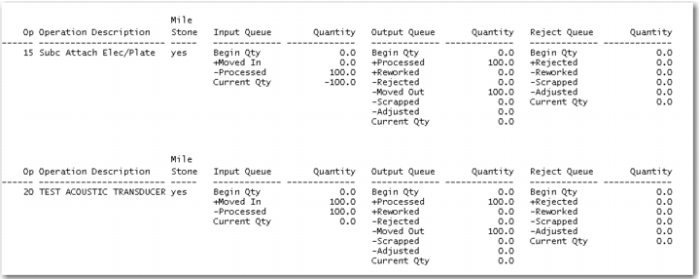
8 Use the Backflush Transaction to report 100 units complete at operation 20. Review the WIP Status Report. You see the 100 units processed and moved out at operation 20 and the Current Quantity as zero.
9 Use Supplier Scheduled Order Maintenance (5.5.1.13) to change the cost of the outside process. For your PO, advance to the line item detail frame and change the Unit Cost to 0.50.
10 Use Backflush Transaction (18.22.13) to process another 100 units at operation 10. Use Purchase Order Receipt (5.13.1) to receive 100 units on your PO. Use the Backflush transaction to process another 100 units at operation 20.
11 Close the cumulative order. Review the Cumulative Order Close Report, the Repetitive Operations Report (18.22.4.9) and the Operation Transaction Detail Inquiry (18.22.4.2).