Exercise 5: Report Repetitive Scrap
1 Use Backflush Transaction (18.22.13) to report production and scrap. Make the Effective Date the first of next month, this will force the system to assign a new cumulative order ID. Complete the header the same as before, except you are now reporting operation 15. Report 1,000 units processed, and 5 units scraped.
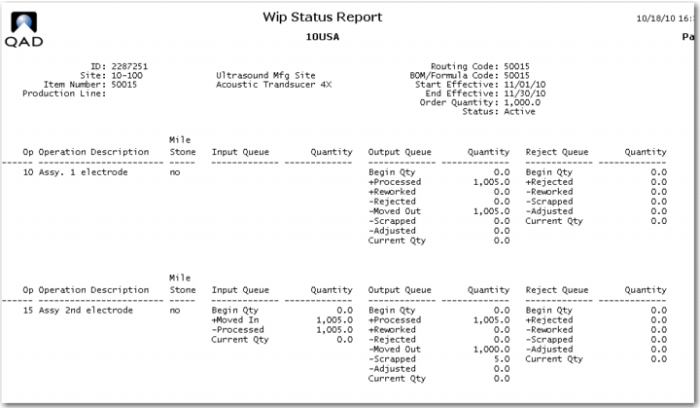
2 Use WIP Status Inquiry (18.22.12) to review the effect of this transaction on WIP.
This shows an outline of what happened. 1000 units were moved in; 1000 units were processed; 995 units were moved out and 5 units were scraped at operation 15.
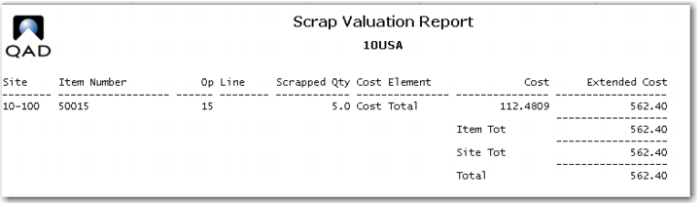
3 Use Scrap Valuation Report (18.22.4.14) to see the value of the scrap.
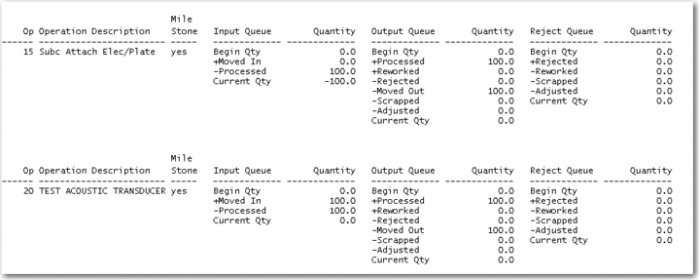
4 Use Backflush Transaction (18.22.13) with the effective date the first of next month, report production and extra labor. Complete the header the same as before, except you are now reporting operation 20. Report 1,000 units processed, and add one hour of Actual Run Time to account for some difficulties you had with production.
5 Use Backflush Transaction (18.22.13) with the effective date the first of next month. Complete the header as before, except you are now reporting operation 25. Report 1,000 units processed.
6 Review the WIP Status Report (18.22.12) you can now see the complete flow of WIP for this order. Note the system has adjusted the moved in and out quantities for operations 10 and 15 to account for the 5 we scraped, yet completed 1000.
Operation 20 and 25 are completed as normal with 1000 each.
7 Use Inventory Detail by Item Browse (3.2) stating at 50015, you will see 3,000 in inventory. 2,000 from your first cumulative order, and 1,000 from the transaction just completed. Reporting production at the last operation with move next operation set to Yes, automatically puts the items into inventory.
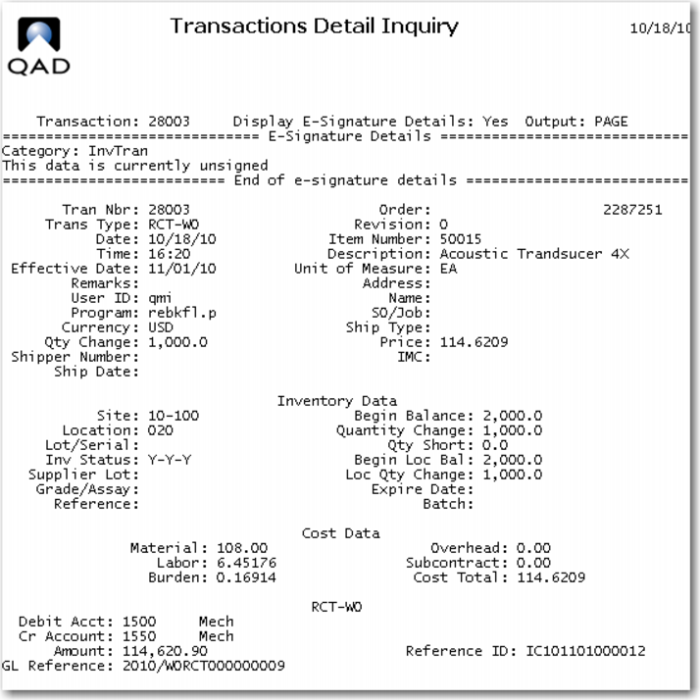
8 Use Transaction Detail Inquiry (3.21.1) to see the receipt to inventory. Note the beginning balance of 2,000 units and the 1,000 moved in.
You see the debit to Inventory 1500 and the credit to WIP 1550 for the GL cost of 1,000 of the 50015.
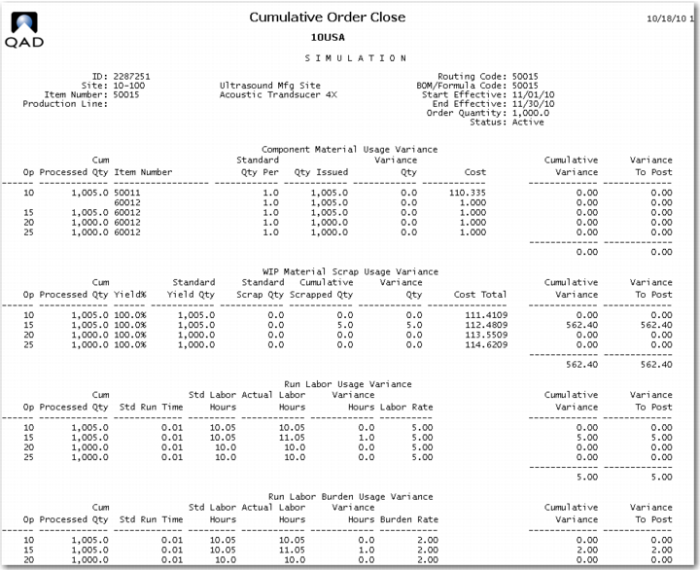
9 Close the Cumulative Order, Use (18.22.10) make the End Effective Date the last day of the next period. Leave the Update box Unchecked. Why? Review the report produced by the close transaction.
You now have a material variance caused by the scrap. A labor variance cause by the extra labor you charged and its corresponding labor burden variance.
Because the Update box was unchecked, the report is labeled Simulation. This allows you to review the results before actually posting them. Run the function again with the Update box checked.
At the end of the Repetitive Operations Accounting Report you will see the labor and burden variances and the accounts that were booked, note the type codes RLUV, Repetitive Labor Usage Variance and RBUV Repetitive Burden Usage Variance.