Cube Generation
Use Report Cube Generate to generate data to the reporting tables FRWCubeDim and FRWCubeMeas.
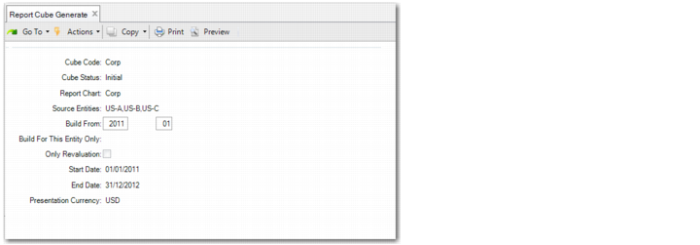
To generate data, select one of the cubes you created during the previous steps. By default, the program generates data for the entire time frame defined in the report calendar of the cube. You can also regenerate a cube from a given start year and period if the previous years or periods defined in the report calendar for the cube contain data.
By default, Report Cube Generate generates data for all entities defined in the entity list of the cube, but you can also regenerate a cube for a single entity. When you generate the cube, the program displays the number of records read.
Cube Code
Specify a code for the report cube.
Cube Status
If the cube has not been generated before, its status is Initial. When a cube is generated successfully, its status becomes Operational. The Report Cube daemon processes newly posted GL transactions in any of the source entities and updates the balances in the report cube.
Report Chart
This field displays the defined report chart of the cube. It is read only.
Source Entities
This field displays the source entities defined in the cube. It is read only.
Build From
Specify the first reporting period for which the program must generate data.
For This Entity Only
Specify an entity in this field to generate cube data for this source entity only.
Only Revaluation
To generate the cube data for revaluations only, select this field. If you select this option, the system does not read balances from the source domains. Instead, it recalculates the PC balances using the latest exchange rates.
Start Date/End Date
These fields display the start and end dates for the total duration of the cube calendar. The fields are read-only.
Presentation Currency
This field displays the presentation currency for the cube. This field is read-only.
Review Exchange Rate
If you want to review the exchange rates used for the translation, select this field.
After you review the exchange rates, you are prompted whether you want to continue and build the cube. At this point, you can still leave the program to update the exchange rates. If you continue, the cube begins to build. This can take between a few minutes and an hour, depending on the volume of data in the GL history table (PostingHist) and the number of dimensions you have set up the cube for. The dimensions include the number of entities and analytical dimensions, such as sub-account, cost center, project, daybook, currency, and SAFs.
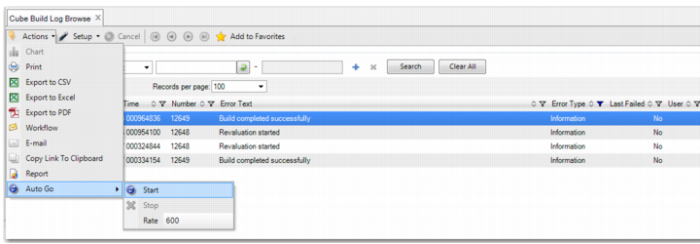
In Terminal mode, you see the progress of the cube building on the screen. In Desktop mode, the screen is frozen during the build, but you can use the Report Writer Utility program Cube Build Log Browse to monitor the progress of the cube building. Filter on the Cube Code and look for the row displaying Counter in the Error Type column.
Note: Use the browse Auto Go option to automatically refresh the results every n seconds. This enables you to see the Counter record updated automatically.