Simulating Revaluation
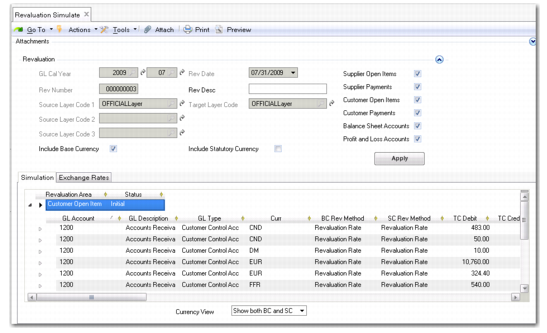
The Revaluation Simulate activity (25.21.1.1) identifies the revaluations to be run for the GL periods and revaluation areas specified. You can also specify the source layers where the balances are calculated and the target layer where the revaluation is be posted when you run Revaluation Post.
The Revaluation Scope settings let you identify specific types of accounts for which to run the revaluation process; for example, customer or supplier payment or control accounts, or balance sheet accounts. The account types you select are displayed in the Revaluation Area column of the simulation grid when you click Apply to begin the simulation.
The simulation results are displayed in a hierarchical grid. You can drill down for more detail on individual items. The results are grouped by revaluation area, and by transaction currency or by transaction currency/sub-account combination if you defined sub-account analysis for the system accounts.
The results display the following information:
• The original debit and credit amounts in TC, BC, and SC
• The revaluated debit and credit amounts in TC, BC, and SC
• The revaluation differences to be posted
• Analytical information, if you defined analysis on the accounts
When you have completed the fields, click Save to save the revaluation.
Both Revaluation Simulate and the Revaluation report include all transactions in the revaluation scope. In addition, transactions that have no revaluation impact are included; that is, transactions where the revaluation difference is zero because the historical rate is the same as the revaluation rate. By including all transactions in Revaluation Simulate and the Revaluation report, the system provides a complete reconciliation between the transaction amounts from before and after revaluation.
Revaluation Simulate
Field Descriptions
GL Calendar Year/GL Period
Specify the GL calendar year and period in which to revalue transactions.
Rev Number.
This field displays a system-generated sequence number for the revaluation.
Revaluation Date
This read-only field indicates the last day of the GL period.
Revaluation Description
Enter a brief description (maximum 24 characters) of the revaluation.
Source Layer Code 1, 2, 3
Specify up to three source layers from which to revalue transactions. You can select official or management layer types.
Target Layer Code
Specify the layer in which the result of the revaluation is saved. The layer code you specify in the first source layer you set automatically defaults to the Target Layer Code field if this field is blank. However, you can overwrite this value.
You can select official or management layer types only.
Revaluation Scope.
Select the types of account to check for balances that are subject to revaluation.
Include Base Currency
Select this field to revaluate using the base currency.
Include Statutory Currency
Select this field to revaluate using the statutory currency. The statutory currency revaluation uses the statutory exchange rate, unless you have specified a different revaluation rate in the currency settings in GL Account Create (25.3.13.1). When using the statutory exchange rate, you have the option to revert to using the accounting exchange rate if the statutory rate is unavailable. The fallback option is set in Exchange Rate Type Create (26.3.1).
The base currency revaluation and the statutory currency revaluation are not dependent. You can run the revaluations separately or together.
Exchange Rate Tab
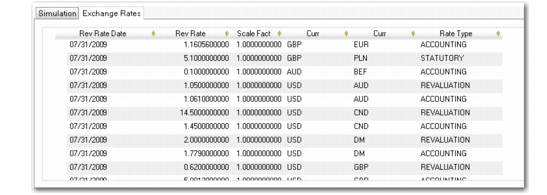
The Exchange Rate tab on the Simulate screen displays a read-only list of the exchange rates used in the revaluation.
Revaluation Simulate, Exchange Rate Tab
Posting Revaluations
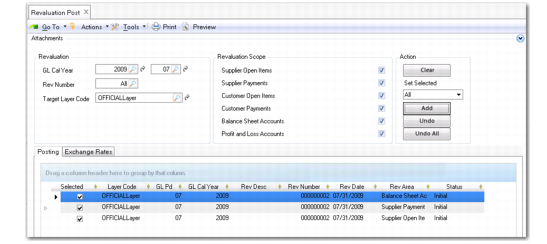
Use the Revaluation Post activity (25.21.1.5) to post the revaluation differences to the relevant accounts.
You can only post a revaluation after you have saved it in Revaluation Simulate. Revaluation Post processes one or more revaluation simulations, and creates the GL postings for them.
Select revaluations created using Revaluation Simulate for posting using the GL calendar year and GL period, revaluation number, layer, and revaluation scope items as search criteria. Click Add to add revaluations that match the criteria to the Posting grid.
Revaluation Post
Field Descriptions
GL Calendar Year/Period
Specify a GL calendar year and GL period in which to search for revaluation transactions.
Rev Number.
Specify a revaluation object number that identifies a simulation.
Target Layer Code
Specify a target layer to search for revaluation simulations.
Revaluation Scope.
Select the types of account to include in the revaluation object search.
Set Selected
Use the drop-down list to include or exclude selected revaluations in the posting grid.
Use the Clear, Add, Undo, and Undo All buttons to clear the posting grid, and to add or remove revaluations from the grid.
Click Save to generate the revaluation and reversal postings.