Line Schedules
Overview
The purpose of this chapter is to give you a familiarity with line sequencing functionality.
After completing this chapter, you should be able to evaluate the workbench setup, import MRP orders, know what happens to them, calculate a line schedule, recalculate a line schedule, and put the schedule into the repetitive schedule.
More Advanced Students
You will be shown how to manipulate the line schedules fully, to troubleshoot problems, and to evaluate such things as whether to preserve the workbench while copying it into the repetitive schedule.
Key terms you will become familiar with are:
• Shift
• Line schedule
• MRP planned orders
• Production line
• Changeover
Line Schedules
No Connection between MRP Planned Order and Repetitive Schedule
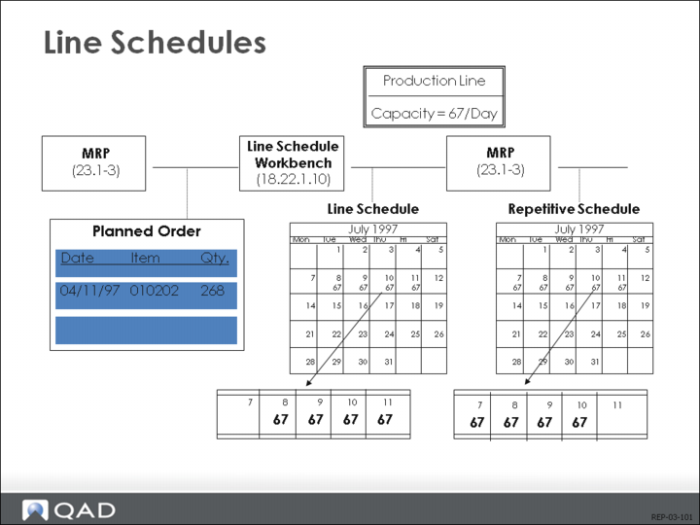
There is no direct connection between an MRP planned order and a repetitive schedule in the system. If a repetitive schedule exists, it is treated as supply by MRP. MRP does not create schedules for a site into one or more production lines, while taking into account the capacity at the production line.
Most Useful when Lines are Fully Loaded
In general, this functionality is most useful when production lines are fully loaded. It is particularly useful when multiple items can be made on the same production line, or when multiple production lines are available to make an item.
Forward Scheduling
The basic pattern is the one shown in the example above. MRP produces some planned orders with due dates. Line Schedule Workbench (18.22.1.10) allows you to import any number of planned orders into a simulation area. There you can load the line with selected orders, and the quantities ordered are recalculated based on the capacity of the line. Essentially, the functionality allows you to do a rough form of finite capacity forward scheduling.
Run MRP after Updating Simulated Schedule in Repetitive Schedule
When you are satisfied with a simulated schedule you can copy it into the repetitive schedule and make it a real one. MRP should be run after you have updated the simulated schedule in the repetitive schedule.
Line Schedule Implementation
Line Capacity
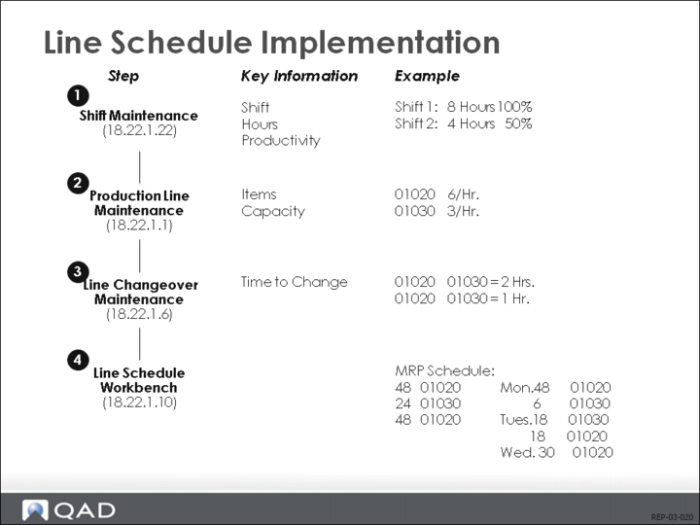
Line Schedule Workbench (18.22.1.10) recalculates based on the capacity of the line. The capacity is determined by the number of hours the line is in operation, the number of items it can make per hour, and the amount of down time when production is switched to a new item. For each production line, the capacity of the line to make any item can be specified in units per hour.
Multiple Shifts
We assume a line can have multiple shifts. In Backflush Transaction (18.22.13), you can report against the shift. The hours of operation can be set for each shift on each day the shift operates. Since some shifts are more efficient than others, a productivity factor can be added. Productivity is multiplied by the base capacity to determine the actual capacity for the shift.
Changeover Time
The changeover time is the time it takes to switch a container from white paint to red paint. Changeover is unidirectional. It can take more time to switch from white to red than from red to white. If no changeover is specified, it is 0.
Explaining above Example
In the example shown above, two shifts are specified, with the shorter shift being more efficient. It takes 1 hours to switch from 01020 to 01030, but 2 hour in the other direction. The scheduler can have found it more efficient to make all of the 01020 ultrasounds first instead of losing 2 hours for an extra changeover shift from 01030 back to 01020 on Tuesday.
Line Schedule Workbench
MRP Orders
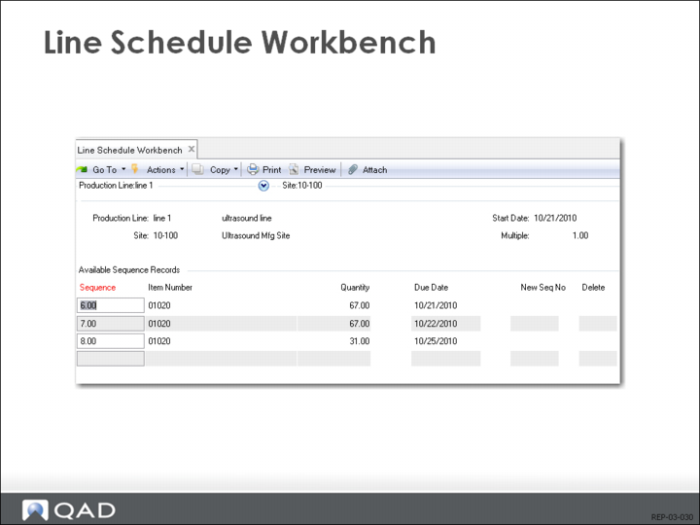
The actual workbench begins with today’s date, and asks you to input items daily. Each time you input an item, a list of MRP planned orders displays. You can select any number of orders, altering the amounts if you want. If you alter the amount in the planned order, the system remembers the alteration, and brings it into the work center. If you alter it in the workbench, the system does not alter any planned orders.
Accepting Planned Amount
To accept a planned amount, press r to mark the order with *, then press Go. To have the workbench recalculated based on the capacity, press Go while the cursor is on Quantity or Date fields. The default due date is the first date that the line is open but you can change this.
Note: The MRP order due date is ignored.
Methods for Altering a Calculation
When you have a calculation, you can alter it in any of the following ways.
• To move an amount elsewhere press r and change the sequence number.
• To add a new amount anywhere press Insert, then provide a number that fits. For example, if you want the sequence to be the number 9, you would put in 8.5, and it will be 9 when it is recalculated. (Unless you enter a due date that would put it elsewhere.)
• To delete an item, go to it, press r, then Delete. Then recalculate or press r and continue, recalculating at the end. Deletions do not change the planned order amounts.
In each case, pressing Go causes a recalculation.