Repetitive Picklist
Repetitive Picklist Overview
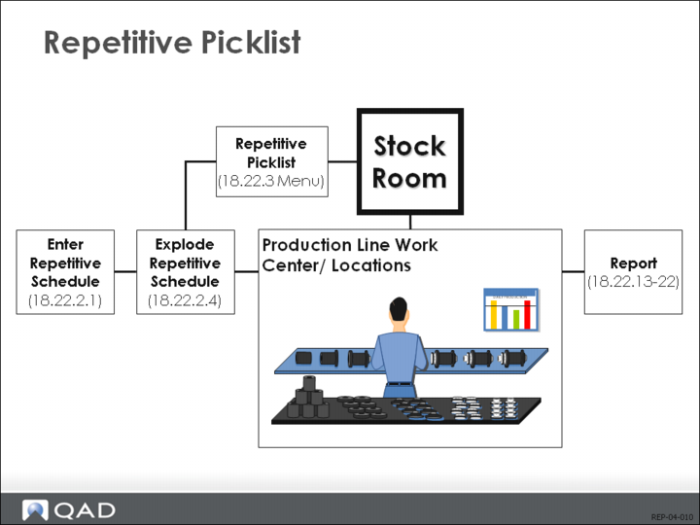
Work Centers = Locations
The repetitive picklist allows you to transfer inventory to work center locations in response to schedule requirements. If several repetitively scheduled items have requirements for the same component at a work center, the picklist performs the calculations for all the schedules. To use the picklist, inventory locations with the same name as the work centers must be set up.
Picklist Calculation
Running Repetitive Picklist Calculation (18.22.3.1) allocates inventory. The calculation uses the quantity required at the work center, subtracts what's already there, and then adds or subtracts anticipated supply (existing untransferred picklists) and demand (exploded schedules).
Allocations and Picking
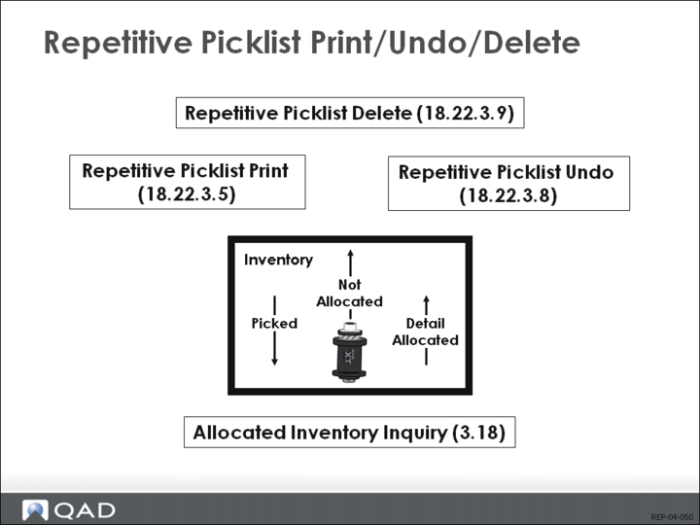
Printing the picklist moves the status of the inventory from allocated to picked. The picking logic used is specified in Inventory Control. You print a picklist using Repetitive Picklist Print (18.22.3.5). If a picklist was issued and has to be canceled, you can undo it using Repetitive Picklist Undo (18.22.3.8).
Transfer
You must run the Repetitive Picklist Transfer (18.22.3.6) to register the physical transfer of components to the floor. This is required to maintain accurate inventory balances. It does not issue the inventory to WIP. Repetitive components, even when picked, are still backflushed.
Picklist Function and Usefulness
The repetitive picklist is a feature of the repetitive functionality used by companies needing to control the transfer of material from the stockroom to the work center. To some extent, a repetitive picklist is a contradiction in terms, repetitive operations do not need picklists. But where space on the floor is limited, or continuous flow of material to the floor needs to be ensured, a picklist can be useful.
Work Centers Name = Location Name
The picklist calculation treats work centers as inventory locations. To use the picklist, inventory locations with the same name as the work centers must be set up.
Running Picklist Allocates Inventory
The repetitive picklist functionality works like other picklist functionality in QAD Enterprise Applications. Running the picklist calculation detail allocates inventory. Printing the picklist moves the status of the inventory from allocated to picked. If a picklist was issued and has to be canceled, you can undo it.
Total at Work Center
It is important to remember that the picklist functionality takes into account all needs at a work center. If several repetitively scheduled items have requirements for the same component at a work center, the picklist will look at all the schedules when determining the need for replenishment.
Repetitive Picklist Cycle
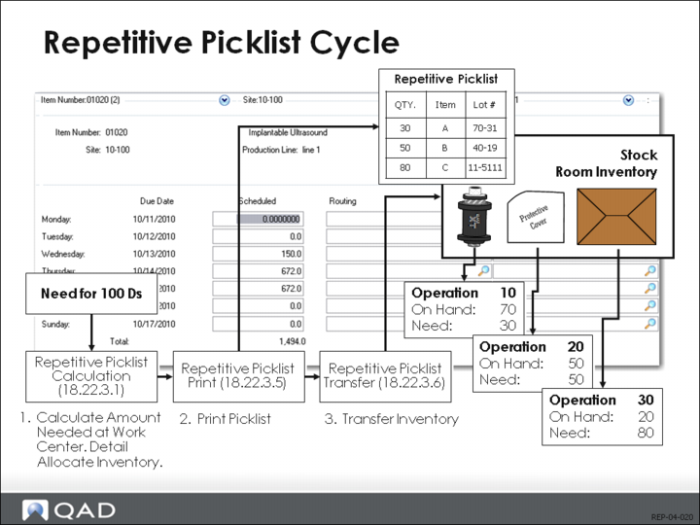
In the example shown above, a repetitive schedule for 100 of item D has been entered in the system. Running the explosion shows this means 100 item As are required at operation 10, 100 item Bs at operation 20, and 100 item Cs at operation 30.
The picklist functionality does three things.
• Repetitive Picklist Calculation (18.22.3.1) based on what is already on hand, determines what is needed at operations 10, 20 and 30. In the example, this would be 30 of item A, 50 of item B and 80 of item C. During the calculation, it detail allocates the inventory.
• Repetitive Picklist Print (18.22.3.5) prints a picklist. This changes the status of the inventory to picked. In the example, each group of picked inventory has a lot number, which means it was detail allocated. The picking logic used is specified in Inventory Control (3.24).
• Repetitive Picklist Transfer (18.22.3.6) transfers inventory from the default stock location (or wherever you specify) to the work center location. It does not issue inventory to WIP. For example, when an employee takes the picklist, gets the inventory from the stock room, and moves it to the work center, you enter the transfer by running 18.22.3.6.
Repetitive Picklist Calculation
You use Repetitive Picklist Calculation (18.22.3.1) to find out what requirements exist at specified work centers (such as locations). The calculation considers component requirements from the exploded repetitive schedules that match the sites, items, work centers, and production dates specified.
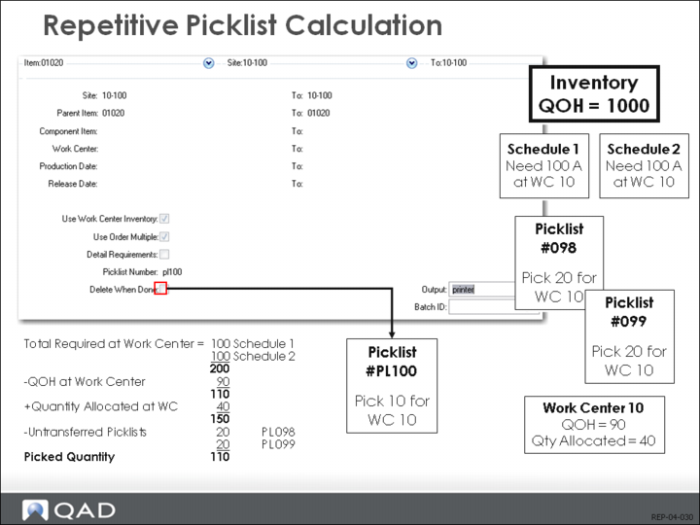
Repetitive Picklist Calculation uses the following equations:
Shortage at work center = new requirements - net available
Where net available = actual on-hand - quantity allocated - quantity required by other schedules + untransferred picked
Supply – Demand
The actual calculation takes existing supply of an item at the work center and subtracts all existing demand for the item. The existing supply is the quantity currently on-hand, plus any supply from existing picklists, minus any quantity already allocated to other purposes such as sales orders or work orders. The existing demand is the demand from all exploded repetitive schedules with operations requiring that item at that work center. If demand exceeds supply, it creates a picklist for the excess.
Function Options
Repetitive Picklist Calculation offers you several options to control the picklist calculation. They are:
Use Work Center Inventory
When set to Yes, the system counts inventory in a work center as inventory.
Detail Requirements
When set to Yes, the system prints all repetitive schedules generating requirements for a component. Shown is the quantity required, parent item, due and start dates, machine, and operation.
Delete When Done
When set to Yes, the picklist is automatically deleted after the calculation.
As the equation shows, the picklist supplies materials for the work center, not individual schedules. You can ensure that picklists supply individual schedules by running the picklist calculation immediately after exploding each new schedule.
Repetitive Picklist Sequence Calculations
Item Shortage
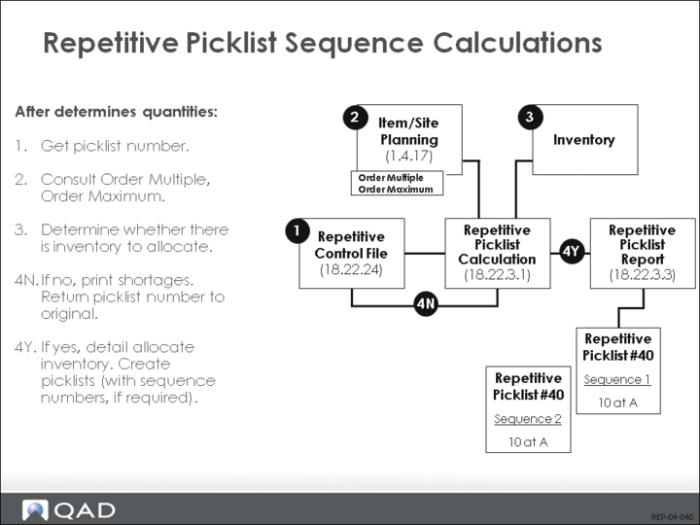
If Repetitive Picklist Calculation (18.22.3.1) determines there is a shortage of the item, it takes the specified picklist number and increments Repetitive Control (18.22.24). It then determines how the picklist should be structured by going to the item-site planning parameters for that item.
Order Multiple or Order Maximum
When the order multiple or order maximum values have been set, they generate a sequence of picklists, each with the same picklist number, but with different sequence numbers. This is useful when items come pre-packaged. The order maximum ensures the amount of each sequence is never greater than the specified amount. This is useful when the work center can only hold a certain amount, and so a picklist for a greater amount would be pointless.
The picklist calculation detail allocates inventory by using the picking logic specified in Inventory Control (3.24). If there is no inventory to detail allocate, the picklist calculation generates a shortage report but does not create a picklist. Instead, it returns to Repetitive Control and sets the picklist number back.
If inventory does exist, the picklist calculation changes the inventory status and prints out a report. The picklists are created and ready to print.
Repetitive Picklists Print/Undo/Delete
Print Picklist (18.22.3.5)
You use Repetitive Picklist Print (18.22.3.5) to print a picklist. When you print a picklist, the status of the inventory changes to picked. (You can verify this using Allocated Inventory Browse/Inquiry [3.18].) You can reprint a picklist by changing the Reprint Picked field. If you do this, be aware that you run the danger of generating two picklists and picking inventory twice.
Use (18.22.3.8) to Undo Picklist after Printing
After printing a picklist, you can use Repetitive Picklist Undo (18.22.3.8) to change the inventory status back to detail allocated. This tells the system the inventory is available to be picked again the next time you run Repetitive Picklist Print. Advance Repetitive provides a separate function to reverse the effects of printing in order to ease record-locking problems.
Delete Outstanding Picklists (18.22.3.9)
As long as a picklist exists, the system treats it as a supply by later picklist calculations. To start with a clean slate for a work center, you have to delete the outstanding picklists. You do this using Repetitive Picklist Delete (18.22.3.9). Deleting reverses all effects of running any picklist function. If the inventory is picked or allocated, it is returned to unallocated status.
Repetitive Picklist Transfer
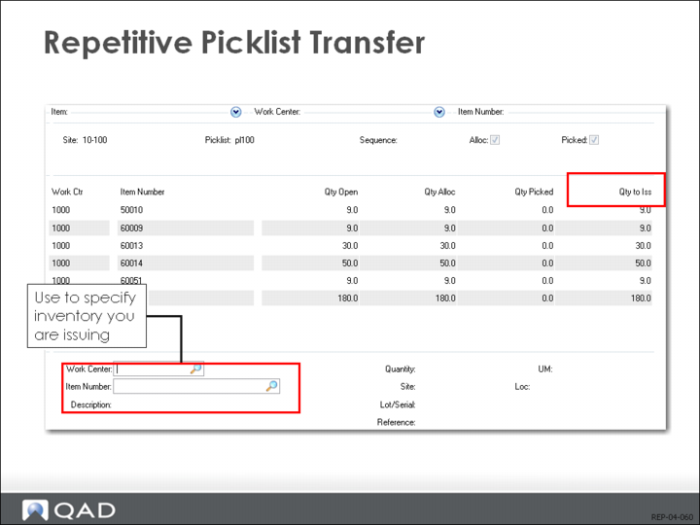
To record that inventory has been moved, use Repetitive Picklist Transfer (18.22.3.6). This function is extremely flexible. It allows you to rapidly transfer picklist items as created, enter new quantities, or issue inventory from a different site.
It is possible to use the transfer function even if the picklist has not been printed. You can transfer inventory that has been allocated, picked, or neither allocated nor picked. The Alloc and Picked fields set the default for your transfers. If you are not printing picklists, but just allocating, set Alloc to Yes, to have the allocated inventory transferred. If you are printing picklists, set Picked to Yes.
If you do not want to accept the defaults, you can specify the inventory you are issuing. You can in fact issue any inventory from any site-location to any work center. However, you are given a warning when you select inventory not on the picklist, and another if the inventory is not available. Issuing inventory not detail allocated or picked leaves the currently detail allocated or picked inventory open on the picklist.
After issuing inventory, the system records an ISS-TR transaction and a RCT-TR transaction in Transaction History. If no quantity remains open on the picklist, the picklist is closed. Note this is not an inventory issue, so there are no general ledger consequences.