Repetitive Transactions
Advanced Repetitive Transactions Overview
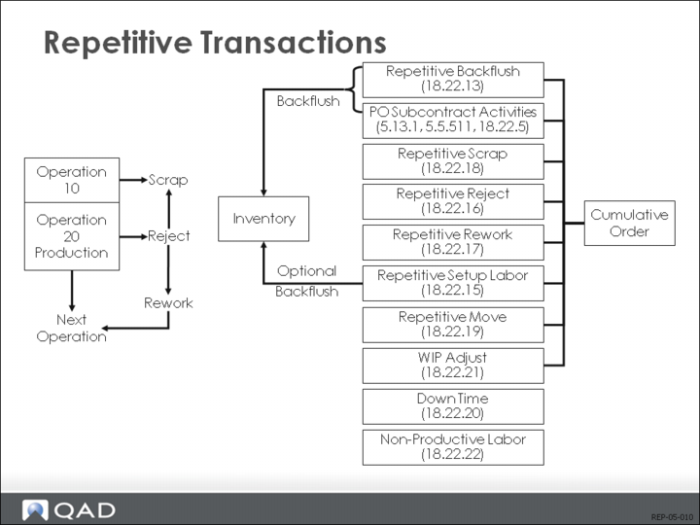
The Advanced Repetitive module has 10 different transactions available for activity reporting. A brief description of each follows
Backflush (18.22.13)
This is the primary transaction of the Advanced Repetitive module. You can backflush components of the current operation and any preceding non-milestone operations. You can also backflush standard labor and burden if the routing record of the reporting operation, or any preceding non-milestone operation, indicates the auto labor report as Yes. In addition to reporting quantity moved and labor hours, scrap and reject quantities can also be reported and backflushed. This is the only repetitive transaction that has automatic backflushing capabilities.
Reject (18.22.16)
The Reject transaction has two uses. You can reject previously backflushed units from the current operation’s output queue, and you can reject units from the current operation’s input queue and record the reject at a prior operation. No hours can be reported, and no backflushing will take place.
Scrap (18.22.18)
The Scrap transaction allows scrapping from an operation’s input queue (the scrap will be recorded at the previous operation), from an operation’s reject queue, and from balances in an operation’s output queue. No hours can be reported, and no backflushing will take place with this transaction.
Rework (18.22.17)
Use the Rework transaction to move rejected units from an operation’s reject queue back to the rejecting operation’s output queue, or to the input queue of the operation following the rejecting operation. Rework hours can be entered, and additional components can be issued. However, no automatic backflushing takes place.
Move (18.22.19)
The Move transaction performs a move from an operation’s output queue to the next operation’s input queue. In the case of the final operation, it performs a move into stock. When moving to stock from the final operation, the user can modify the receipt to enter location and lot/serial references. No labor hours can be reported. This transaction normally has limited use, since an operation can be set to have the backflush transaction and rework transaction perform this task automatically.
WIP Adjust (18.22.21)
The WIP adjust transaction allows quantities to be adjusted at an operation’s input, output, or reject queues. Labor hours cannot be entered, and there are no backflushing capabilities. A GL transaction is generated using the account number entered and the WIP GL account number.
Labor (18.22.15), (18.22.20), (18.22.22)
There are two separate labor transactions that charge WIP, and two that report indirect labor. Use the Run Labor Transaction (18.22.14) for reporting regular labor chargeable against WIP. The Setup Labor Transaction (18.22.15), which also charges WIP, is used to enter separate setup times. The other two labor transactions, Down Time Transaction (18.22.20) and Non-productive Labor Feedback (18.22.22), are used to report indirect labor and are not subject to applied burden.
Repetitive Transactions
Backflush Transaction (18.22.13) is the primary tool to report production line activity. You can report the number of gross units processed, scrapped units, rejected units, and labor hours. You can backflush components of the reporting operation, and any components of any preceding non-milestone operations. You can also backflush standard labor and burden if the routing record of the reporting operation, or any preceding non-milestone operation, shows Auto Labor Report as Yes. The Backflush Transaction can be used at both milestone and non-milestone operations.
Repetitive transactions effect other areas of the system. When processing quantity movement through the various repetitive operations, inventory transactions are recorded and posted as backflushing occurs. Labor and burden costs are recorded by manual entry or as a result of backflushing.
Transactions generate the calculation of manufacturing cost variances and create general ledger entries. Most transactions generate quantity and cost posting to the cumulative order and associated operation and bill of material (BOM) records.
Then, units are moved to stock or scrapped, information is posted to the repetitive schedule, and the MRP exploded work order. When MRP is run, issued component quantities remaining on the production line are visible for requirement planning. Purchase order receipts and supplier schedule receipts are integrated with the Repetitive module generating GL entries. Components are then backflushed and posted to various repetitive tables.
Backflush Transaction
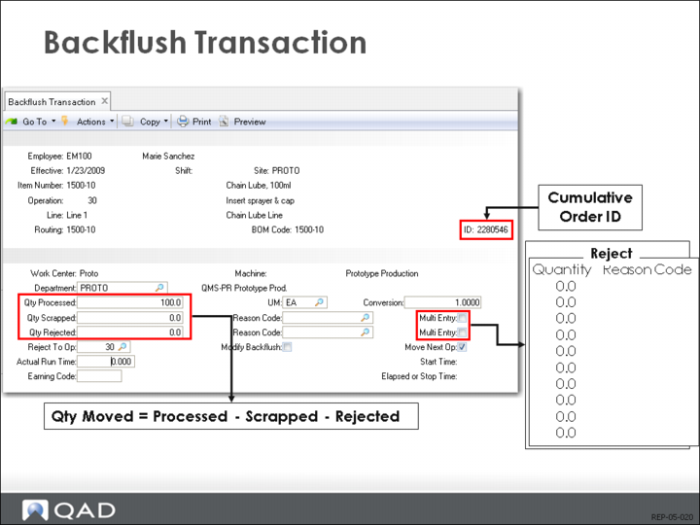
First Window Fields
The repetitive transactions (18.22.13-21) all use the same first window. The Employee field is mandatory, and you must enter a valid employee set up either from Employee Maintenance (29.15.1) or Routing, Actual Pay Rate Maintenance (14.13.21).
A valid effective date, site, item number, and operation are required. Shift is optional. If the item number is associated with a production line, a valid production line must be entered (Line field). Routing and BOM are entered only if using a routing different from the default. If the default routing/BOM is manually entered, an error message displays unless the default routing has been set up as an alternate. ID is a system-generated cumulative order ID and cannot be modified.
Lower Window Fields
In the lower window, the fields Work Center, Machine and Department default to data referenced from the routing operation, and can be overridden.
The Qty Processed field shows the total quantity being processed, and includes any quantity entered to the Qty Scrapped and Qty Rejected fields. If the Multi Entry field for scrap and reject is Yes, a separate pop-up window appears for entry of up to ten lines of reason codes and quantities. The quantities entered will be accumulated, and posted to the Qty Scrapped and/or Qty Rejected fields.
The Reject To Op field must reference either the current operation or the one that precedes it. The default is the current operation. If the Modify Backflush field is Yes, the Component Issue screen appears. If Move Next Op field is also Yes, then the Receipt Data screen also appears when reporting the last operation.
The Move Next Op field indicates if the quantity processed, less rejected, and scrapped quantities, is to be moved to the input queue of the next operation. If the operation being reported is the last operation, the move causes an increase in the quantity of finished material inventory. The default comes from the cumulative order routing operation record, which is set from the same field in the routing when the cumulative order is created.
Backflush Modification
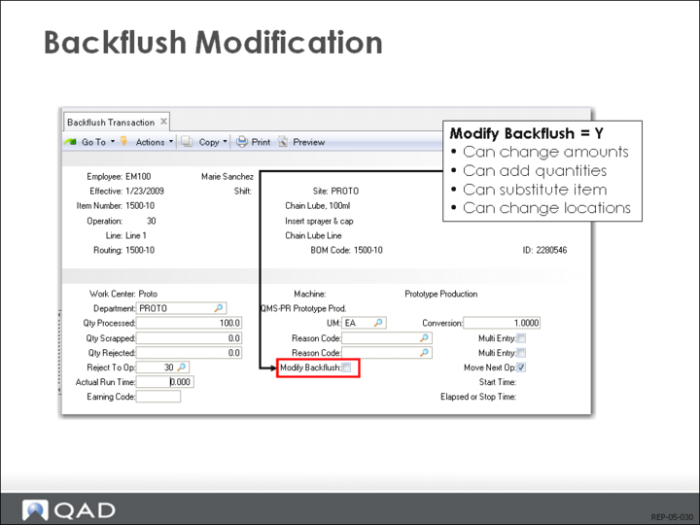
Modify Backflush = Yes
Ordinarily, a backflush transaction simply causes the appropriate material to be issued. But what if you have used different amounts, have had to use different items as substitutes, or had to use different items. You can record this by setting Modify Backflush to Yes, as shown above.
List Components
A new window listing the default components used displays. If milestone operations are being used, the operation at which the components will be used is listed. The assumption is you are changing amounts, so the highlighted component defaults when you press Enter.
Controls
You can enter in any item in any amount. QAD Enterprise Applications assumes you have procedural controls over the use of modify backflush. The typical uses, however, are to change amounts, or to add minor amounts of things like floor stock.
Substitutes
If you have substituted one item for another, you can set the Substitute field to indicate that fact. The item must have been set up as a substitute in Item Substitution Maintenance (13.19). The quantity substituted is then subtracted from the default quantity of the original item.
BOM and Routing Changes
The component backflush logic looks at the product structure in effect as of the transaction effective date. If components are added, changed, or removed from the current product structure during the life of a cumulative order, and backflush transactions occur, the differences cause material usage variances. Product structure and routing changes can be phased into cumulative orders by setting the cumulative order effective dates to match the product structure and routing effective dates.