Create and View Analysis Code Conditions
Items and customers must be categorized in order to efficiently set up a price list to apply to specific items and customers.
Once categories are created, determine the items and customers that belong to it by selecting them or by establishing rules based on database field values.
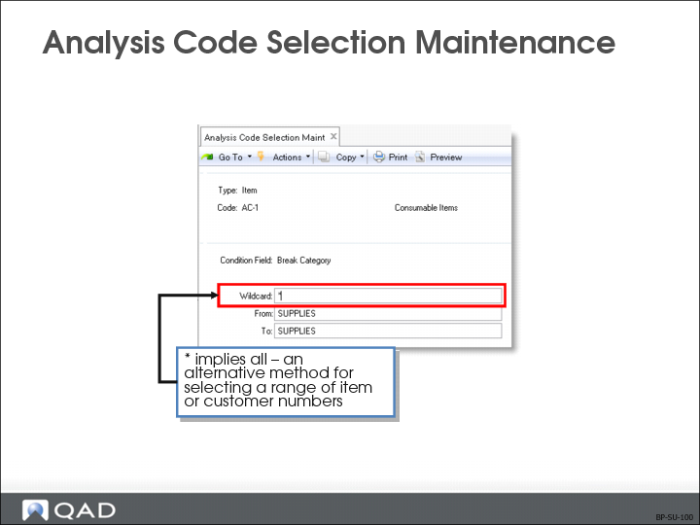
Analysis Code Selection Maintenance
Use Analysis Code Selection Maintenance to define how members are selected to be included in a group.
Type
• Customer
• Bill-to
• Class
• List Type
• Number
• Region
• Salesperson 1
• Salesperson 2
• Site
• Sort Name
• Type
• User Field 1
• User Field 2
• Item
• Article
• Break Category
• Buyer/Planner
• Description 1
• Description 2
• Group
• Item Number
• Product Line
• Site
• Type
• User Field 1
• User Field 2
Condition
Selections are based on the Condition field which is set to certain field names. Analysis Codes can have several conditions; but, you can only establish one at a time. Once the menu is complete, use the same procedure and analysis code, but
• Use another condition and item or customer code to create another type of rule
• The Wildcard, From, and To fields are used to choose records for the analysis code
Note: If multiple qualifying conditions are selected, the system uses AND logic to select only those records meeting both conditions (for example, Region is nw AND Salesperson 1 is BJD).
Wildcard
Selects items matching a string of characters and a wildcard character (period or asterisk)
• A period (.) in a given position matches any character for that specific position; for example, 3.00 matches 3100, 3200, 3300
• An asterisk (*) in a given position matches any string of characters for that position. For example, 35* matches 3510, 350, 35950
Once condition is selected, use the Wildcard and the From and To fields to specify the value in the field on the Master File. This allows you to be very specific in establishing your rules.
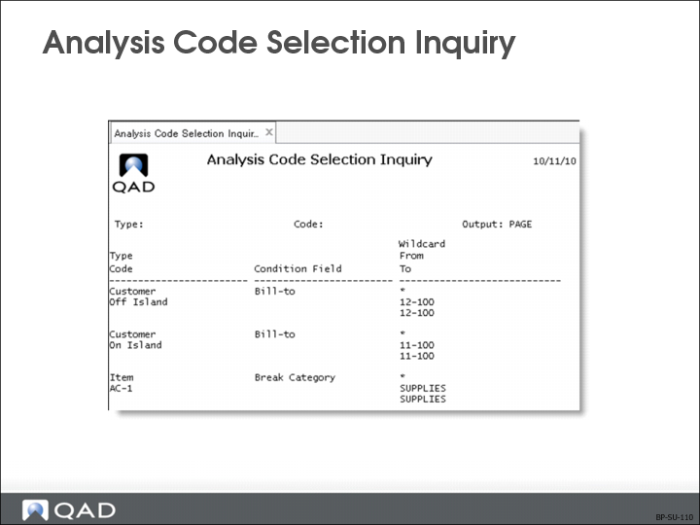
• To check your selection criteria, use the Analysis Code Selection Inquiry (1.8.5), which displays all the relationships and categories of types and codes you selected
• The rules you define will not take effect until you run the Analysis Code Detail Build (1.8.19)
Note: If you want multiple ranges, create two Analysis Codes and link them. The wildcard works with the From and To Code fields, so nodes must meet all three criteria before the Analysis Code applies.
From
The beginning range of the condition field to include for this analysis code.
To
This specifies the ending range of the condition field to include for this analysis code. If left blank, this defaults to the last code in your database.
Analysis Code Selection Inquiry
Analysis Code Selection Inquiry lists analysis codes and their Condition fields and ranges alphabetically beginning with the analysis code entered.