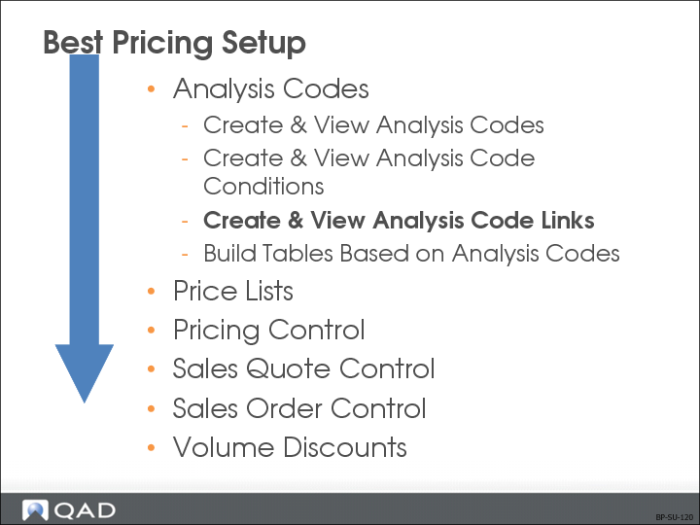
Create and View Analysis Code Links
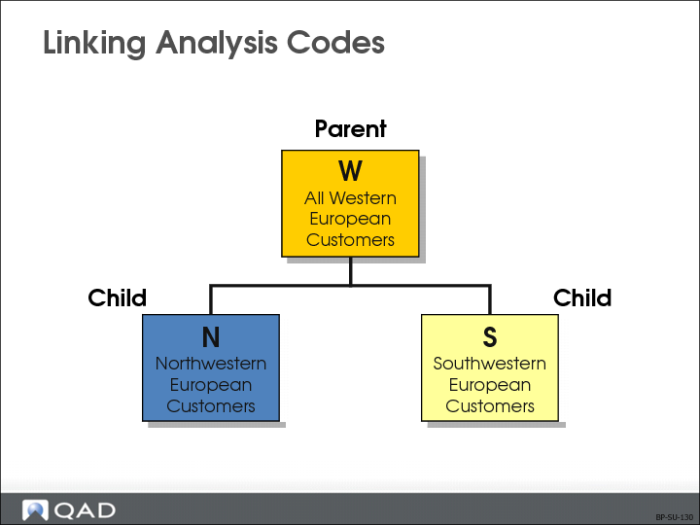
• Linking analysis codes joins existing analysis codes together to create larger and more complex analysis code groupings.
• Analysis code links can be viewed in two ways
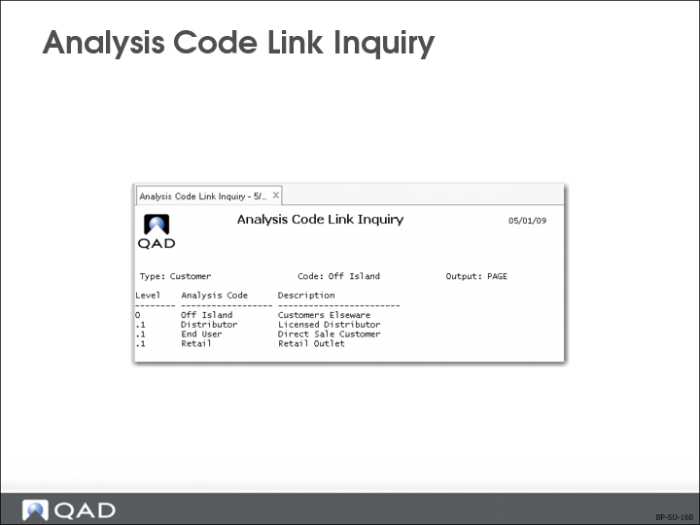
• Analysis Code Link Inquiry (1.8.8)
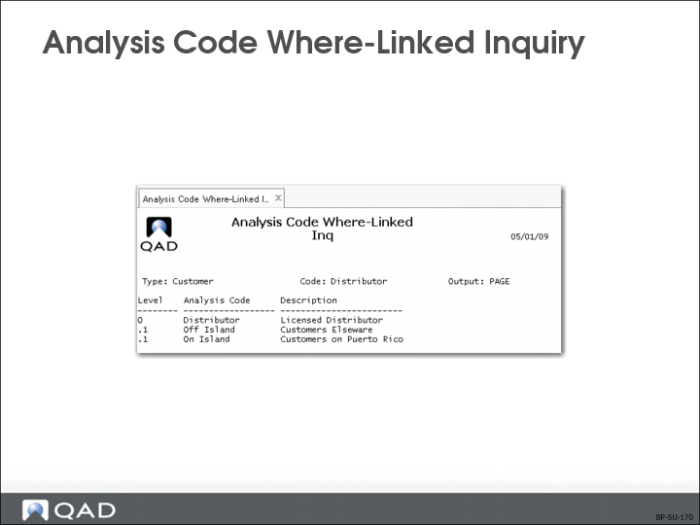
• Analysis Code Where-Linked Inquiry (1.8.9)
Linking Analysis Codes
• Organize customers and items into hierarchies
• Item analysis codes can be linked only to other item codes
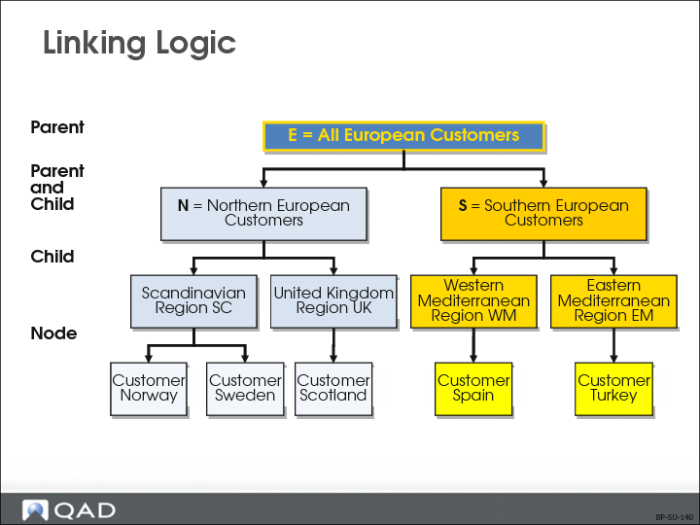
Linking Logic
Analysis Code Linking Uses OR Logic
If Code E links with Code N and Code S, any customer meeting the Code N criteria or the Code S Criteria is included in Code E. Analysis code E selects all records from both Code N and Code S.
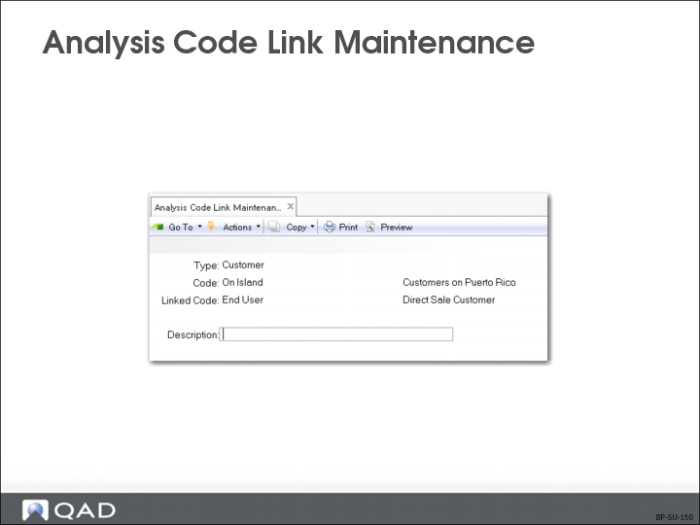
Analysis Code Link Maintenance
• Create analysis code to be linked by entering
• Type of code (item or customer)
• Analysis code
• Analysis code to be linked
• Run analysis code detail build to create the analysis code cross-reference table
Linked Code
Code you want to link your analysis code to (must be an existing Analysis Code)
• Linking a code includes all of the nodes attached to the linked code
• Think of this linked code as the child in relationship to the parent code
Description
This description displays in the inquiry screens.
Note: A regeneration needs to be run if automatic regeneration of analysis codes for items and customers is turned off in Pricing Control (1.10.1.24)
Analysis Code Link Inquiry
Use Analysis Code Link Inquiry and Analysis Code Where-Linked Inquiry (1.8.9) to look at all linked analysis codes.
Analysis Code Where-Linked Inquiry
• Specify analysis code type (item or customer)
• Enter analysis code created previously in Analysis Code Maintenance (1.8.1)