Analysis Code Detail Build
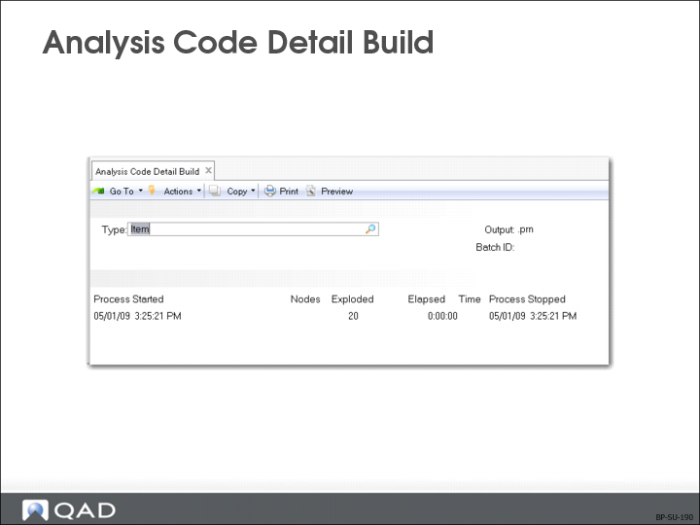
• Build the data by analysis code type (item or customer)
• Create analysis code cross-reference file (based on defined analysis code rules and links)
• Build a table of items or customers for each analysis code
• System creates a report with all analysis codes and shows if code is active or inactive
• The Nodes Exploded field shows current number of items or customers processed
Pricing Control (1.10.1.24) has an option to set Automatic Build for customers or items. However, the build program must still be run if:
• Changes are made to customer and/or item records
• Analysis codes or linkages are added, changed, or deleted
• Condition fields for analysis codes are changed
Note: This utility must be completed in its entirety. Interrupting it can cause price lists that use analysis codes to become ineffective.
Analysis Code Detail Maintenance
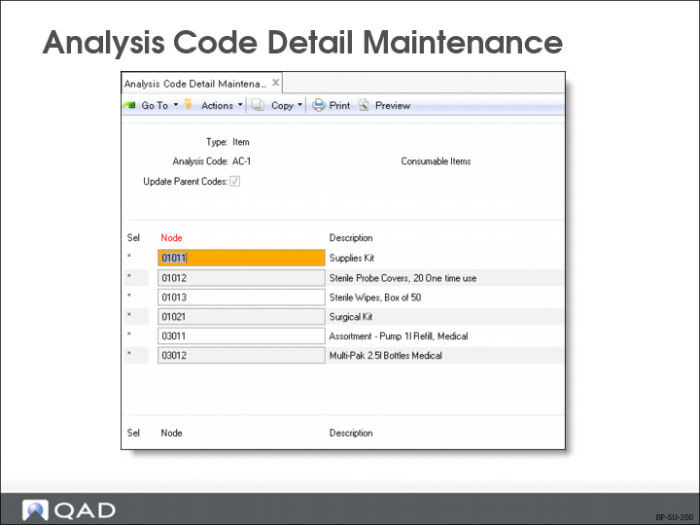
Type
Specify which analysis code type (Item or Customer) you want to build analysis code detail records for.
Code
Enter the analysis code that you created previously in Analysis Code Maintenance (1.8.1).
Update Parent Codes
Determines whether or not any changes made at the current level of analysis code to node relationship should reflect up the hierarchical chain of parent codes.
• Yes: On each change to each node, the hierarchical link (if such exists) is exploded and all related analysis codes (parents) where the node is linked will be maintained to reflect the change occurring at the current level. Only parent analysis codes are maintained. If the analysis code entered has any subordinate codes, these will not be updated.
• No: No such updating of parent codes occurs.
Note: This feature makes the maintenance of analysis code nodes easier when there are many parent code relationships. Without this feature, node maintenance would be a manual process.
Exercise: Set Up Analysis Codes
Quality Manufacturing International Inc. (QMI) provides disinfectant products for home and institutional use. Its line of disinfectants are marketed under brand QFresh and are available in non-concentrate or concentrate, in individual bottles or assortments though QMI and leading retailers worldwide.
QFresh Disinfectants Pricing and Packing Options
Item Number | Description | Price |
03031 | Pump/Refill, Scented Assortment | $8.99 |
03032 | Two 0.5L Bottles, Scented Multi-Pack | $8.99 |
03033 | Four 0.5L Bottles, Scented Multi-Pack | $16.00 |
03120 | Pump, Scented Disinfectant | $3.25 |
03121 | 0.5L Bottle, Scented Disinfectant | $4.15 |
03122 | 1L Bottle, Scented Disinfectant | $6.99 |
QMI just launched a marketing campaign to promote the sales of its QFresh scented disinfectant products with an aggressive pricing policy:
• From now till the end of next month, all QFresh disinfectant buyers can enjoy a discount of 10%.
• The standing pricing policy for wholesaler customers is 15% off for all products if they order a quantity of 100 or more. They can also enjoy the 10% promotional discount in addition to the wholesalers discount during the promotional period.
• For all customers, if their order amount reaches just 1000 USD during the promotional period, they can immediately enjoy the 30-60-90 credit term for the order, which allows them to complete the payment in three stages: 40% in first month, 30% in the second month, and the remaining 30% in the third month.
Before setting up the pricing policy, we need to create analysis codes for items and customers first.
1 Use Pricing Control (1.10.1.24) to configure global pricing settings.
• Set Discount Combination Type to Additive since we will have the system add the promotional discount to the wholesalers discount before calculating the price.
• Turn off all Automatic AC Regen for both customers and items so as not to lower system performance.
• Make sure the system prices both QO and SO by line.
• Leave the rest of the fields as is.
2 Set up analysis code for QFresh products.
a Since the promotional pricing is only targeted at the QFresh brand disinfectants, let us identify these products through the price break category. Use Item Master Maintenance (1.4.1) to set Price Break Category to QFresh for the scented disinfectant items listed in .
b Create an item type analysis code QFresh for QFresh products using Analysis Code Maintenance (1.8.1).
c Set up selection rules for the QFresh analysis code using Analysis Code Selection Maint (1.8.4).
Field | Data |
Type | Item |
Code | QFresh |
Condition Field | Break Category |
Wildcard | * |
From | QFresh |
To | QFresh |
d Since we turned off automatic analysis code generation for both items and customers, we need to manually build tables based on analysis codes using Analysis Code Detail Build (1.8.19).
Field | Data |
Type | Item |
Output | Item |
e View the resultant details for the item type analysis code QFresh in Analysis Code Detail Inquiry (1.8.14). All QFresh disinfectant items should be listed.
3 Set up analysis code for QMI wholesaler customers.
a Create a customer type analysis code WHSL for QMI wholesaler customers using Analysis Code Maintenance (1.8.1).
b Set up selection rules for the WHSL analysis code using Analysis Code Selection Maint (1.8.4).
Field | Data |
Type | Customer |
Code | WHSL |
Condition Field | Type |
Wildcard | * |
From | WHSL |
To | WHSL |
c Since we turned off automatic analysis code generation for both items and customers, we need manually build tables based on analysis codes using Analysis Code Detail Build (1.8.19).
Field | Data |
Type | Customer |
Output | Customer |
d View the resultant details for the item type analysis code WHSL in Analysis Code Detail Inquiry (1.8.14). All customers with type WHSL should be listed.
4 Review details of the analysis codes you just set up using Analysis Code Report (1.8.17), as well as other analysis codes already set up in the system.