Exercise 4: Work Orders
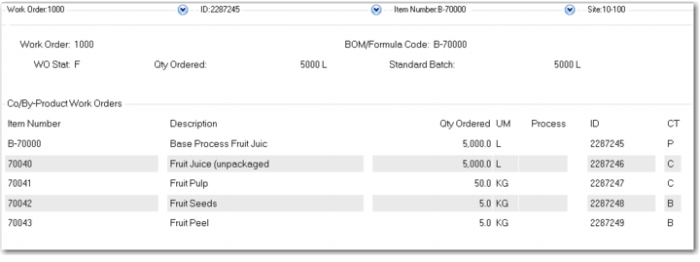
1 Use Work Order Maintenance (16.1) to create a work order for your base process, B-70000 at site 10-100 for 5,000L. Note the joint order set this creates.
2 Use Work Order Release/Print (16.6) to release the work order. Note how the system first prints a section to receive the expected Co/By-Products, then the picklist, then the process route.
3 You are short all of the component items. Use Receipts - Unplanned (3.9) to receive enough of each component into site 10-100 to complete your work order.
4 Use Work Order Receipt Backflush (16.12) to complete your work order. As you enter the screen, note the check boxes for Receive, Backflush, Receive All, and Receipt Qty = Open Quantity. If you are receiving the order at standard you can check all the boxes and the system will do most of the work for you.
The system steps you through the receipt screen, then the component issue screen, then the order close screen. You can make any changes to either issues or receipts as needed.
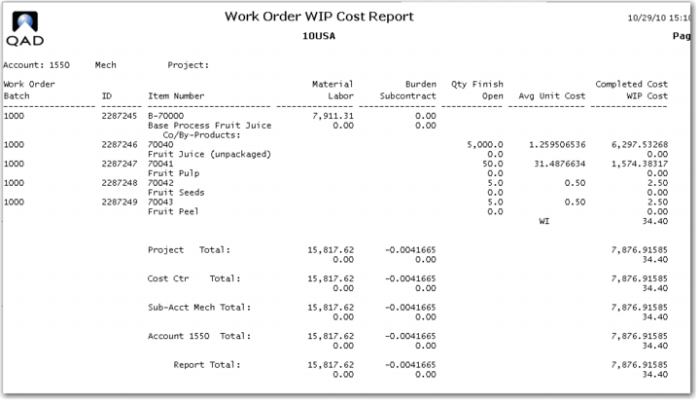
Review the Work Order Cost Report (16.3.4). Because you did not report any labor the report shows only the value of the components issued and the Co/By-Products received. Review the Work Order WIP Cost Report (16.3.5), shown here.
If you would like to see how mix variances are generated, create another work order and receive some of the items for a non-standard quantity.