Multi-Element Costing: Setup
First, assuming that the cost set is a new one, follow these steps:
• Create a cost set in Cost Set Maintenance (30.1) and define a cost set code.
• Next, define the cost elements in Cost Element Maintenance (30.17.1).
• Enter costs in Item-Element Cost Maintenance (30.17.5) or use Item-Element Cost Calculation (30.17.10) and let the system calculate the costs.
• Roll up the costs in Routing Cost Roll-Up (14.13.13) and Product Structure Cost Roll-Up (13.12.13).
These steps are discussed on the following pages.
Create Cost Set
Use Cost Set Maintenance (30.1) to define a cost set
Ensure that cost sets to be used as the GL (Standard) or Current costs at a site are entered as type GL and CURR, respectively; otherwise they can only be used for simulation purposes
Define Cost Elements
Use Cost Element Maintenance (30.17.1) to define additional cost elements for GL and Current type cost sets
Cost Elements
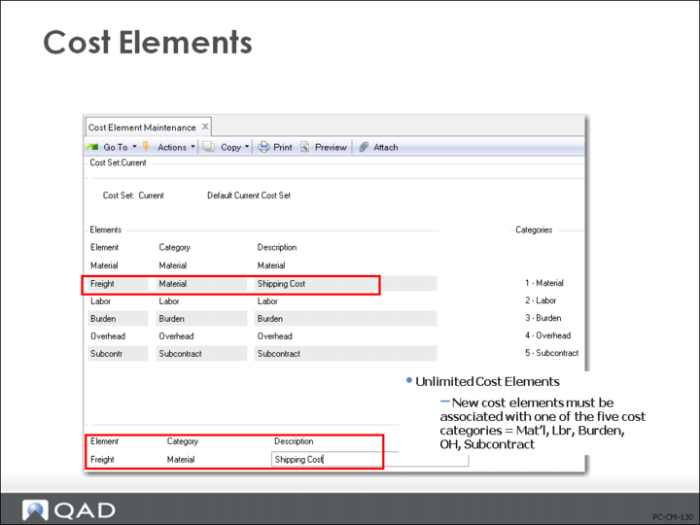
You can set up additional cost elements for your current and GL cost sets, and for your simulation cost sets. this is done in Cost Element Maintenance (30.17.1).
• You will always have five cost elements to start with: material, labor, burden, overhead, and subcontract. You can add others but you cannot delete these. Each of the cost elements you add must be associated with one of the five cost categories.
• You can set up each current and GL cost set with its own cost elements, or each one can be set up the same. In the latter case, enter the cost elements for one cost set and then use Cost Element Copy (30.17.4) to copy them to other cost sets.
• To add a new cost element, while in the Elements frame, select Insert from the Actions drop down menu. Add the new element details in the bottom frame. Note that elements are displayed in element sequence within each cost category.
Enter Costs
Use Item-Element Cost Maintenance (30.17.5) to enter costs manually, or use Item-Element Cost Calculation (30.17.10) to have the system calculate these costs based on other cost elements in the cost set.
Note: There is no automatic update of multi-element costs to reflect actual transactions in the same way that Current cost set values can be updated.
Enter Costs Manually
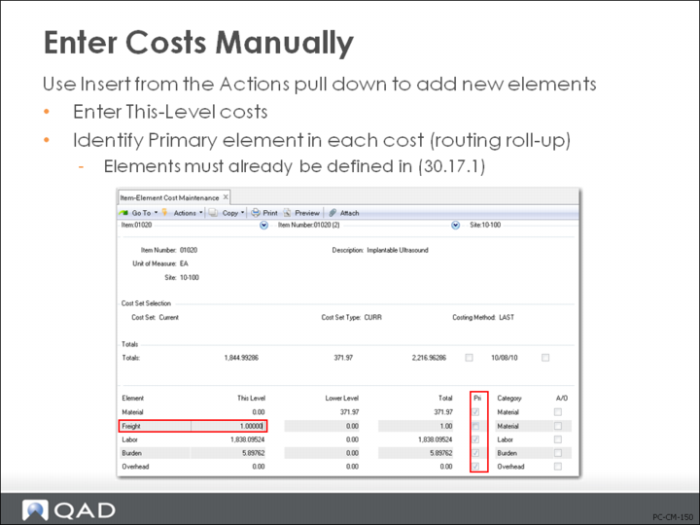
Use Insert from the Actions pull-down menu to add new elements.
• Enter This-Level costs
• Identify Primary element in each cost (routing roll-up). Elements must already be defined in Cost Element Maintenance (30.17.1)
Once you have set up your cost sets and cost elements, you can enter your costs. Item-Element Cost Maintenance (30.17.5) can be used to enter costs for any site’s current or GL cost set. When you initially enter costs, only the five standard cost elements display. You can update costs for listed elements or add costs for any other element that has been associated with this cost set.
Navigation
• Press Enter or the Next button to advance to the cost element frame. Click the element name to open the cost field to update the cost element record.
• Select Insert from the Actions pull down menu to enter a cost for a cost element other than those displayed. A blank field appears for you to type Element and Cost. The new element will be added above the highlighted, existing element.
• Use Look-Up to get a list of valid elements for this cost set. Costs can be entered only for elements that have been associated with this cost set.
• When a record is selected the Delete Button appears to flag an element for deletion. You can only delete elements that have zero cost and are not flagged as primary. The delete is not processed until you press Enter of click Next.
• Press Next when you are finished. This stores the cost changes and deletes any elements flagged for deletion.
Primary Element (Pri field)
Each category always has one, and only one, primary element. The primary element accrues all costs applied to the category that do not match any other element in that category, as well as the costs applied to it specifically. This only affects the routing roll-up, as you will see in the following sections.
Let System Calculate Costs
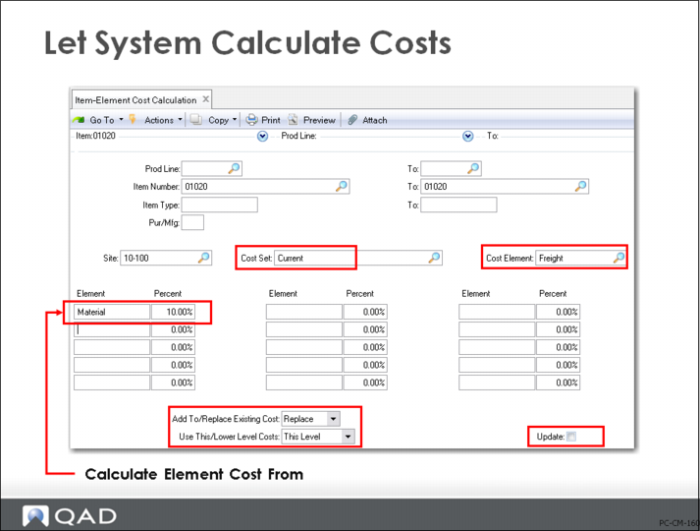
Costs can be entered manually for each individual cost element, as you have seen, or they can be calculated by the system. Item-Element Cost Calculation (30.17.10) allows you to calculate the value for a particular cost element as a percentage of one or more cost elements. For example, you can set Freight to 10% of Material costs.
You can specify whether the system should calculate costs as a percentage of an item’s this-level or lower-level costs
The ability to calculate a particular cost element as a percentage of lower-level costs is especially important for companies that calculate fixed overhead as a percentage of total material costs
You can review the cost impact before finalizing it by leaving the Update box unchecked. When you are ready to update the costs check the box.
Roll Up Costs
We have looked at this-level costs that we enter or calculate. Next, we will look at how multiple cost elements are handled in the Routing Cost Roll-Up (14.13.13) and Product Structure Cost Roll-Up (13.12.13) functions.
Routing Cost Roll-Up
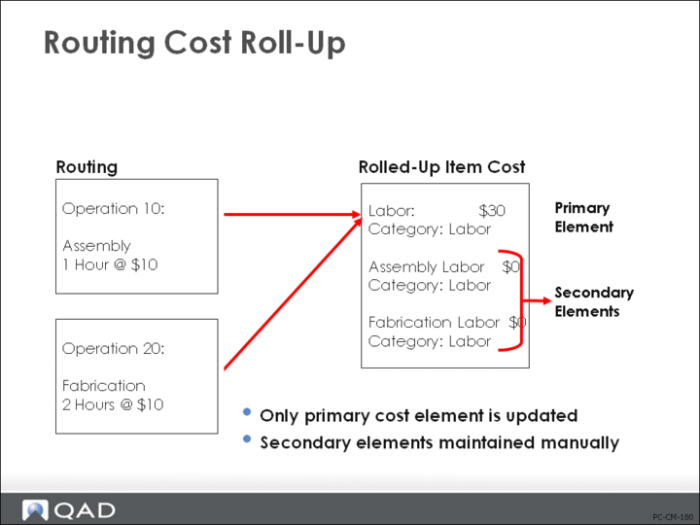
The Routing Cost Roll-Up (14.13.13) works a bit differently than the Product Structure Cost Roll-Up. While labor, burden, and subcontract cost elements can be created and maintained manually through cost maintenance functions, Routing Cost Roll-Up (14.13.13) calculates labor, burden, and subcontract costs and places those costs in the primary cost elements for each category. Any non-primary labor, burden, or subcontract cost elements are not affected.
Example: The example in the figure above shows a routing with two operation steps: assembly and fabrication. The Routing Cost Roll-Up (14.13.13) uses this operation information to calculate the total labor cost for the item. This cost is stored under the primary cost element for the cost category Labor. In the example, this is the cost element Labor.
The other two non-primary cost elements—Assembly Labor and Fabrication Labor —are not affected by the cost roll-up. If the total cost of labor needed to be split into assembly and fabrication, it would have to be done manually.
The same process is used to calculate burden and subcontract costs. The Routing Cost Roll-Up (14.13.13) calculates the total cost from all operations and stores it in the primary cost element for each of these categories.
Product Structure Roll-Up
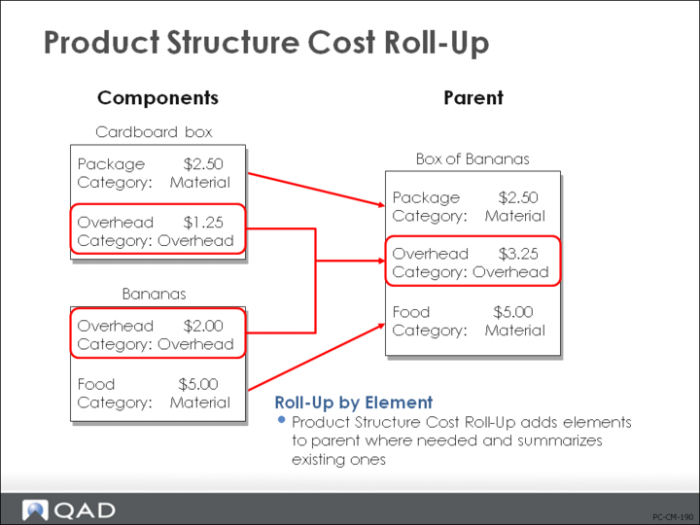
We indicated that the material and overhead costs for all components are accumulated and recorded as lower-level costs for the parent. But, when material costs are split into several cost elements, each of these must be rolled up separately.
Example: A box of bananas, the parent item, consists of a box and a bunch of bananas. The cost of each of these components is split into cost elements:
• Bananas cost $7, two elements: $5 Food and $2 Overhead
• Cardboard boxes cost $3.75, two elements: $2.50 Packaging and $1.25 Overhead
When we roll up the cost of a box of bananas (assuming a quantity of one and no scrap), the lower-level cost is $10.75, split into three elements:
• Food, $5
• Package, $2.50
• Overhead, $3.25
Components need not have the same set of cost elements as the parent. The roll-up records one element at the parent level for each cost element found in any of its components. If the component’s cost elements were not already on the list of elements for the parent item, the system adds them and records their cost. The cost of common cost elements is summarized and recorded on the parent.
Cost Reporting
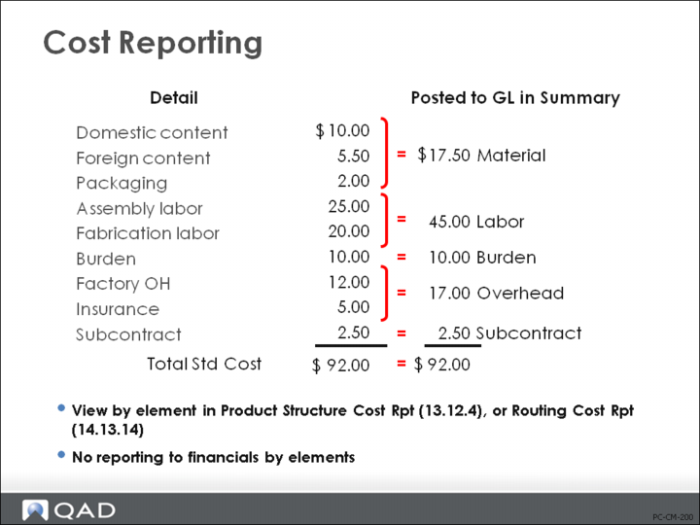
When you look at costs in detail by element, you will see them broken down much like the costs displayed in the figure above. Some reports give you the option of presenting cost information in detail by element or in summary by category. Summarized reports show only the totals for each of the five cost categories.
Example: The example in the figure above shows the difference between the information provided by a detailed report and a summarized report.
• A detailed report shows each of the cost elements in sequence by cost category and element. It would print each of the cost elements and their individual amounts.
• A summarized report shows only the totals by category. These categories are always material, labor, burden, overhead, and subcontract.
Note: Costs are only subdivided by cost element on cost reports, such as the Product Structure Cost Report (13.12.4) or Routing Cost Report (14.13.14). Costs are not separately identifiable by cost elements through work order processing, cost of goods sold posting, or configured sales order costing. All GL posting functions continue to work with, and only with, the total for each cost category.