Exercise 1: Multi-Element Costing
In this exercise you will create a new cost element, add some costs and do a cost rollup to see how multi-element costs are managed.
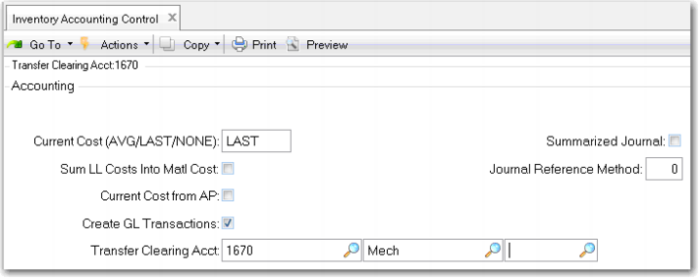
1 Use Inventory Accounting Control (36.9.2). Set the Current Cost field to LAST.
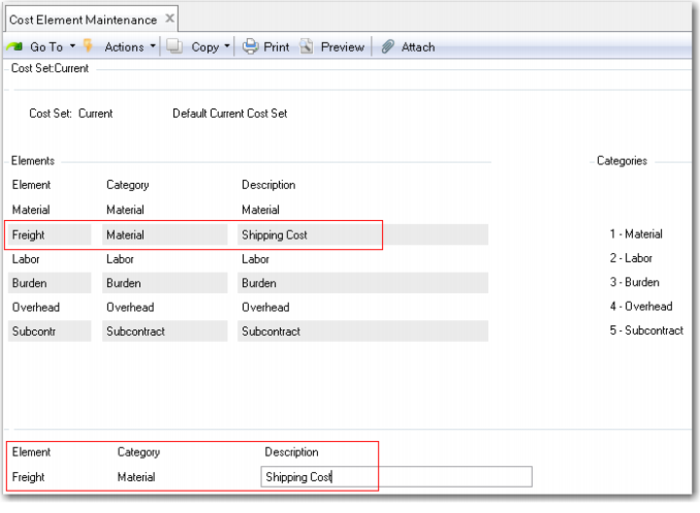
2 Use Cost Element Maintenance (30.17.1) to create a new cost element Freight. Add this to the current cost set and the category Material. Use Insert from the Actions pull down menu. Enter the data shown in the highlighted lower frame.
3 Use Item-Element Cost Maintenance (30.17.5) to add a cost of 1.00 to the freight element of the 01020 Implantable Ultrasound, at site 10-100. Use Insert from the Actions pull down menu. In the open field that appears enter Freight, then key Enter or click Next to advance to the cost field and enter 1.00, click Next, or key Enter to complete and save the update.
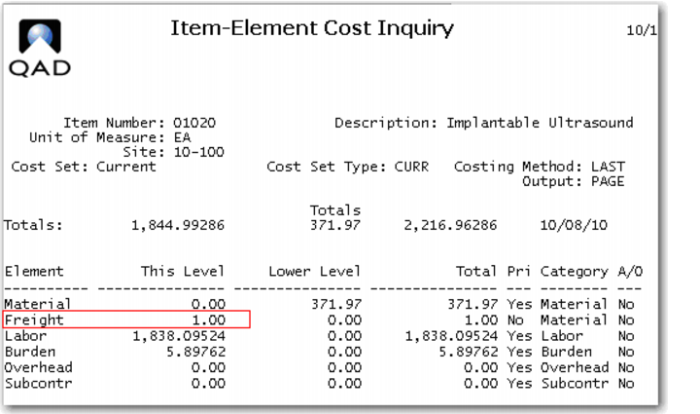
4 Use Item-Element Cost Inquiry (30.17.6) to review your work. Do not worry about the other costs, but ensure your added 1.00 of freight is shown.
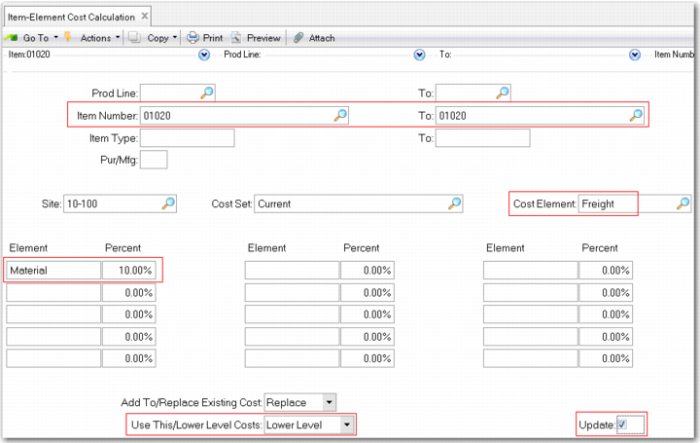
5 You could use the system to calculate the value of your added cost element. Use Item-Element Cost Calculation (30.17.10) to calculate a value for freight. Calculate freight to be 10% of lower level, current material cost at site 10-100. Check update.
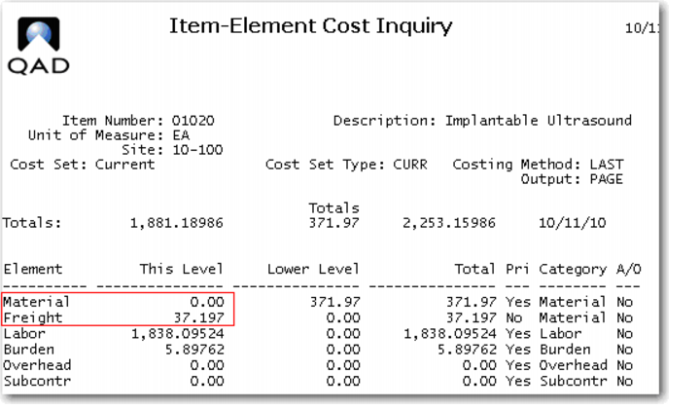
6 Use Item-Element Cost Inquiry (30.17.6) to review your work.
Your freight cost should now be 10% of the lower level material cost as shown here.
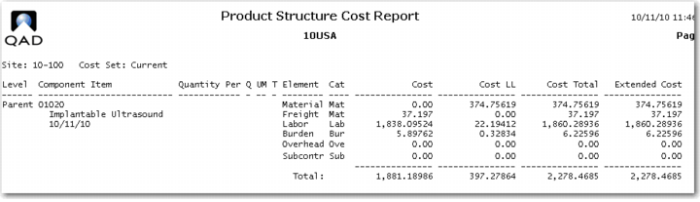
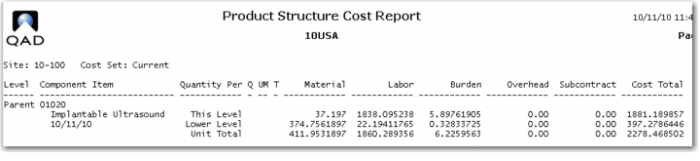
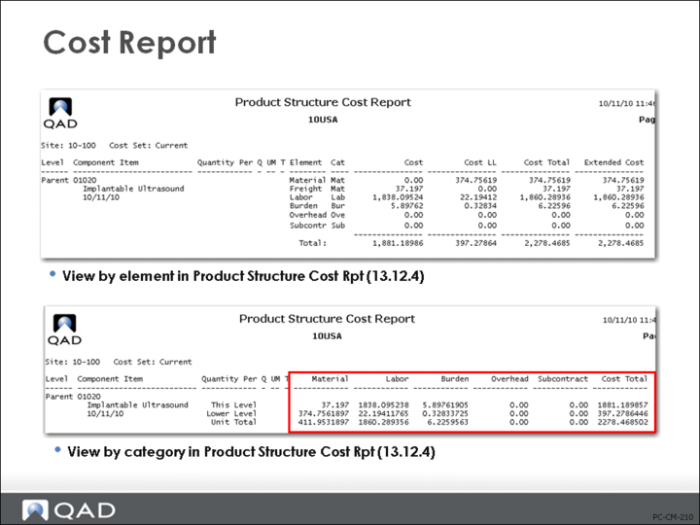
7 Use Product Structure Cost Roll-Up (13.12.13) to roll up the 01020 at site 10-100 for the current cost set. Review the result with Product Structure Cost Report (13.12.4). In the report request form for By Category/Element, select element to see the view shown here. The trailer record for the report shows which selections you made.
Note the form defaults to category which displays the sum of the five categories.
Cost Report