Exercise 2: Cost Simulation
In this exercise you will create a simulation cost set, add some data to it, manipulate the data, and copy it to a GL cost set as the new cost standard. This is a useful technique when developing costs for new items, or setting the next standard cost when there are significant changes in the cost structure.
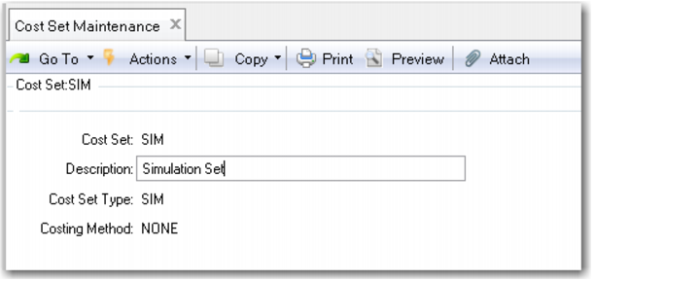
1 Use Cost Set Maintenance (30.1) to create a new cost set, name it SIM, give it a type of SIM. The method will default to none, as shown here.
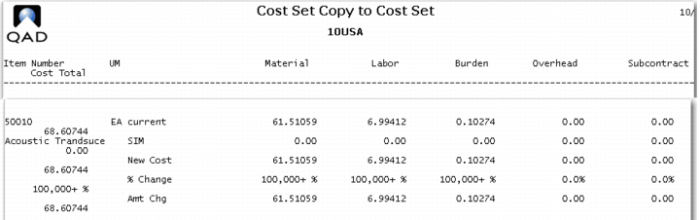
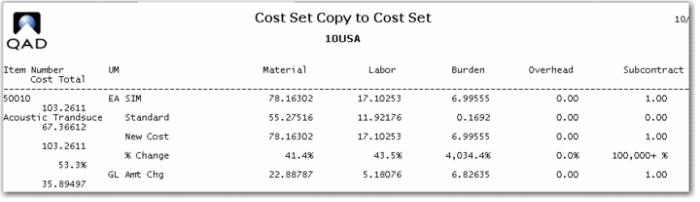
2 Use Cost Set Copy to Cost Set (30.3) to copy the costs from site 10-100 Current, to site 10-100 SIM. Clear the Pct Change Allowed field, leaving it with a question mark(?). Scroll down the report this creates to see the 50010, Acoustic Transducer. The transaction report should look like this.
Note: There is no subcontract cost. Yet the route for the item shows operation 15 as a subcontract operation with a cost of 0.20 that has not been rolled up.
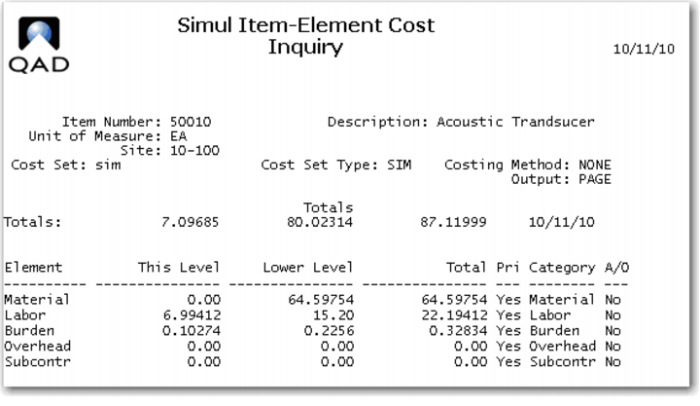
3 Use Simul Item-Element Cost Inquiry (30.13.6) to review the costs of the 50010 in the SIM cost set.
4 Use (30.13.23) Item/Routing to Simulation Copy, to copy both the work center and the operation costs from site 10-100 to the SIM cost set. Put a ? in the tolerance field.
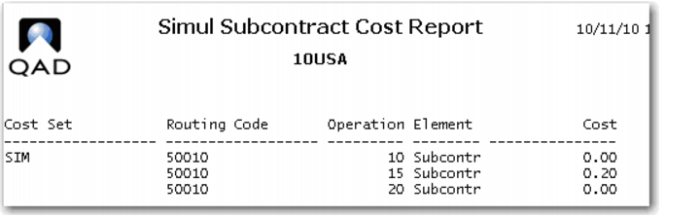
5 Use Simulation Subcontract Cost Report (30.13.12) to review subcontract costs for cost set SIM, item 50010.
Because you have copied the data from the routing and not from the standard cost data, you do see the 0.20 subcontract cost for operation 15.
6 Your subcontractor has informed you that the cost of the operation is going up to 1.00 and that they are using a subcontractor to do some of the work. The sub-subcontractor is charging 0.25 for their part of the operation. You decide to track the two parts of the subcontract operation separately.
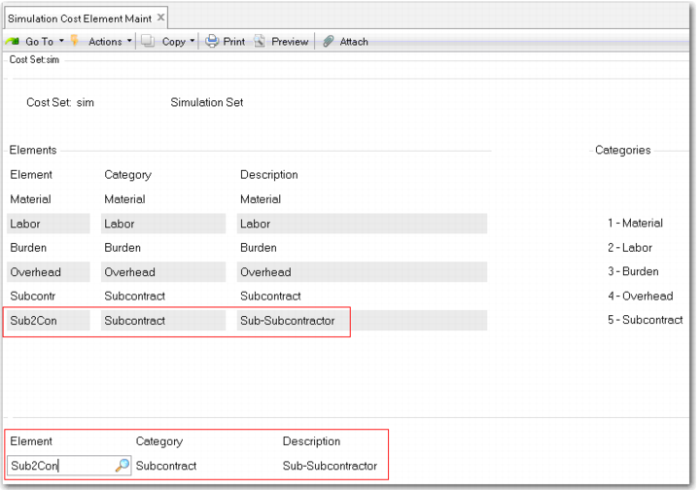
Use Simulation Cost Element Maintenance (30.13.1) to add a new cost element to record sub-subcontract costs. Perhaps label it Sub2Con. The process is the same as the earlier exercise on cost elements. When finished it should look like this.
Note you are adding this element only to the simulation cost set SIM.
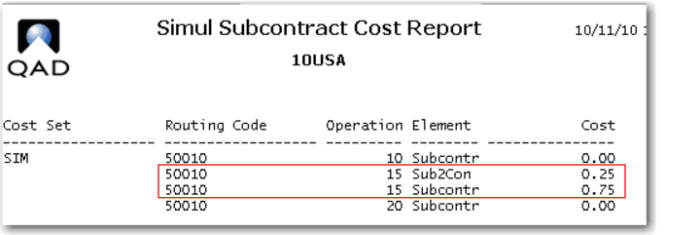
7 Use Simul. Subcontract Cost Maint. (30.13.10) to add the new subcontract costs for the 50010 in cost set SIM. For operation 15, set the cost to 0.75. Click Next until back at the Routing Code field, tap to the Cost Element field and key in Sub2Con (or your name for this element) and make its cost 0.25. Review your work with Simul Subcontract Cost Report (30.13.12).
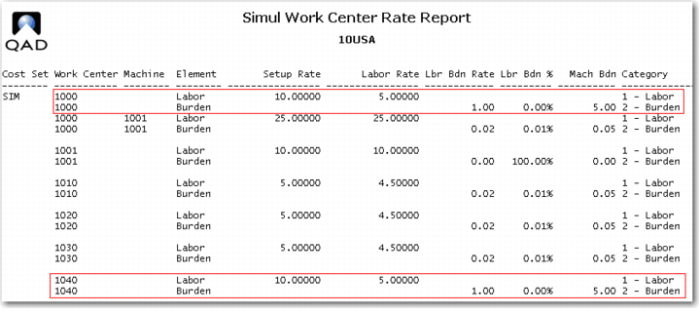
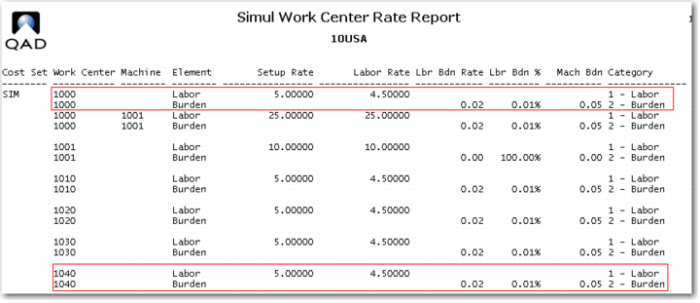
8 Review the work center rates for cost set SIM. You could use Simul Work Center Rate Browse (30.13.14) or Simul Work Center Rate Report (30.13.15). You are only concerned with WC 1000 and 1040.
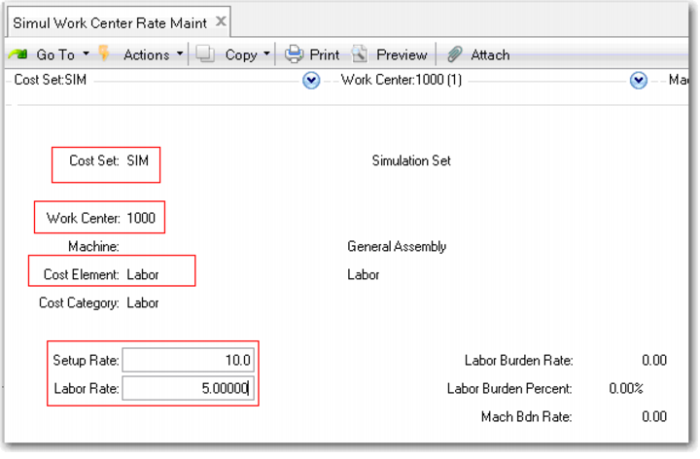
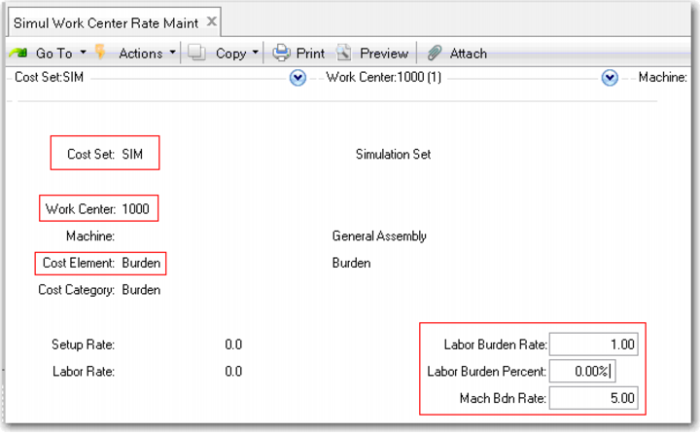
9 Work center rates are increasing for both work center 1000 and 1040. Use (30.13.13) Simul Work Center Rate Maint. to update the Setup Rate to 10.00, and the Labor Rate to 5.00. Enter the screen again for the Element Burden and make the Labor Burden Rate 1.00 and the Machine Burden Rate 5.00. Make Labor Burden Percent 0.00.
The rates are the same for both work centers. The screens below show what your setup should look like for both labor and burden at both work centers.
For the work center rate you could also use Simul. Work Center Rate Update (30.13.16).
10 Review the work center rates for cost set SIM. You could use Simul Work Center Rate Report (30.13.15) for work centers 1000 - 1040. You are only concerned with WC 1000 and 1040. The rates have now been updated in the simulation cost set.
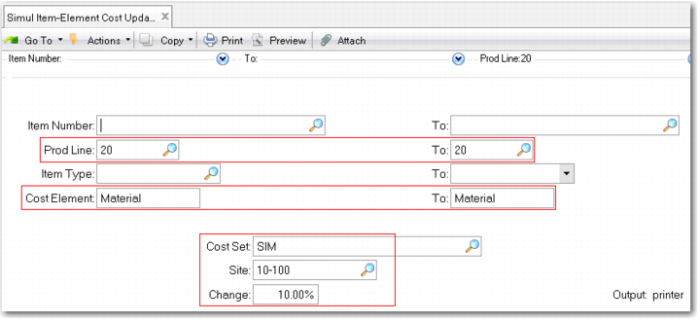
11 Purchase material costs for product line 20, which includes most of the components of the 50010, are going up 10%. Use Simul Item-Element Cost Update (30.13.8) to increase the material cost of all items in product line 20, at site 10-100 cost set SIM.
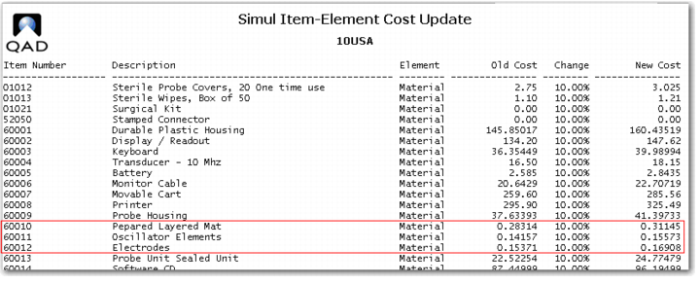
Note the report this function generates, it shows by item number the old and the new costs.
12 Use Simulation Cost Roll Up (30.13.18) for site 10-100 cost set SIM and item 50010. You should see the new labor, burden and subcontract costs.
13 Use Simulation Structure Cost Roll Up (30.13.19) for site 10-100 cost set SIM and item 50010. You should now see the new material costs.
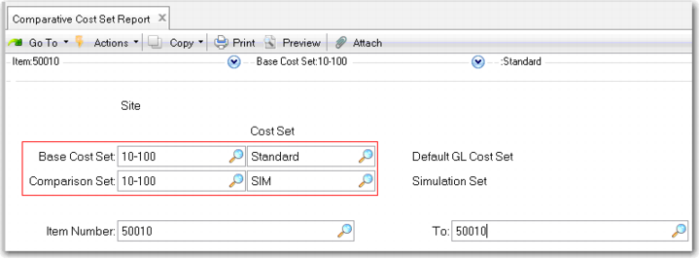
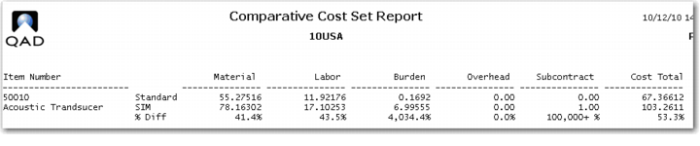
14 Use Comparative Cost Set Report. (30.22) to compare the simulation cost of the 50010 with the GL cost.
Your report should look something like this.
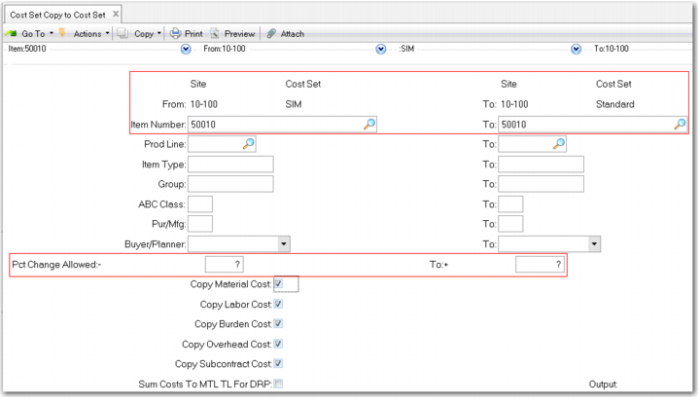
15 Use Cost Set Copy to Cost Set (30.3) to copy the simulated cost for the 50010 back to the GL standard cost for site 10-100.
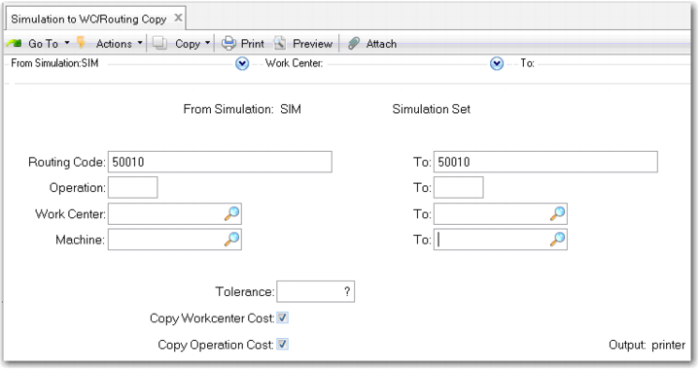
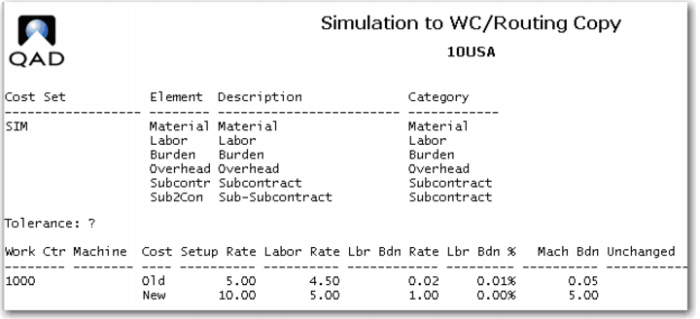
16 Use Simulation to WC/Routing Copy (30.13.22) to update the routing subcontract rates and the work center rates.
The report of the update function shows the old and new rates. Here you only see work center 1000, work center 1040 has also been updated to the same values.