Scheduled Orders
A scheduled order is like a sales order, you create it in response to a customer demand and shipments are made against it. However, it differs from a sales order in that each line item has multiple delivery dates and quantities.
A scheduled order is a combination of sales order header and trailer fields and line item planning fields.
Discussed in Training Guide: Sales Orders.
Header
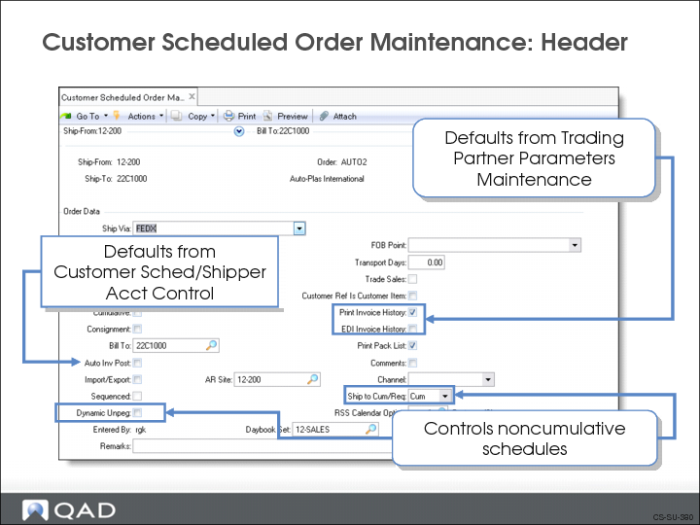
Use Customer Scheduled Order Maint (7.3.13) to create a new scheduled order, review, or modify an existing scheduled order.
Scheduled order numbers must be unique. When creating a new scheduled order, you can:
• Leave the Order field blank and have the system assign an order number
• Enter an order number of your own choosing
Order Data Frame
Much of the Order Data information defaults from Customer Maintenance (2.1.1) and Trading Partner Parameters Maintenance (35.1).
Field Definitions
Ship Via
Indicates the carrier normally used between the ship-from site and the customer. Can validate using generalized codes set up in Generalized Codes Maintenance (36.2.13)
Taxable
Determines if the items on the scheduled order are subject to tax; Defaults from the customer’s ship-to address if specified
• If Yes, the items are subject to tax
• If No, the items are not subject to tax
Week Offset
Use to set the weekly starting date of the scheduled order to match the customer’s work week. Bucketing requirements are allocated using this value.
• Defaults to 0 (zero), Monday; Monday is 0, Tuesday is 1, and so forth.
• For example, if your customer’s work week starts on Tuesday, set the week offset to 1.
Inv by Auth
Indicate how invoice totals should be calculated and displayed for this scheduled order.
No: Invoice totals are calculated by line. This is the typical method for calculating totals unless the customer is using AR Self-Billing.
Yes: Invoice totals are calculated by authorization number. The printed invoice includes the price and amount for each authorization line as well as the total for all authorization lines. The extended price for each invoice line item is not displayed.
This field is important for customers using the optional Self-Billing Menu (27.6.12) and ensures that rounding errors do not occur between the accounts receivable (AR) amount calculated by Self-Bill Payment Application (27.6.12.7) and the invoice amount. Rounding errors can prevent invoices from being closed or create unapplied payments.
Cumulative
Determines how requirements are entered on scheduled releases and displayed in reports and inquiries.
No: Net quantities are entered.
Yes: All quantities are entered as cumulative, meaning that the discrete quantity is added to the cumulative quantity of the previous requirement.
Bill-To
The address code of the customer’s bill-to address. Defaults to the customer’s sold-to address if a bill-to address was not specified in Customer Maintenance
Auto Inv Post
This field sets the default value for the Post Invoice field in Pre-Shipper/Shipper Confirm (7.9.5).
• When Post Invoice is No, invoices are not posted during shipper confirmation. You must post them manually using Invoice Post and Print (7.13.4).
• When Post Invoice is Yes, invoices are automatically posted during shipper confirmation to the general ledger Accounts Receivable (AR) account specified for the customer. You can print accumulated invoices using Invoice Print or Reprint (7.13.12).
This value defaults from the Auto Invoice Post field in Customer Schedules/Shipper Acct Control (36.9.7).
Imp/Exp
Determines if import/export data is maintained for the order.
• If Yes, you are able to enter or maintain import/export data for the order
• If No, you are not able to enter or maintain import/export data for the order
Note: If European Intrastat statistics are required for this order, denoting the movement of goods within the EU, this field must be set to Yes. Intrastat Control (2.22.24) and valid inputs for Despatch, Country of origin on the bill-to/sold-to and ship-to must also be set up.
Sequenced
This field is available only when using the optional Customer Sequence Schedules (7.5.4) module. It indicates whether the scheduled order is a sequenced scheduled order. If Yes, enter sequence information in the Sequence Delivery Data frame.
Discussed in Training Guide: Customer Sequence Schedules
Dynamic Unpeg
Determines if dynamic de-allocation is initiated or not. If initiated, affects the open quantity by letting pegged requirement quantities on unconfirmed shippers or pre-shippers for the same order line number be included in the calculation.
• If Yes, Picklist/PreShipper–Automatic (7.9.1) removes pegging information from any existing unconfirmed shippers or pre-shippers before building new pre-shippers
• If No, new pre-shippers are built using open demand not already pegged to other shippers or pre-shippers
Entered By
The initials of the user entering the scheduled order.
FOB Point
The point at which the ownership of the goods transfers to the customer.
• For example, FOB Destination means that ownership transfers at the point of delivery
• Can validate using generalized codes set up in Generalized Codes Maintenance (36.2.13)
• If Auto Invoice is set to Yes, system picks up the FOB Point from this entry
Transport Days
Enter the number of calendar days it takes for a shipment to arrive at the customer site. Specify a value only if your customer gives you a receipt schedule, specifying the date they want the product in-house. If your customer gives you a shipping schedule, they have already factored in the transportation time.
The schedule update functions uses this to set shipment dates.
Shipment Date = Requirement Date – Transport Days
Print Inv Hist
Determines if an invoice history record created by this order can be printed using Invoice Print or Reprint (7.13.12). If you are using EDI or eCommerce, and you set this field to Yes, you can print the invoice in addition to exporting it electronically
EDI Inv Hist
Determines if the invoice history record created for this order can be transmitted via EDI or eCommerce using Invoice Export (35.8). If Yes, EDI or eCommerce is enabled
Print Pack List
Determines if you can print a packing list/picklist for this order.
Note: There are other factors which can prevent a packing list from being printed. Factors such as partial shipments being set to No, if the order line is not confirmed, if there is a requirement for allocated quantities, or if the customer has an active status of hold due to a credit problem.
Comments
Set to Yes if you want to make comments or notes about this scheduled order. Comments made here print out below the order header, but above the line items
AR Site
Enter the site where the scheduled order was recorded. This can be the same as the ship-from site, but does not have to be. You can change this site for each line item.
In multisite transactions where the AR site is different from the ship-from site, you can make shipments and let a separate AR site collect the revenues. Also, the AR site can exist in a different entity or different database, or both.
Ship to Cum/Req
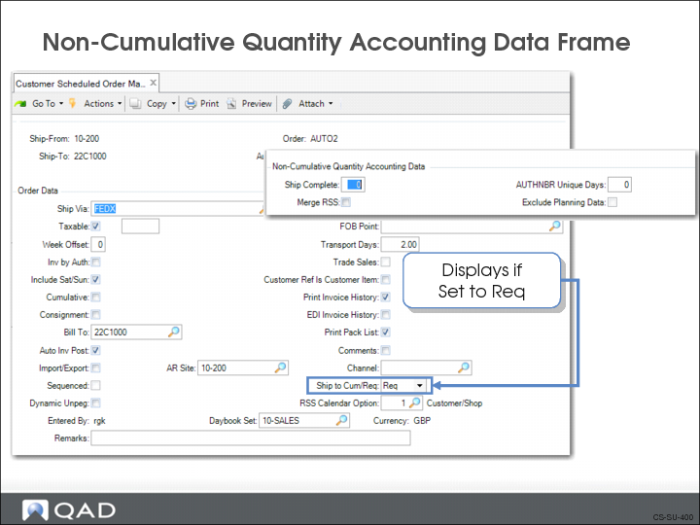
Cum(umlative) indicates this is a cumulative schedule; Req(uirement) indicates this is a noncumulative (net) schedule. If Req, the Non-Cumulative Quantity Account Data frame displays
Currency
The currency being used for the scheduled order.
Tax Data Frame
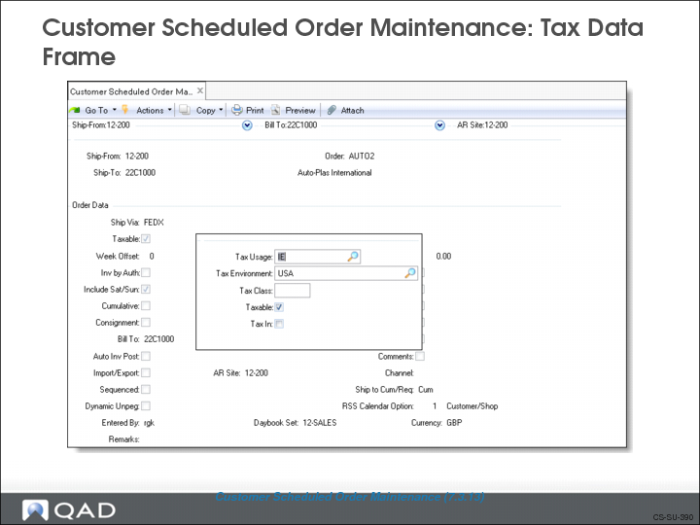
The order tax data frame displays for the input of Global Tax Management data.
The Non-Cumulative Quantity Account Data frame
The Non-Cumulative Quantity Account Data frame only displays if the Ship to Cum/Req field (found in the Order Data header frame) is set to Req.
Field Definitions
Ship Complete
The percentage of a requirement quantity that must be shipped to be considered complete
Merge RSS
Affects the generation of required ship schedules. Set to Yes if your trading partner does not re-transmit requirements that have not yet been shipped
AUTHNBR Unique Days
If not zero (0), system verifies that duplicate authorization numbers are not reused within the time period
Exclude Planning Data
Determines how system manages planning data when open requirements are being merged.
• If Yes, system does not merge planning data from the active required ship scheduled (RSS) into the newly generated schedule
• If No, system merges planning data from the active RSS into the newly generated schedule
Note: You can only update this field if Merge RSS is set to Yes.
Line Item Data
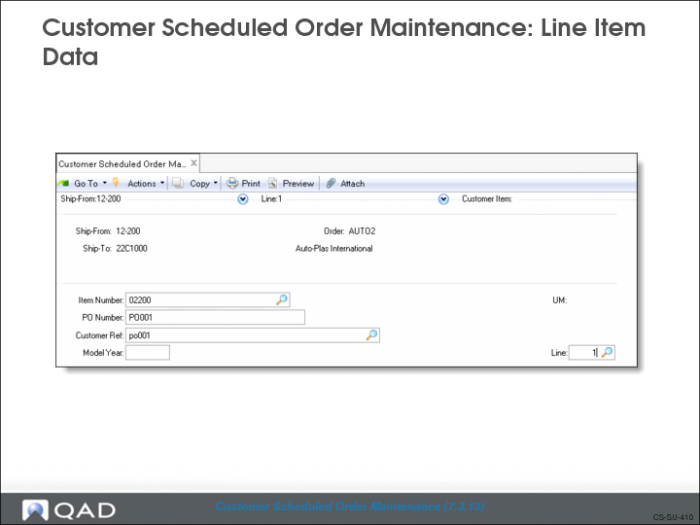
In the line item data frame you identify the item being shipped and the line number.
• Item number
• Customer purchase order number (optional)
• Unit of measure (UM)
• Scheduled order line number
• Sequential number
• Can be system assigned or user assigned
• You can have multiple lines on one scheduled order
• Must have same ship-to
Note: If your customer has multiple docks, with requirements coming on the same scheduled order, you should create a line for each dock, with the same item number and different purchase orders.
The system asks you if you want to copy order details from another purchase order for the same item.
• If Yes, the system prompts you through the copy
• You need the purchase order number and the sequential line number you are copying from
Order Line Item Data: First Frame
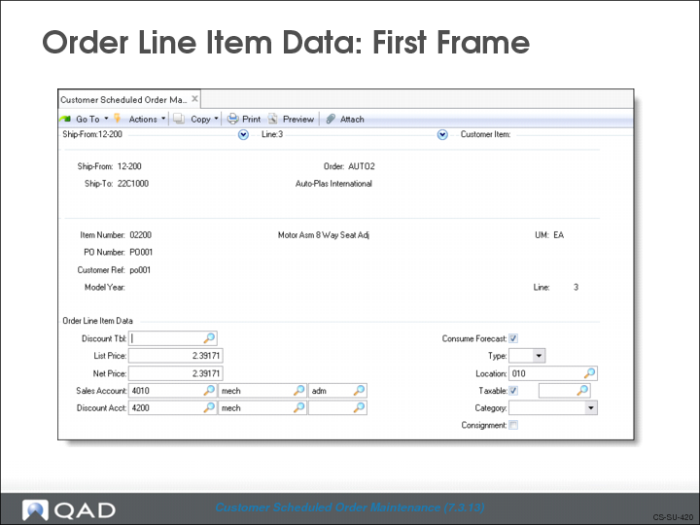
There are two Order Line Item Data frames. The first frame contains pricing and inventory information.
Field Definitions
Discount Tbl
The price list to use in pricing this item. Customer schedules only use the “P” type price list.
List Price
The unit price before applicable discounts or mark-ups are applied
Net Price
The price the customer pays for the item
• Updated once the shipper is confirmed
• If the price is different at the time of shipment (determined by the start and end effective dates of the price list), this field is updated at the time of shipment
Sales Acct
The GL account used to track the sales amount for this line item
Disc Acct
The GL account used to track discounts for this line item
Consume Forecast
Use to specify if quantities in the active RSS should consume available forecast.
• If you use the forecasting module to give early warning of future plant load (beyond the schedule horizons), you may want the actual RSS to consume the predicted load. If the schedule you are creating forms part of that forecast, then set to Yes or you will have double-counted the load
• If this schedule order has not been predicted and forms additional load, set to No
Type
Determines if shipments of this item are to affect inventory. Defaults from the item definition.
• If left blank, line item is to be shipped from inventory
• If any value other than blank such as M for Memo, D for Drop Shipments, the shipment does not affect inventory
• Can validate using generalized codes set up in Generalized Codes Maintenance (36.2.13)
Location
Location where this line item is stored in inventory. Defaults from Item Master
Taxable
Indicates if this item is taxable (Yes) or not (No). An item can have a different taxable status from other items on the order
Order Line Item Data: Second Frame
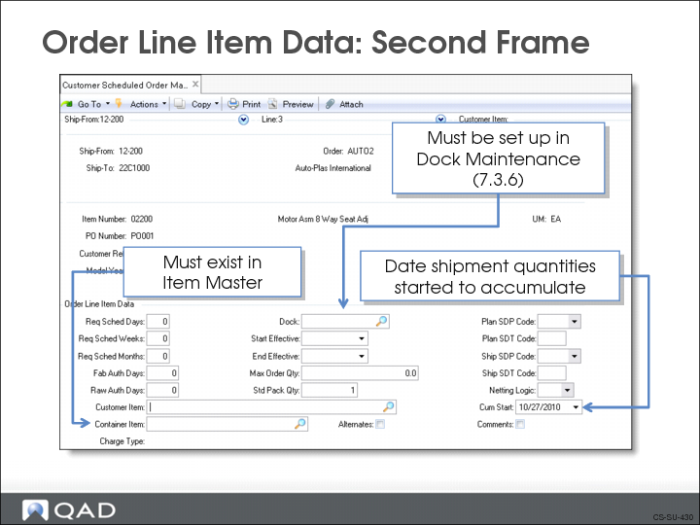
This is where you enter the specific order information. Some of this data determines how the system builds the shipping schedule.
Field Definitions
Req Sched Days, Req Sched Weeks, Req Sched Months
These fields rebucket customer requirements into a sequential horizon of days, then weeks, then months.
Entering values in these fields has an impact on MRP. The weekly and monthly quantities are seen by MRP as requirements on the first day of the period, and MRP plans accordingly. This can result in excessive and unnecessary action messages.
Set these fields to zero to maintain the customer’s date and quantity requirements. Also leave these fields set to zero if you are using noncumulative accounting procedures and pegging requirements through authorization numbers.
Fab Auth Days/Raw Auth Days
The number of days the customer agrees to cover you for the manufacturing or ordering of the raw materials used in the manufacture of the ordered item.
• Normally a contractually agreed set of time
• When you first set up the scheduled order, these are usually left at zero (0) until a steady state of supply and demand exists
• Raw quantity is the quantity of product for which the customer commits to cover component costs
• Fab quantity is the quantity of product for which the customer commits to cover manufacturing costs
Customer Item
Customer’s internal item number.
• Appears on the ASNs and invoices
• Must be set up using Customer Item Maintenance (1.16)
Container Item
The item number of the normal or primary container used to ship this item. If using, the item number must be an existing item number in the Item Master
Alternates
Determines if the item can be shipped in a container other than the primary container.
• If Yes, a pop-up window appears allowing you to enter alternate container item numbers
• If No, only the primary container item is allowed
Dock
Customer’s dock address.
• If using, the dock address must be set up in Dock Maintenance (7.3.6)
• Items will be delivered to this ship-to location
Start Effective/End Effective
The beginning and ending dates defining the period of time you and your customer have agreed for you to supply the item.
For example, you may have to deliver to a different dock or location for a set period of time. Also, some customers prefer to make a new scheduled order after a certain period of time, allowing them to close off the schedule order and account against it
Max Order Qty
Enter the maximum, cumulative quantity for the life of this order. When this quantity has been exceeded, the system displays warning messages at order updates, maintenance functions, inquiries, and reports.
Std Pack Qty
Multiple in which orders for this item are to be shipped such as 5, 10, 12.
• Schedule update rounds order quantities up to this number
• Often related to the container being used to ship the item
Plan SDP, Ship SDP
A code specifying the default ship/delivery pattern. Indicates the days of the week or month that shipments or deliveries are required. Required Ship Schedule Update (7.5.5) uses this code to determine the due dates for shipping the order.
The SDP codes can be different for shipping and planning schedules.
• If you do not use planning schedules, leave both fields blank to avoid any rescheduling of the planning dates
• Ship schedule is rescheduled based on your shipping days
Codes support both ODETTE and Automotive Industry Action Group (AIAG) ship/delivery patterns.
• Translated to the appropriate industry standard code during EDI conversion and transmission
Netting Logic
Enter one of the following codes that specify how the system uses planning and shipping schedules when it creates the RSS in Required Ship Schedule Update (7.5.5) or Selective Required Ship Schedule Update (7.5.6):
1: Use the shipping schedule only.
2: Use the planning schedule only.
3: Replace beginning of the planning schedule with the shipping schedule (replace logic).
4: Replace beginning of the planning schedule with the shipping schedule, then adjust the last quantity in each week of the shipping schedule data upward so the cumulative of the shipping schedule requirements is not less than the cumulative of the planning schedule requirements (consume logic).
5: Replace the beginning of the planning schedule with the shipping schedule. Determine the excess planning quantity in the last overlap week (the last week with both planning and shipping schedules) and spread the excess planning quantity over the open work days in the last overlap week.
Cum Start
Date on which shipment quantities start to accumulate.
• Defaults to the current date
• Date you and your customer have agreed upon
Comments
Set to Yes if you want to make comments or notes about this line item. Comments made here print out below each line item
Exercise: Create a Scheduled Order
Use Customer Scheduled Order Maint (7.3.13) to create a customer scheduled order.
Field | Data |
Ship-From | 10-300 |
Ship-To | 10C1003S |
Order | [Record the system-generated order number] |
Transport Days | 0 |
Item Number | 03011 |
Customer Ref | Pump |
Select No at the prompt to copy data from another order line for this item.
Enter the following in the Order Line Item Data frame.
Field | Data |
Req Sched Days | 0 |
Req Sched Weeks | 0 |
Req Sched Months | 0 |
Customer Item | Pump |
Dock | LB |
Std Pack Qty | 1 |
Netting Logic | 3 |
Save the customer scheduled order.