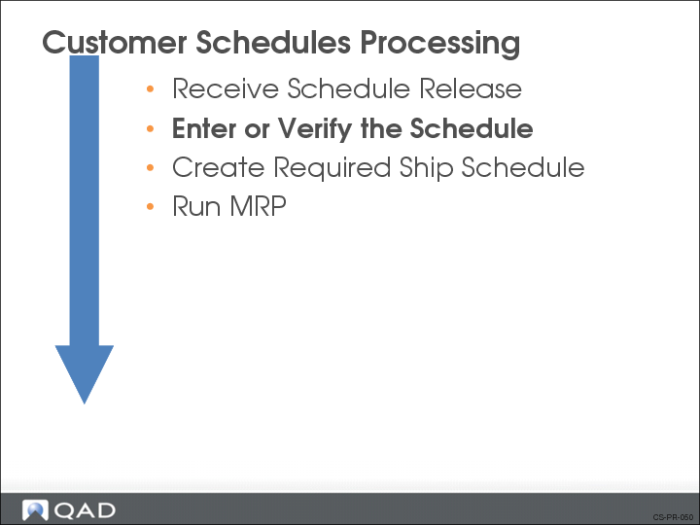
Enter or Verify the Schedule
If you do not import schedules using EDI or eCommerce, you need to manually enter the schedule release into the system. You need to verify that the schedule release receipt was successful and that past customer receipts match your shipment records. Depending on the type of schedule release sent by the customer, you would use one of the following:
• Customer Plan Schedule Maintenance (7.5.1)
• Customer Ship Schedule Maintenance (7.5.2)
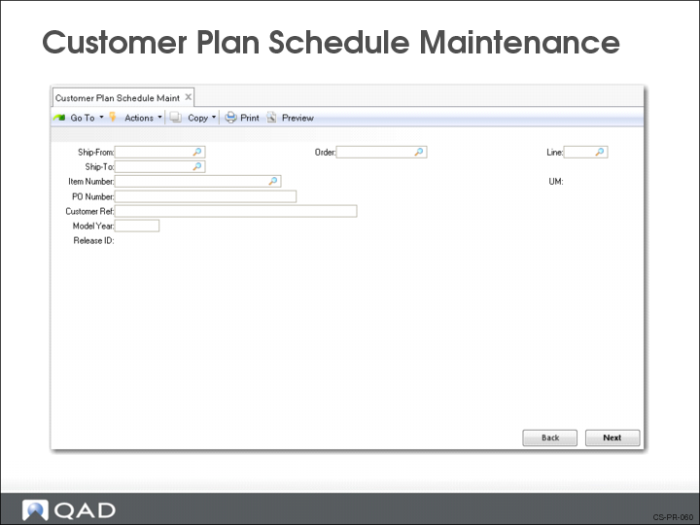
Customer Plan Schedule Maintenance
Use Customer Plan Schedule Maintenance (7.5.1) to enter or modify a planning schedule. A planning schedule gives you visibility into the future so you can plan materials, work-in-process, and resources to meet the customer’s demands. Typically a planning schedule shows medium to long range requirements, usually by week or month.
There are five frames of data.
Header Frames
There are two header frames. In the first frame you identify the scheduled order (ship-from, ship-to, item number, order number) and assign a release number.
Release ID
Number identifying a specific release (version) of a customer schedule. Customers can send schedule releases on a weekly or daily basis. When this occurs, you record each schedule release in the system with a different release ID.
Pressing Go selects the active release. You can enter a number and select another release
The second header frame contains the order detail information.
Ship/Delv Pattern
Enter the ship/delivery pattern that the customer used in creating this release. Your order header takes precedence over the customer’s SDP code.
Ship/Delv Time
Specify the code indicating the time of day when shipments or deliveries are accepted.
Internal and External Purpose Code
These fields are not currently used. Their values have no effect on processing.
Prior Cum Req
Prior cumulative requirement represents the total customer cumulative requirement on this scheduled order up to the Prior Cum Date.
MRP compares this quantity with the cumulative shipped quantity before determining the net demand. For example, if the total you have shipped against an order is less than the Prior Cum Req value by the Prior Cum Date, this shortfall appears as a demand requirement on MRP, with a due date equal to the Prior Cum Date. However, if you are ahead of demand, the difference is deducted from the schedule release demand.
Prior Cum Date
The date through which the prior cumulative requirement amount includes. The Prior Cum Req and Prior Cum Date are required fields for cum (cumulative) schedules. They are not required fields for req (required) schedules
Cumulative
Indicates if quantities in the schedule are stated in cumulative terms.
• If Yes, the plan is entered with cumulative quantities. For example, if the plan is for 100 per week, then it is entered as 100 in the first week, 200 in the second week, 300 in the third week, and so on
• If No, The plan is entered with discrete quantities per period. For example, if the plan is for 100 per week, then it is entered as 100 in the first week, 100 in the second week, 100 in the third week, and so on
Schedule Date Type
Determines how the requirement dates are calculated by the Required Ship Schedule Update. You have two options:
• Ship
• Delivery
If Ship, schedule dates are shipment based and requirement dates are not adjusted. If Delivery, schedule dates are delivery based. Requirement dates are adjusted by the number of days specified in the Transport Days field set in Scheduled Order Maintenance (7.3.13).
Active Start
Start date of this schedule release. Defaults to the system date.
Active End
End date of this schedule release; typically left blank. When a new release is made active, the system inputs the current system date into this field of the previously active release
Customer Receipts Frame
The third frame displays up to the last ten ASN’s sent to the customer. Frequently they have been appended to the release to enable tracking of the shipments and to help maintain accurate cumulative totals.
You can use the information in this frame to resolve discrepancies between your cum ship number and the customer’s cum receipt number
You can perform data entry on this frame. However, the fields are normally populated by EDI import of the release, if given by the customer.
ASN/Shipper Nbr
A number identifying the receipt document or ASN.
Receipt Date, Time
The delivery date and time of the shipment.
Receipt Qty
The discrete quantity the customer received in the shipment.
Cum Receipt Qty
The cumulative quantity for this item, including this ASN/shipper receipt.
Schedule Detail Data Frame
The Schedule Detail Data frame shows the requirements by date. This frame allows you to view or edit the requirements sent by the customer on this release. It shows the quantity required, date, and bucket intervals this quantity relates to (day, week, month). Quantities can be firm or planned.
Note: To add a new line, type over the existing line.
Date
The beginning date of the bucket period being considered.
Note: The date depends on the start of the customer’s work week.
For example:
• With a weekly interval, the date should be the start of the week (usually a Monday)
• With a monthly interval, the date is usually the first Monday of the month
Note: When the interval involved is a monthly interval, where there are weekly quantities for that month as well, QAD Enterprise Applications is expecting a date of the week commencing after the weekly quantities with a quantity for the remainder of the month. For example, if a customer normally demands 1,000 per week, the input would be:
Date | Interval | Quantity |
MM/02/YY | W | 1000 |
MM/08/YY | W | 1000 |
MM/15/YY | M | 1000 |
The RSS update process will then bucket the quantities correctly at 1,000 per week (in conjunction with the appropriate ship/delivery pattern).
Time
The time the shipment is to be delivered to the customer.
Note: MRP does not schedule by hours. However, a customer can specify a time when they want the shipment to arrive.
Int(erval)
Indicate the interval this quantity requirement covers. Values are D (daily), W (weekly), M (monthly), Q (quarterly), H (half-yearly), Y (yearly).
Weekly intervals bucket requirements into the first day of the week, Monthly intervals bucket all requirements for the next month into the first Monday of the month.
Reference
If the customer uses authorization numbers such as release authorization numbers (RANs), kanban number, or a pull signal with a number, they display in this field.
Note: Some customers use authorization numbers on their releases and require you reference them on ASNs, invoices, and other documents.
Quantity
The amount of this item required at this date (and time).
Q
A one-character forecast qualifier, communicated by the customer in plan and ship schedules.
This value normally defines whether the requirement quantity is firm or still in the planning stages. It can also be used for any special purpose specified by the customer communicating the schedule.
Since all quantities in a required ship schedule are firm, Required Ship Schedule Update sets this field to indicate the source of the requirement:
1: The requirement originated from a planning schedule.
2: The requirement originated from a shipping schedule.
However, if the scheduled order defines bucketing quantities and the schedule does not have any detailed requirements, the Q column still displays F after bucketing processing.
Rqm Det
Enter Yes to display an additional frame for adding or modifying requirement detail. Requirement detail is typically updated only if you are using noncumulative accounting procedures.
Requirement Detail Maintenance Frame
This frame only displays if the Rqm Det field (set in the previous frame) is Yes.
Category
Enter a valid requirement detail category. If you specify an authorization number (AUTHNBR), the system verifies that it is unique, based on the setting of the AUTHNBR Unique Days field set in Scheduled Order Maintenance
Value
The requirement detail.
Resource Authorization Data Frame
Resource authorization data for this scheduled line shows the maximum amount of raw materials and semi-finished items the customer has committed to purchase during a specific time period. This does not limit you to that quantity. It simply means this is the maximum quantity the customer has agreed to pay for.
The quantity and dates are used by the Schedule Authorization Report (7.5.12), which calculates the largest fab and raw authorizations by item and order.
Fab Qty, Raw Qty
The quantity of this item, in end-item terms, that the customer authorizes you to fabricate/manufacture (Fab Qty) or purchase materials for (Raw Qty), as of this scheduled release.
Fab Start/End, Raw Start/End
Start and end date defining the authorization horizon.
After completing this frame, the system prompts you to make this schedule active. There can only be one active planning schedule at a time. If you already have an active planning schedule, the system puts an end date on the currently active planning schedule and the new planning schedule coming in becomes the active planning schedule.
If you are receiving both a planning and a shipping schedule, you will have an active schedule for both. The RSS calculation will then use the netting logic to determine how to combine the two schedules to get the RSS.
Exercise: Create a Planning Schedule
Use Customer Plan Schedule Maint (7.5.1) to create a planning schedule for the customer Pacific Health Care Systems (10C1003).
Field | Data |
Ship-From | 10-300 |
Ship-To | 10C1003S |
Item Number | 03011 |
Order | [The customer scheduled order number created earlier] |
Line | 1 |
Release ID | 001 |
Prior Cum Date | [Last Friday] |
Advance to the Schedule Detail Data frame. Enter the following information:
• Shipments start next Monday and run for 8 weeks
• Shipments are at weekly intervals
• Each shipment is for 500 units
In the Resource Authorization Data frame, enter the following:
Field | Data |
Fab Qty | 500 |
Fab Start | [Today’s date] |
Fab End | [The last ship date] |
Raw Qty | 500 |
Raw Start | [Today’s date] |
Raw End | [Last ship date] |
Select Yes when the system asks you to make this schedule active.
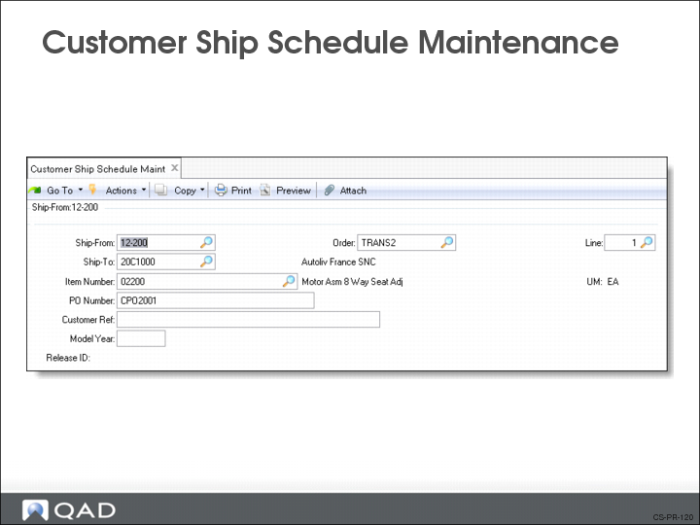
Customer Ship Schedule Maintenance
Use Customer Ship Schedule Maintenance (7.5.2) to enter or modify a shipping schedule. A shipping schedule lets you plan materials, work-in-process, and resources to meet the customer’s demands. Usually, a shipping schedule shows short range requirements, in daily buckets.
There are four frames and they are identical to the first four frames in Customer Plan Schedule Maintenance (7.5.1). A shipping schedule does not include resource authorizations.
After completing all four frames, the system prompts you to make this schedule active. There can only be one active shipping schedule at a time. If you already have an active shipping schedule, the system puts an end date on the currently active shipping schedule and the new shipping schedule coming in becomes the active shipping schedule.
If you are receiving both a planning and a shipping schedule, you will have an active schedule for both. The RSS calculation will then use the netting logic to determine how to combine the two schedules to get the RSS.
Exercise: Create a Shipping Schedule
Use Customer Ship Schedule Maint (7.5.2) to create a shipping schedule for the customer Pacific Health Care Systems (10C1003).
Field | Data |
Ship-From | 10-300 |
Ship-To | 10C1003S |
Item Number | 03011 |
Order | [The customer scheduled order number created earlier] |
Line | 1 |
Release ID | 001 |
Prior Cum Date | [Last Friday] |
Advance to the Schedule Detail Data frame. Enter a shipping schedule using the following information:
• Shipments start next Monday and run for 2 weeks
• Shipments are at daily intervals, Monday through Friday
• Each shipment is for 100 units
Select Yes when the system asks you to make this schedule active.