Create Required Ship Schedule
The RSS identifies for a particular customer and scheduled order, the item quantities they need you to ship, on what dates, and at what time.
You create an RSS using one of the following:
• Required Ship Schedule Update (7.5.5)
• Selective Required Ship Schedule Update (7.5.6)
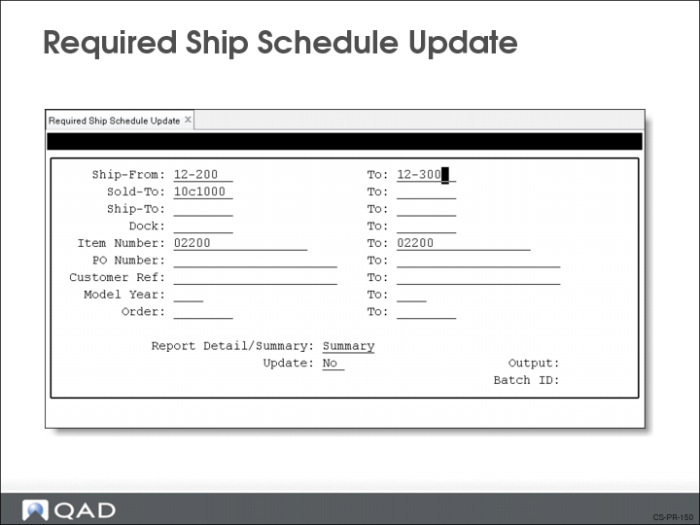
Required Ship Schedule Update
Use Required Ship Schedule Update (7.5.5) to create an RSS using either or both active planning and shipping schedules. Which schedule the system uses and how depends on the schedule order’s Netting Logic (set in Scheduled Order Maintenance). The system records the source of the requirement (shipping or planning schedule) and displays this information in the report generated at the end of the update process.
Basically, the RSS turns the customer’s need dates into due dates which you can then use for planning and production.
The update first selects the most recent release for each schedule type. It then uses the following information to create the RSS:
• Scheduled order data (Week Offset, Cumulative, Transport Days, Req Sched Days, Weeks, Months, standard pack quantity, Netting Logic, and SDP codes)
• Your calendar
• Your customer’s calendar, if necessary.
• System uses this to adjust dates or quantities if your customer does not schedule their requirements to coordinate with your open days, ship schedule, or shipment multiples
• QAD Enterprise Applications back-schedules all date adjustments
Field Definitions
Report Detail/Summary
You have two report options: Detail and Summary
If Detail, a complete audit report prints. This report shows:
• Order details such as the ship-from, ship-to, item number, order number, line number, and PO Number
• The planning and shipping schedule details, including the Release ID for each
• If there is a customer or ship-to calendar
• What the transportation leadtime is for each schedule
• Resource authorization data
• If bucketing was used, and if so, the what is being used
• The new active RSS
If Summary, only the Sold-To, Ship-To, Item Number, PO Number, Plan Release ID, and Ship Release ID print as the system processes each order detail record.
Update
The system uses this setting to determine if it is to create a new schedule release for the order detail records selected.
• If Yes, the system calculates and creates a new schedule release
• If No, the system does the calculations and generates report, but does not do any actual updating to the database
Note: It is a good idea when first running this process to set Update to No. This gives you the ability to review the new schedule release prior to actually creating it.
Customer Schedule Calculation
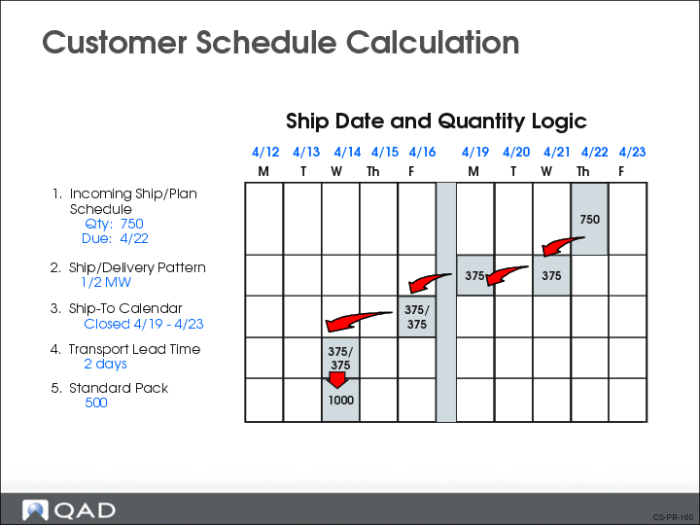
In creating the RSS, the update program performs the following calculations:
1 Back-schedules for ship/delivery pattern.
• This has the effect of bucketing the required quantity over the interval specified according to the SDP
• In the example above, a weekly quantity of 750 is divided into 375 Monday and 375 on Wednesday for delivery
2 Combines schedules using netting logic specified in Scheduled Order Maintenance
3 Back-schedules for customer calendar from ship/delivery schedule. If one of the delivery days calculated above is a non-operating day for the customer (indicated in the customer calendar), the program will bring the delivery date forward to the next available day for that quantity
4 Back-schedules for transport lead time from calendar-adjusted schedule.
• Set in Scheduled Order Maintenance
• All delivery dates are adjusted by the number of calendar days entered in the Transport Days field shown in line 4 above.
5 Revises quantities to standard packing quantity multiple defined in Scheduled Order Maintenance
6 Rebuckets quantities from month and week quantities into dates and quantities. Rebucketing is carried out according to the values entered in the Req Sched Days, Req Sched Weeks, Req Sched Months fields (set in Scheduled Order Maintenance)
7 Creates a new active RSS.
a Assigns a release ID.
b Displays quantities and dates.
Managing Requirement Detail
If you are using non-cumulative accounting procedures, the system manages requirement detail using the settings you define in the Non-Cumulative Quantity Accounting Data frame of Scheduled Order Maintenance.
If requirement detail exists, during the update process the system:
1 Copies requirement detail to the RSS.
2 Creates a schedule detail record for each requirement detail record.
If the Merge RSS field is Yes (in the Non-Cumulative Quantity Accounting Data frame), open requirements from the previous active RSS can be carried to the new RSS.
Exercise: Create a Required Ship Schedule
1 Use Required Ship Schedule Update (7.5.5) to run the update for the required ship schedule (RSS) release for the customer Pacific Health Care Systems (10C1003).
Field | Data |
Ship-From | 10-300 |
Ship-To | 10C1003S |
Item Number | 03011 |
Order | [The customer scheduled order number created earlier] |
Select the Detail report option and set Update to No.
2 Run the program again, this time selecting the Summary report option. Leave Update set to No.
3 Review both reports to see what information each provides.
4 Run the program again, selecting either report option, and set Update to Yes.