Run MRP
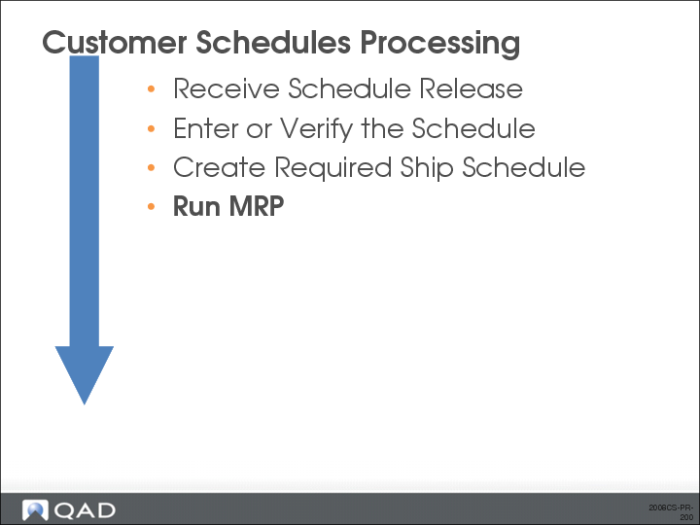
Once you have the active RSS, you are ready to run MRP to explode demand and schedule component orders. The dates in the RSS drive MRP. Sometimes a customer includes a time as well as the date. Although, MRP does not schedule by hours, you can use the times specified on the RSS to be more precise about when the customer wants the shipment to arrive.
MRP does not look at the customer’s planning or shipping schedules, only at the active RSS.
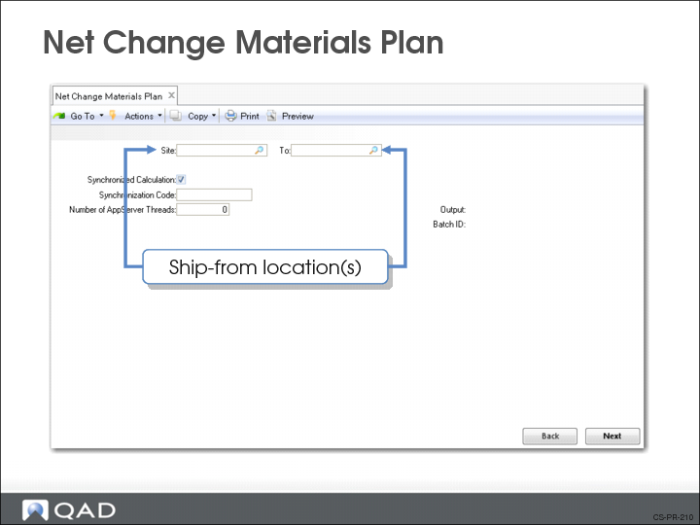
Net Change MRP
Use Net Change MRP (23.1) to plan for items that have had changes in supply or demand since the last MRP run.
Discussed in Training Guide: Materials Requirements Planning
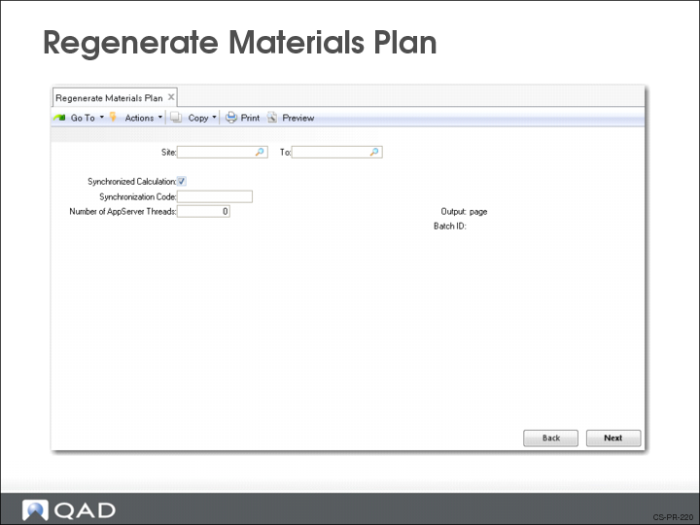
Regenerate Materials Plan
Use Regenerative MRP (23.2) to look at all MRP-planned items and to create a completely new material plan.
Discussed in Training Guide: Materials Requirements Planning
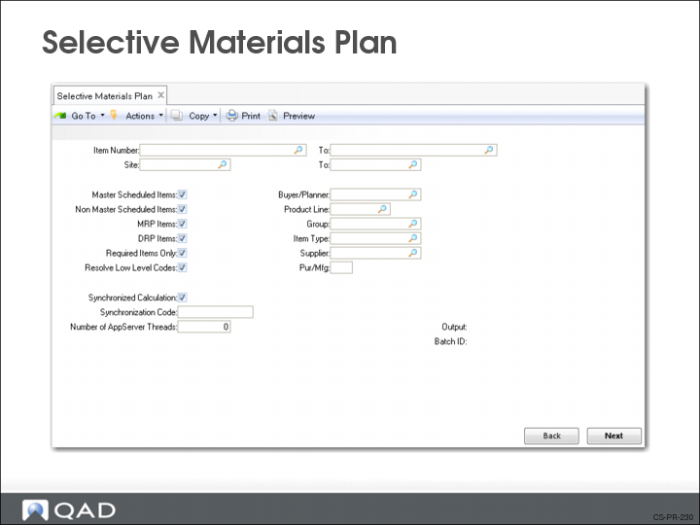
Selective Materials Plan
Use Selective Materials Plan (23.3) to run MRP on selective items only.
• It can be run in net change mode by setting the Required Items Only field to Yes, or in regenerative mode by setting Required Items Only to No
• You can use Selective Materials Plan to plan master schedule items separately from other items, or to plan small groups of items by using buyer/planner, product line, group, type, supplier, or any combination of these, as selection criteria
Discussed in Training Guide: Material Requirements Planning
Customer Schedules Processing Summary
Course Overview