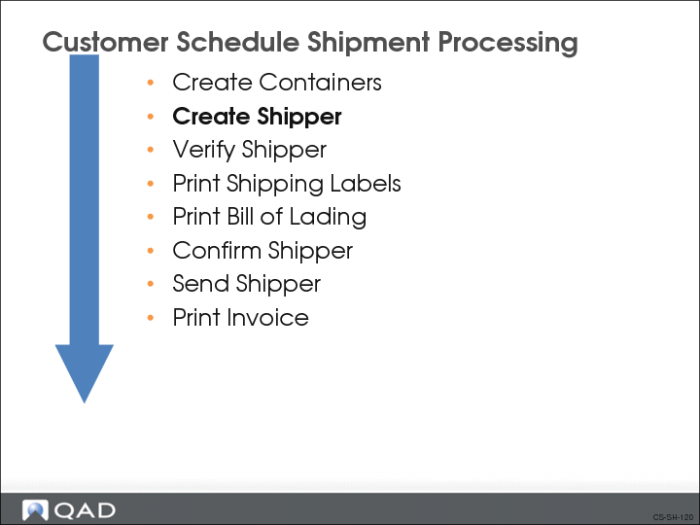
Create Shipper
.A shipper is a document that records what is being shipped. You can send the shipper:
• Electronically as an ASN
• With the shipment
The pre-shipper is used to select the containers and items that make up the shipment. The terms picklist and pre-shipper are synonymous. A pre-shipper is the basis for a shipper
The system uses the shipper to select and ship inventory. You can create a shipper automatically using Picklist/Pre-Shipper – Automatic (7.9.1) or Shipper Gateway (7.9.22).
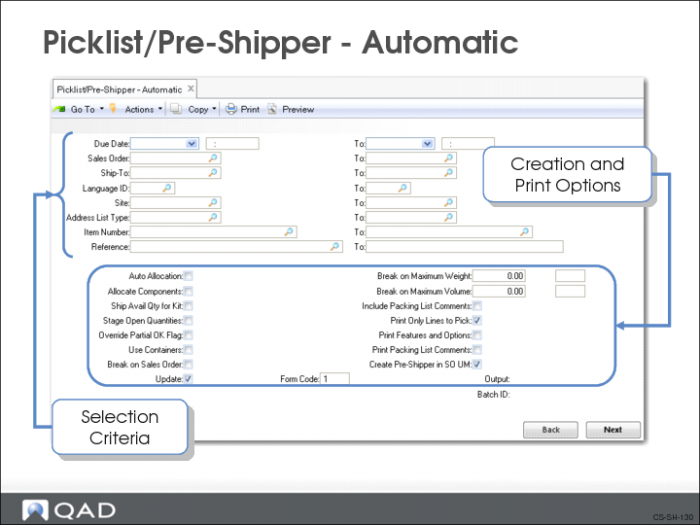
Picklist/Pre-Shipper - Automatic
Use Picklist/Pre-Shipper – Automatic (7.9.1) to create a pre-shipper for scheduled orders. You can create pre-shippers in batches.
Note: QAD Enterprise Applications converts pre-shippers to shippers before shipping.
Creating a pre-shipper pegs shipper lines based on the active RSS (Required Ship Schedule) for the appropriate requirement. As shipper lines are created and pegged, the requirement is consumed.
Auto Allocation
Determines if the system performs a general inventory allocation for confirmed scheduled order lines that are not yet general allocated at the time you run Picklist/Pre-Shipper Automatic.
• If Yes, allocations are limited to the quantity available to allocate
• If there is not enough inventory to allocate the entire scheduled order, the system partially allocates the inventory
• If there is no inventory available to allocate, the system does not allocate inventory for the scheduled order
• If No, system does not allocate inventory. Default
Allocate Components
Lets you automatically apply pick logic and create detail inventory allocations for components of configured kits.
• If Yes, system creates detail allocations for the confirmed scheduled order lines
• If No, system uses scheduled order line site for the site and default item location. Default
Note: Quantity to ship for a component is determined by the quantity open for the configured kit item, not the quantity available to allocate for the component.
Ship Avail Qty for Kit
Determines quantity picked for kit items. (A kit is a type of configured item that represents a set of items that are picked and shipped together. No real assembly takes place.)
• If Yes, the system determines the component of the kit with the least quantity available to allocate. The quantity to ship for the kit item is set to this quantity
• If No, the quantity to ship for the kit item is set to the corresponding quantity open on the order line. Default
Stage Open Quantities
Allows creation of picklists for scheduled order lines that cannot be detail allocated because inventory is not yet available. Useful if at the time you create the picklist the inventory is not available, but will become available soon.
• If Yes, picklists will be created based on open scheduled order line quantities.
• The open scheduled order line quantity does not have to be detail allocated
• Can create a pre-shipper for an order line even if there is insufficient inventory
• Overrides the effects of the Auto Allocation setting and overrides a Yes setting in Ship Avail Qty for Kit
• If No, picklists will be created based on scheduled order lines that have been detail allocated only. Default
Note: If this option is set to Yes, you cannot have the Use Containers option also set to Yes.
Override Partial OK
Determines if the partial shipment flag on each scheduled order is to be considered when printing picklists.
• If Yes, the customer will accept a partial shipment
• A packing list prints (and shipments made) even if the entire scheduled order quantity is not available
• The remainder of the scheduled order is backordered and remains in the system until it can be shipped
• If No, the customer will not accept partial shipment
• If all items are not available (allocated) and cannot be completely shipped, a packing list does not print for this scheduled order
• Packing list prints only if all line items have been allocated
• Default
Use Containers
Determines if containers meeting specific criteria are assigned to and referenced on the picklists. Useful if you temporarily store your finished goods in containers before shipping. It allows you to pick specific containers rather than items at specific locations.
• If Yes, system assigns containers meeting the specific criteria to picklists. Picklists reference the assigned containers
• If No, system does not assign containers to picklists. Default
Note: If this option is set to Yes, the Stage Open Quantities options cannot be set to Yes.
Only containers meeting the following criteria are assigned to picklists:
• The container has no parent: The container cannot already be assigned to another container, pre-shipper, or shipper
• The container contains only the scheduled order line item number: Automatic container assignment doesn’t work when containers contain more than one item number
• The container contains a quantity of the scheduled order line item number that is equal to or less than the uncontainerized quantity for the scheduled order line
• The container item number is either the primary container for the scheduled order line or one of the alternate containers for the scheduled order line
Break on Sales Order
Determines if system creates separate pre-shippers for each selected scheduled order with the same ship-to.
• If Yes, system creates separate pre-shippers
• If No, system creates a combined pre-shipper. Default
Update
Determines if the changes are made to the database.
• If Yes, the system generates the report and makes the changes to the database. Default
• If No, the system only generates the report
Break on Maximum Weight
Determines the maximum gross weight for the pre-shipper.
• If zero (0), system creates pre-shippers without regard to maximum gross weight
• If nonzero, system checks pre-shipper gross weight before adding a new order line item to make sure the addition will not cause the pre-shipper to exceed the maximum gross weight. If it would exceed the maximum gross weight, the system creates a new pre-shipper
UM Maximum Weight
The unit of measure of the Break on Maximum Weight value.
Break on Maximum Volume
Determines the maximum volume for the pre-shipper.
• If zero (0), the system creates pre-shippers without regard to maximum volume
• If nonzero, the system the pre-shipper volume before adding a new order line item to make sure the addition will not cause the pre-shipper to exceed the maximum volume. If it would exceed the maximum volume, the system creates a new pre-shipper
UM Maximum Volume
The unit of measure of the Break on Maximum Volume value.
Include Packing List Comments
Determines whether or not the system leaves room for packing list comments on the pre-shipper.
• If Yes, the system leaves room for packing list comments on the pre-shipper
• If No, the system does not leave room for packing list comments on the pre-shipper. Default
Print Only Lines to Pick
Determines if the system prints on the pre-shipper all scheduled order line item numbers that have been detailed allocated.
• If Yes, system prints only scheduled order line item numbers that have been detailed allocated. Default
• If No, system prints all scheduled order line item numbers
Print Features and Options
Determines if the system prints configures line item numbers followed by a list of features and options.
• If Yes, features and options print after the configured item number
• If No, only the configured item number prints. Default
Print Packing List Comments
• If Yes, system prints packing list comments
• If No, system does not print packing list comments. Default
Create Pre-Shipper in SO UM
When an alternate unit of measure (UM) is used, this determines which UM the system uses when creating the pre-shipper.
• If Yes, system uses the UM specified on the scheduled order in Scheduled Order Maintenance. Default
• If No, system uses the UM specified for the item in Item Master Maintenance
Form Code
The form code of the document format on which you want these documents to print. Defaults to 1
Shipper Verification
Shipper verification occurs automatically at the end of processing. A pre-shipper is generated displaying the general order details (order number, ship-to, item number) and the pre-shipper number. It also provides information regarding the pegged requirements, including requirement detail authorization numbers.
Authorization numbers are assigned to shipper lines based on a FIFO (first in, first out) method
You can use Pre-Shipper/Shipper Workbench (7.9.2) to view and maintain pegged shipper lines.
Exercise: Create a Shipper
Use Picklist/Pre-Shipper - Automatic (7.9.1) to create a shipper for the customer Pacific Health Care Systems (10C1003) using the following information:
Field | Data |
Sales Order/To | [The customer scheduled order number created earlier] |
Auto Allocation | No |
Allocate Components | No |
Ship Avail Qty for Kit | No |
Stage Open Quantities | Yes |
Override Partial OK | Yes |
Use Containers | No |
Break on Sales Order | No |
Print Only Lines to Pick | No |