Cumulative Totals
If you use cumulative tracking you may find that you occasionally need to make adjustments to the line item cumulative totals for a customer or reset the scheduled order totals to zero (0).
Adjust Cumulative Line Item Totals
In some situations, you many need to adjust a scheduled order’s cumulative line item totals.
• When a customer sends you a revised scheduled typically an ASN is attached
• The ASN shows the cumulative quantity the customer has received along with information about the last shipment
• If their totals are different from yours, you need to resolve the difference
• A customer may request that you reset a scheduled order’s line item cumulative total to zero and adjust the cumulative start date. This could be the result of an accounting close or the start of their fiscal year
• When you initially start QAD Enterprise Applications and you need to bring in a customer’s cumulative totals
Cumulative Shipped Maintenance
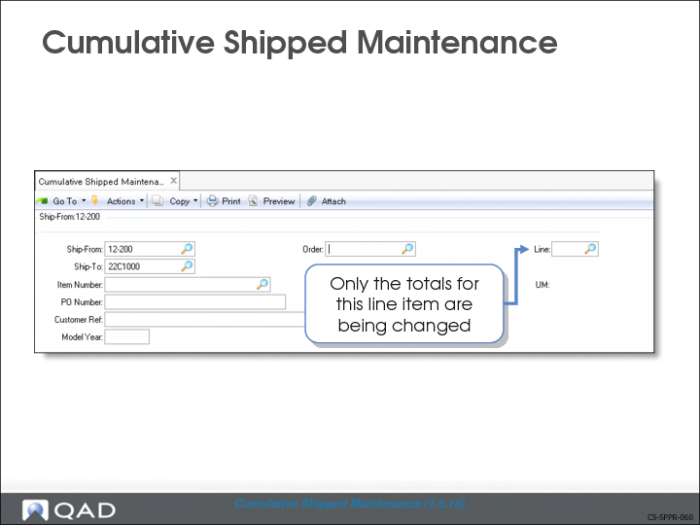
Use Cumulative Shipped Maintenance (7.5.16) to change a line item’s cumulative shipped quantity or to reset the line item’s quantity to zero (0). You can also use Cumulative Shipped Maintenance to enter a customer’s cumulative shipped quantities when you first start using QAD Enterprise Applications.
Note: You should control this program with security.
The system maintains an audit trail for all inventory transactions. When you adjust a cumulative quantity, a CUM-SADJ transaction is recorded in transaction history. You can view these transactions using Transaction Detail Inquiry (3.21).
You identify the scheduled order by entering the ship-from, ship-to, order number, item number, and line number.
Adjust or Reset (A/R)
If you are changing (adjusting) the cumulative shipped quantity, select A(djust). If you are resetting the quantity on this line item to zero, select R(eset).
• Selecting Adjust moves you to the Cum Shipped and Prior Day Cum Shipped fields. Adjust the Cum Shipped quantity if the ASN reflects the most recent shipment. Adjust the Prior Day Cum Shipped quantity if another shipment has gone out.
• Selecting Reset moves you to the Cum Shipped Start Date and the Prior Day Cum Shipped Date fields. The cum shipped and prior day cum shipped quantities will be reset to 0.
Cum Shipped
The adjusted cumulative quantity shipped for this line item.
Prior Day Cum Shipped
The cumulative quantity shipped as of the end of the previous day.
Cum Shipped Start Date
The date to start accumulating cumulative quantities.
Prior Day Cum Shipped Date
The date through which the prior cumulative quantity includes.
Reset Cumulative Totals To Zero
Some customers require that once a year you reset their scheduled order cumulative totals to zero (0).
Cum Shipped Reset
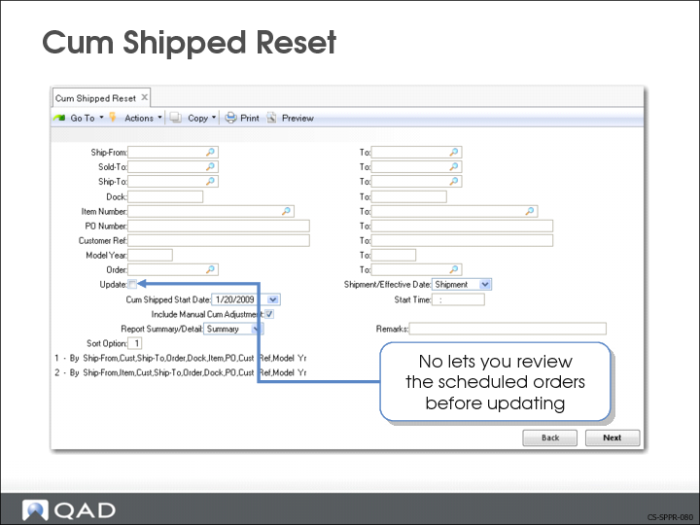
Use Cum Shipped Reset (7.5.18) to reset cumulative totals for scheduled orders. This resets the cumulative totals for the entire order on the specified date and time. The process generates a report listing all selected scheduled orders. You can reset one scheduled order or several scheduled orders.
When the cumulative totals are reset to zero for a date in the past, all shipments made between the specified time in the past and the current system date are totaled and set as the new cumulative total for the scheduled order line
Note: This procedure cannot be undone.
The first half of the Cum Shipped Reset screen consists of selection criteria ranges such as ship-from, sold-to, ship-to, dock address, item number, PO number, customer ref, model year, and order. Use these values to identify the cumulative shipped quantities to reset.
Update
Enter Yes to reset the cumulative totals. Enter No to print the report without resetting cumulative totals. Each option produces a report showing the scheduled orders selected.
Note: You cannot undo resetting the cumulative shipped total.
Shipment/Effective Date
The type of date specified in the Cum Shipped Start Date.
Shipment: The value in Cum Shipped Start Date is the date when the shipment was initially entered into the system.
Effective: The value in Cum Shipped Start Date is the date when the shipment was effective for accounting purposes.
Cum Shipped Start Date
This is the date to start accumulating cumulative quantities. It replaces the scheduled order’s current cumulative start date (specified in Scheduled Order Maintenance). Defaults to the system date
Cum Shipped Start Date
Enter the new date to start accumulating cumulative quantities for the scheduled orders.
Start Time
Enter the time when cumulative shipped reset is to occur on the specified date. The time must be entered in 24-hour format.
Include Manual Cum Adjustment
Enter Yes to include all manual adjustments in the Cum Shipped total. Enter No to ignore all manual adjustments made in Cumulative Shipped Maintenance (7.5.16).
Report Summary/Detail
Determines if the report prints in Detail or Summary format.
Remarks
Comments regarding this transaction for reference only.
Sort Option
Determines the order of the information from the selected scheduled orders appears on the report.