Retrobilling
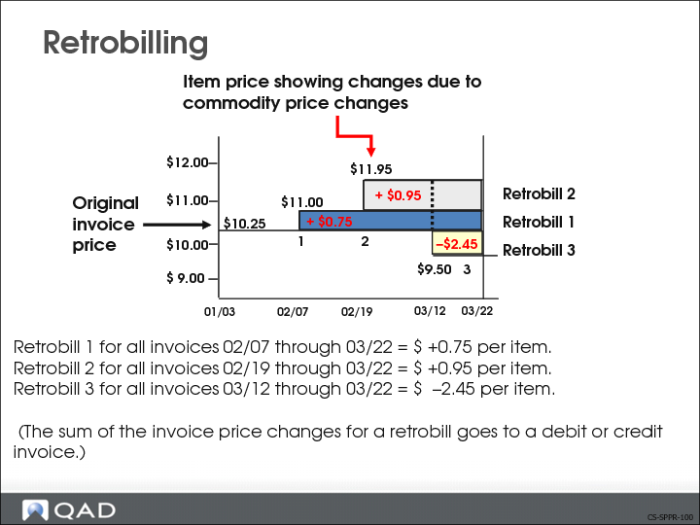
Retrobilling is the process where a price change and effective date (in the past), agreed upon between you and your customer, is put into effect. It gives you the means to adjust prices on items already shipped to your customers.
The QAD Enterprise Applications retrobilling function gives you the ability to make price changes by individual line item in a scheduled order instead of by invoice. You can:
• Specify a scheduled order
• Change prices for one or more line items on a scheduled order
• Create a separate debit/credit invoice for each line item or create a single invoice for all line items within the same purchase order
• Specify if the retrobill change is a change in an existing price or a totally new price
The line items being changed can be from the same purchase order or from multiple purchase orders. If they are from multiple purchase orders, they all must be on the same scheduled order.
Retrobilling
You can enter multiple retrobills that affect the same items over overlapping dates and invoices. The system uses the as-of-date specified in Retrobill Maintenance (7.13.13.1) to determine the sequence for applying multiple retrobills.
If the effective date is in the past, an invoice detailing all shipments since the effective date through the end date must be created for the incremental price difference.
Retrobill Process
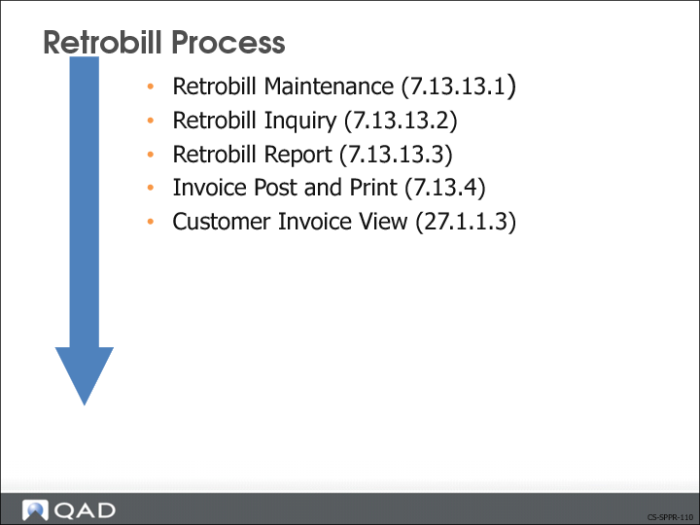
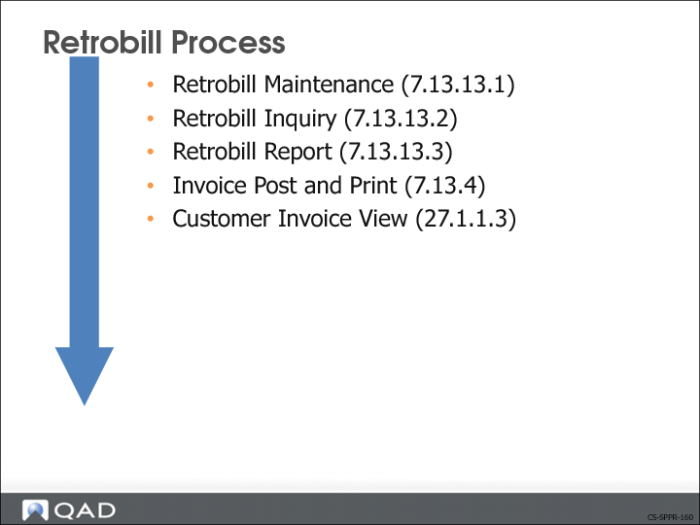
The procedure for processing a retrobill for a scheduled order line item is:
1 Create retrobills in Retrobill Maintenance (7.13.13.1). Set up the retrobill identifier and specify the scheduled order affected and the terms of the retrobill.
2 View retrobill information in Retrobill Inquiry (7.13.13.2).
3 Create a debit/credit invoice with Retrobill Report (7.13.13.3).
4 Use Invoice Post and Print (7.13.4) to post and optionally print the invoice.
5 Use Customer Invoice View (27.1.1.3) to view the invoice.
Retrobill Maintenance
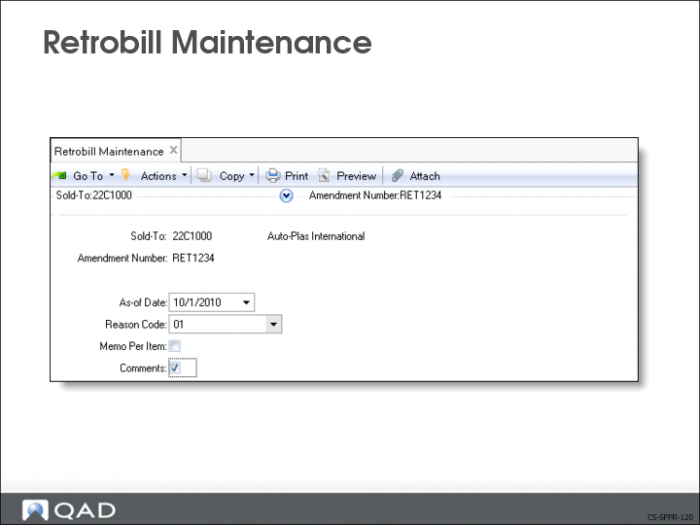
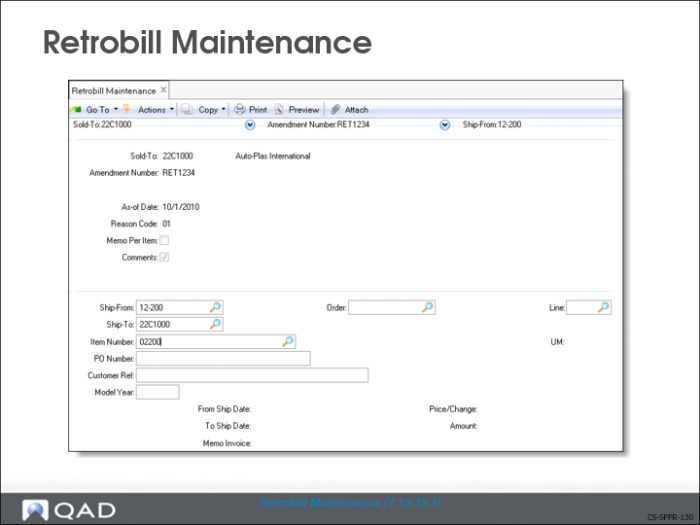
Use Retrobill Maintenance (7.13.13.1) to set up a retrobill for a scheduled order line item.
Note: If the new item price is to appear on future shipments to this customer, you also need to go into Scheduled Order Maintenance and change the price. If a price list is used, you must modify it. You only use Retrobill Maintenance to change prices on items you have already shipped.
First Frame
In this frame you set up the retrobill identifier: the sold-to code and amendment number.
Amendment Number
This is typically provided by the customer and it authorizes the retrobill.
As of Date
Date to be used when more than one retrobill is applied to the same scheduled order line items. The system uses this date to determine the sequence for applying retrobills.
Memo Per Item
Determines how many debit/credit invoices are to be created.
• Set to Yes if you want a separate debit/credit invoice created for each line item
• Set to No if you want one debit/credit invoice created for all line items in a purchase order, or if no debit/credit invoice should be created
Note: This field works in conjunction with the Create Memos field in Retrobill Report (7.13.13.3). Both fields, Memo Per Item and Create Memos, must be set to Yes if you want to print invoices.
Retrobill Maintenance 2nd Frame
This frame consists of two sections. In the first section you identify the scheduled order and line item affected by the retrobill. In the second section you define the terms of the retrobill.
Identify the scheduled order by entering the ship-from, ship-to, item number, purchase order number, and scheduled order number. Enter the line item number being changed.
From Ship Date/To Ship Date
The beginning and ending dates for the date range the system uses to select invoices for retrobill processing. Invoices outside this range are not included.
Price/Change
Indicates whether the Amount field contains a new price (Price) or a price change (Change).
Price: The value entered in the Amount field replaces the current price.
Change: The amount is applied to the current price. To reduce an existing price, enter a negative amount.
Amount
The currency value to be used. This can be a positive or negative amount. If you are making a change to reduce an existing price, enter a negative value. How the system uses this amount, depends on the setting of the Price/Change field.
Memo Invoice
Displays the debit/credit invoice number after you run Retrobill Report (7.13.13.3) with the Create Memo field set to Yes.
Retrobill Inquiry
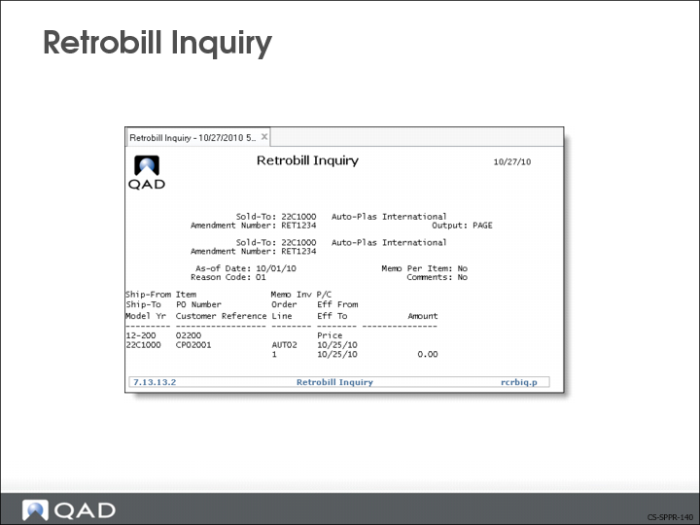
Use Retrobill Inquiry (7.13.13.2) to view the retrobill information you entered in Retrobill Maintenance.
Retrobill Report
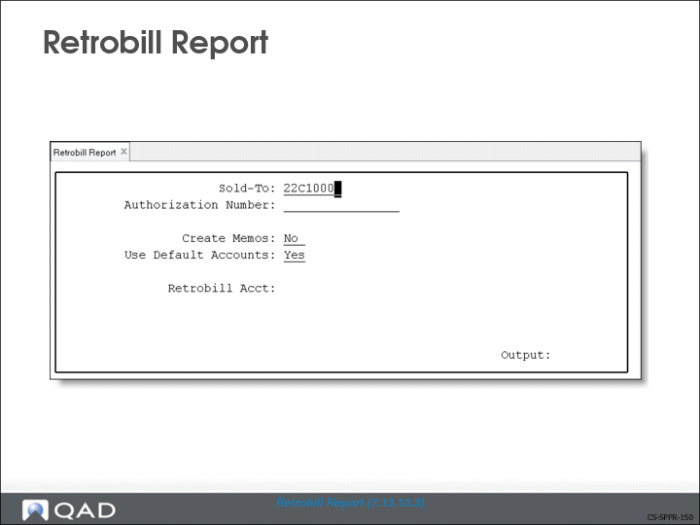
Use Retrobill Report (7.13.13.3) to run the retrobill process. The retrobill process:
• Selects invoices meeting the selection criteria you defined in Retrobill Maintenance
• Uses the price/change setting and the specified amount to calculate the net amount of the price adjustment for each line item being changed
Sold-To
The customer to whom this retrobill applies.
Authorization Number
The customer’s authorization number.
Note: The sold-to and authorization number identify the retrobill record.
Create Memos
Determines if the retrobill process creates a debit/credit invoice.
• If Yes, the process creates a debit/credit invoice
• If No, the process does not create a debit/credit invoice
Note: In Retrobill Maintenance (7.13.13.1), the Memo Per Item setting determines if a debit/credit invoice is created per line item or per purchase order. In the Retrobill Report (7.13.13.3), the Create Memo setting determines if a debit/credit invoice is created at all. If the Credit Memo fields is set to No, a debit/credit invoice is not created regardless of how the Memo Per Item field is set.
Use Default Accounts
Determines which accounts the system uses.
• If Yes, system uses the default sales account
• If No, the system uses the accounts you enter in the Retrobill Account fields
Retrobill Acct
You can specify account numbers for the system to use in posting the calculated debit/credit amount. Accounts are used to track the difference between the invoiced price and the price in the effective retrobill.
Retrobill Process