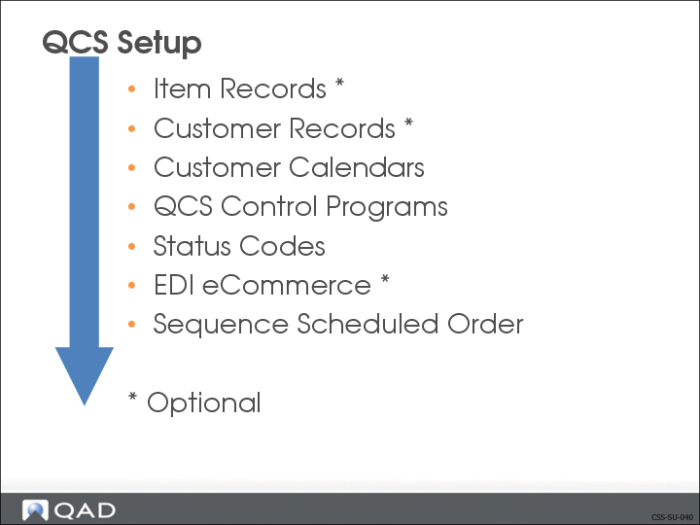
Item Records
Before creating a sequence scheduled order, item records must exist for all items and products stored in inventory that you will be shipping. The Item Master table contains records for all items, regardless of site. Item records hold the default information about items.
• If you are using shipping containers, you must set up container item numbers
To add item records, use one of the following:
• Item Master Maintenance (1.4.1)
• Item Data Maintenance (1.4.3)
QCS Exercises
You have just been awarded a huge contract with Namaka Motor Company. You are the sole supplier to two Namaka plants, supplying five styles of sunroof from your finished goods inventory. Namaka is a JIT automotive assembler who does not want to have a huge investment of your parts in inventory so they require you to deliver sunroofs at the time they are needed and in the order of their assembly line process. Namaka will be sending you a daily schedule from each plant containing the requirements for the next three days in the order of consumption. You are going to use Customer Sequence Schedules to support your Namaka account.
The data used in these exercises may not be the same as the data shown in the screen captures in this lesson. In an exercise, if a field is not listed, you can accept the default value or leave it blank.
Exercise: Add Item Record
Create first new item record for the new Namaka contract.
Use Item Master Maintenance (1.4.1).
1 Create an item record for the sunroof by entering the following:
Field | Data |
Item Number: | part1 |
UM: | EA |
Description: | sunroof, red |
2 Advance to the Item Data frame and enter:
Field | Data |
Prod Line: | 10 |
Promo Group: | IND |
Status: | ACTIVE |
3 Advance to the Item Inventory Data frame and enter:
Field | Data |
Site: | 10-200 |
Location: | 100 |
4 Advance to the Item Shipping Data frame and enter:
Field | Data |
Ship Weight: | 5 LB |
Net Weight: | 3 LB |
5 Advance to the Item Planning Data frame and enter:
Field | Data |
Pur/Mfg: | M |
Mfg LT: | 1 |
6 Advance to the Item Price Data frame and enter:
Exercise: Create Remaining Item Numbers
Since you have already created one item number, you can now use that as the basis for the remaining four sunroofs. This is done by copying the data from the first item record (part).
Use Item Master Copy (1.4.12).
1 To create the second item record using the data from the first enter:
Field | Data |
Copy Item Number: | part1 |
To: | part2 |
Description: | sunroof, green |
2 Create the third item record by entering:
Field | Data |
Copy Item Number: | part1 |
To: | part3 |
Description: | sunroof, blue |
3 Create the fourth item record by entering:
Field | Data |
Copy Item Number: | part1 |
To: | part4 |
Description: | sunroof, black |
4 Create the fifth item record by entering:
Field | Data |
Copy Item Number: | part1 |
To: | part5 |
Description: | sunroof, clear |
Customer Item Maintenance (1.16)
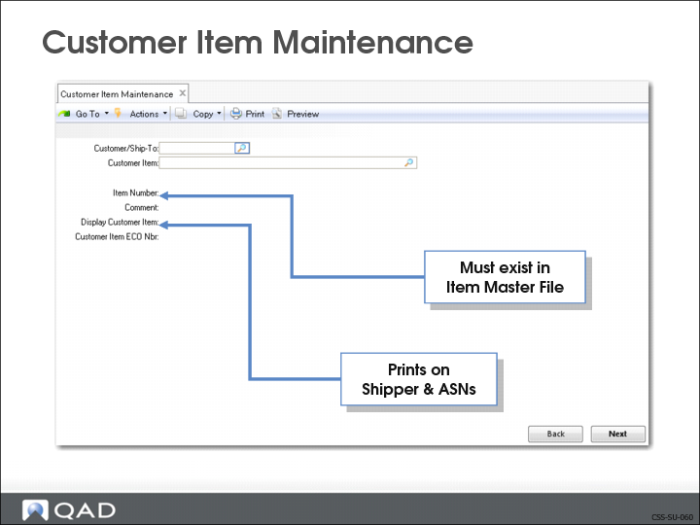
Use Customer Item Maintenance (1.16) to set up cross-references between:
• Your internal item numbers and your customer’s item numbers
• You can choose to have one or both item numbers appear on all sales and shipping paperwork
On sales quotes and sales orders the item number can only be 18 characters long.
• Internal numbering systems, industry standard (UPC), or marketing catalog numbers
• By leaving the Customer field blank, the cross-reference will apply to all customers
Exercise: Create Customer Items for Each Part
Namaka uses their own customer item numbers for each part and wants to have that item number referenced on the sequence scheduled order.
Use Customer Item Maintenance (1.16).
1 To create a customer item for the first part, enter:
Field | Data |
Customer /Ship-to: | <blank> |
Customer Item: | sunroof, red |
Item Number | part1 |
2 Create a customer item for the second part by entering:
Field | Data |
Customer /Ship-to: | <blank> |
Customer Item: | sunroof, green |
Item Number | part2 |
3 Create a customer item for the third part by entering:
Field | Data |
Customer /Ship-to: | <blank> |
Customer Item: | sunroof, blue |
Item Number | part3 |
4 Create a customer item for the fourth part by entering:
Field | Data |
Customer /Ship-to: | <blank> |
Customer Item: | sunroof, black |
Item Number | part4 |
5 Create a customer item for the fifth part by entering:
Field | Data |
Customer /Ship-to: | <blank> |
Customer Item: | sunroof, clear |
Item Number | part5 |
Exercise: Add Inventory
Each part needs to be added to inventory.
Use Receipts - Unplanned (3.9).
1 To add inventory for the first part, enter:
Field | Data |
Item Number: | part1 |
Quantity: | 1000 |
Site: | 10-200 |
Location: | 100 |
2 Add inventory for the second part by entering:
Field | Data |
Item Number: | part2 |
Quantity: | 1000 |
Site: | 10-200 |
Location: | 100 |
3 Add inventory for the third part by entering:
Field | Data |
Item Number: | part3 |
Quantity: | 1000 |
Site: | 10-200 |
Location: | 100 |
4 Add inventory for the fourth part by entering:
Field | Data |
Item Number: | part4 |
Quantity: | 1000 |
Site: | 10-200 |
Location: | 100 |
5 Add inventory for the fifth part by entering:
Field | Data |
Item Number: | part5 |
Quantity: | 1000 |
Site: | 10-200 |
Location: | 100 |