Sequence Scheduled Order
Create a Sequenced Scheduled Order
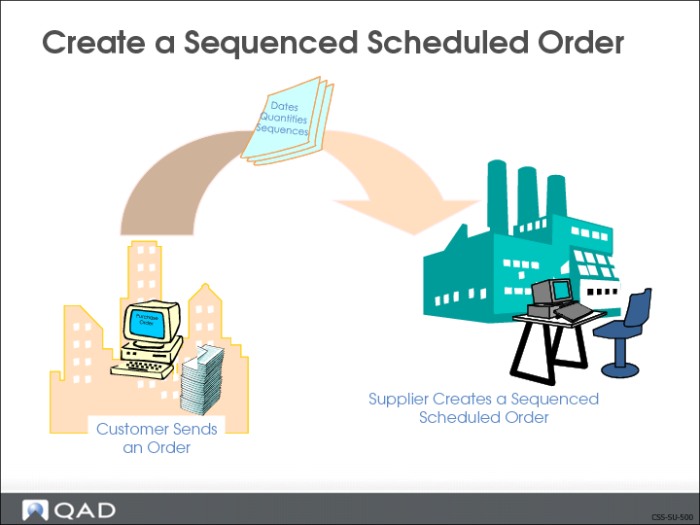
You are now ready to create a sequenced scheduled order for your customer. To do this, you do would use Customer Scheduled Order Maintenance (7.3.13).
• A scheduled order contains the quantities the customer needs and the dates they are needed by
• A sequenced scheduled order tells the supplier’s system that the customer will be sending sequence schedule releases
Customer Scheduled Order Maintenance (7.3.13)
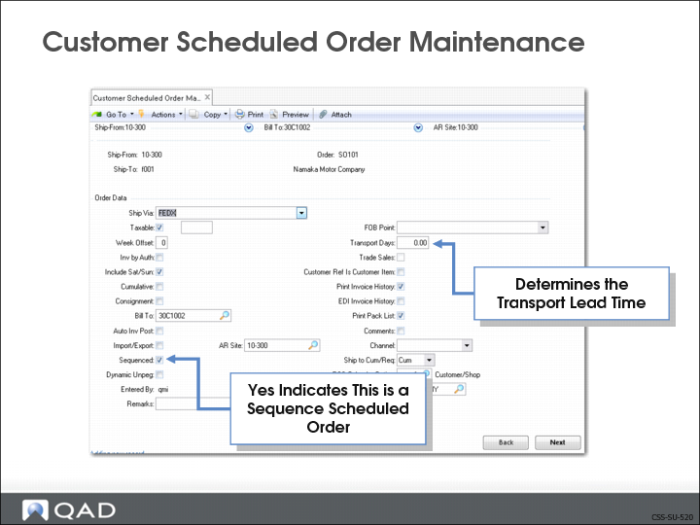
Use Customer Scheduled Order Maintenance (7.3.13) to create a sequenced scheduled order.
Order Data Frame
In the Order Data frame you set up the scheduled order parameters.
• Setting the Sequenced field to Yes makes this scheduled order a sequenced scheduled order
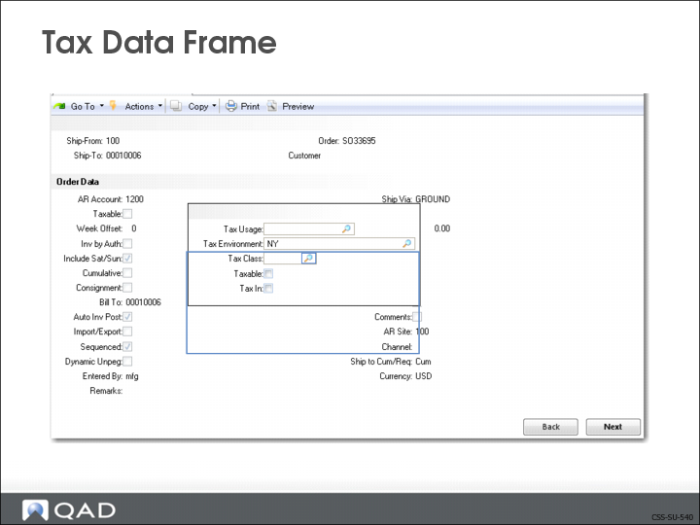
Tax Data Frame
The order tax data frame displays for the input of Global Tax Management data.
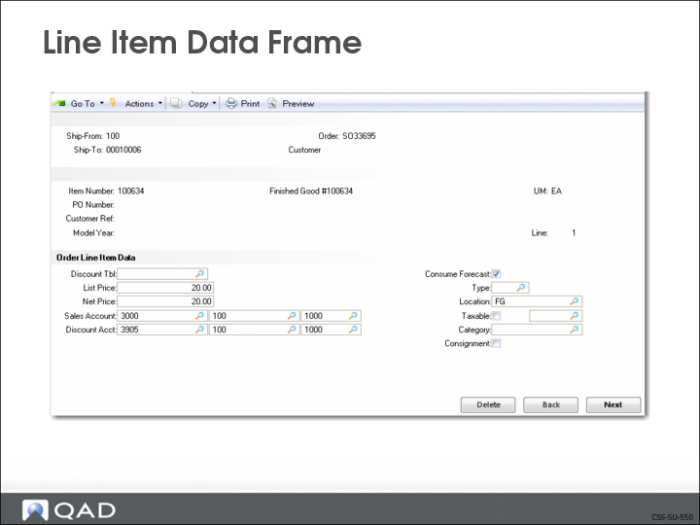
Line Item Data Frame
In the line item data frame you identify the item being shipped and the line number.
• Item number
• Customer purchase order number (optional)
• Unit of measure (UM)
• Sequence scheduled order line number
• Sequential number
• Can be system assigned or user assignee
Note: If your customer has multiple docks, with requirements coming on the same sequence scheduled order, you should create a line for each dock, with the same item number and different purchase orders.
The system asks you if you want to copy order details from another purchase order for the same item.
• If Yes, the system prompts you through the copy
• You need the purchase order number and the sequential line number you are copying from
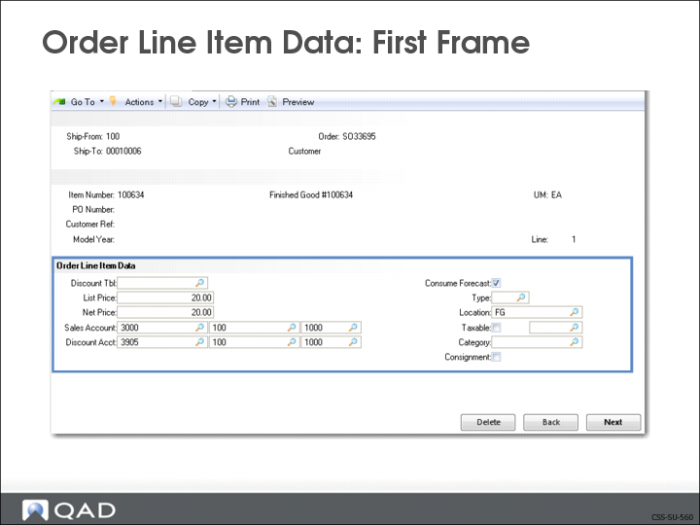
Order Line Item Data: First Frame
There are two Order Line Item Data frames. The first frame contains pricing and inventory information.
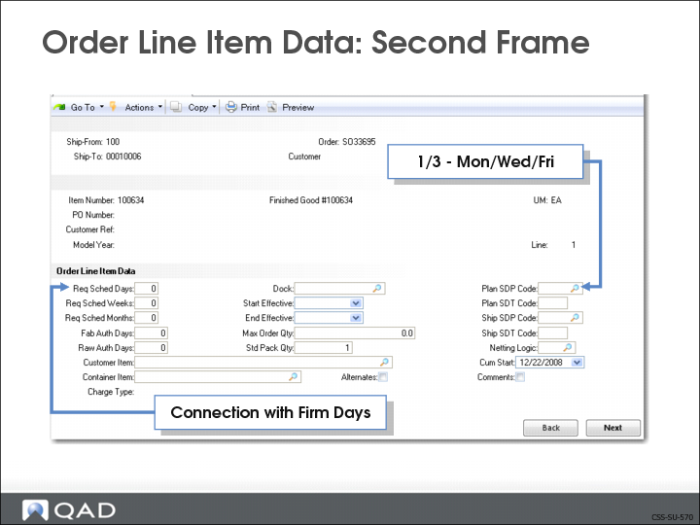
Order Line Item Data: Second Frame
Exercise: Create Scheduled Order
SUV Assembly Plant
You are now ready to create a Scheduled Order
Use Customer Scheduled Order Maintenance 7.3.13
1 Create a scheduled order.
Field | Data |
Ship-From: | 10-200 |
Ship-To: | f001 |
Order: | SO100 |
2 Advance to the Order Data frame and enter:
3 Advance to the Sequenced Delivery Data frame and enter:
Field | Data |
Incl Seq in Req Ship Sched: | Yes |
Firm Days: | 0 |
4 Advance to the line item frame and enter:
Field | Data |
Item: | part1 |
Line: | 1 |
5 Advance to the second Order Line Item Data frame and enter:
Field | Data |
Req Sched Days: | 5 |
Req Sched Weeks: | 3 |
Req Sched Months: | 1 |
Netting Logic: | 1 |
6 Return to the line item frame. You are going to create a second line, for part2.
Advance to the line item frame and enter:
Field | Data |
Item: | part2 |
Line: | 2 |
7 Advance to the second Order Line Item Data Frame and enter:
Field | Data |
Req Sched Days: | 5 |
Req Sched Weeks: | 3 |
Req Sched Months: | 1 |
Netting Logic: | 2 |
8 Return to the line item frame. You are going to create a third line, for part3.
Field | Data |
Item: | part3 |
Line: | 3 |
9 Advance to the second Order Line Item Data frame and enter:
Field | Data |
Req Sched Days: | 5 |
Req Sched Weeks: | 3 |
Req Sched Months: | 1 |
Netting Logic: | 3 |
10 Return to the line item frame. You are going to create a fourth line, for part4.
Field | Data |
Item: | part4 |
Line: | 4 |
11 Advance to the second Order Line Item Data frame and enter:
Field | Data |
Req Sched Days: | 5 |
Req Sched Weeks: | 3 |
Req Sched Months: | 1 |
Netting Logic: | 4 |
12 Return to the line item frame. You are going to create a fifth line, for part5.
Field | Data |
Item: | part5 |
Line: | 5 |
13 Advance to the second Order Line Item Data frame and enter:
Field | Data |
Req Sched Days: | 5 |
Req Sched Weeks: | 3 |
Req Sched Months: | 1 |
Plan SDP Code: | 20 (1/5 Monday through Friday) |
Netting Logic: | 3 |
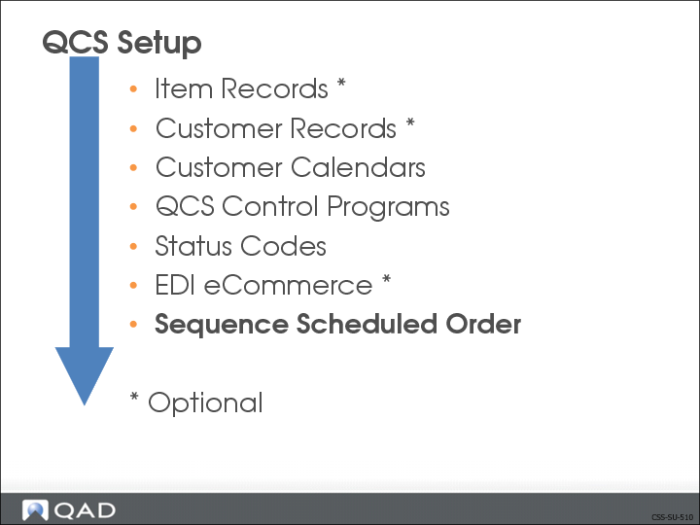
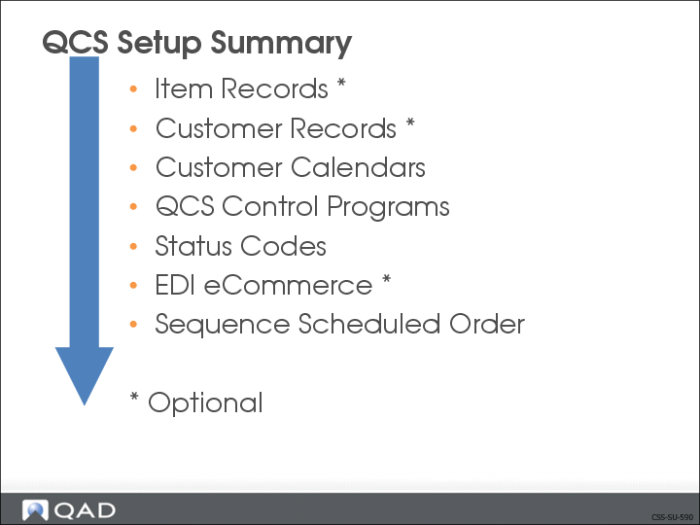
QCS Setup Summary