Planning
Plan QCS
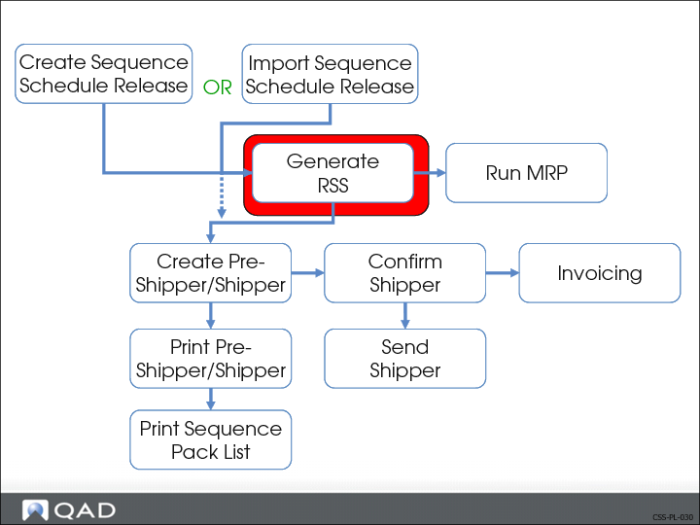
This illustration is a suggested setup sequence of master records for the QCS module based on information that flows from one master record to another and prerequisites that need to be accomplished before setting up a record.
Generate RSS
The RSS identifies for a particular customer and sequenced scheduled order, what they need you to ship, on what dates, and by what time.
Basically the RSS has two purposes:
• It supplies MRP with the dates, times, and quantities of the customer’s demands
• Provides the information used to instruct the shipping dock what to ship
You create a new version of the RSS using one of the following:
• Required Ship Schedule Update (7.5.5)
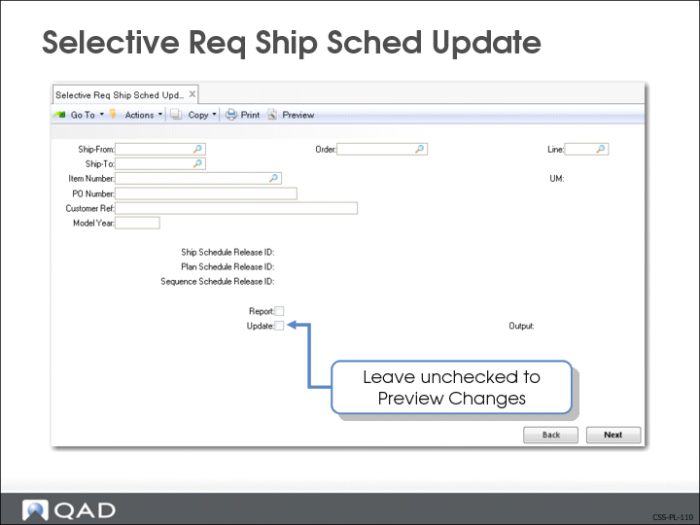
• Selective Req Ship Sched Update (7.5.6)
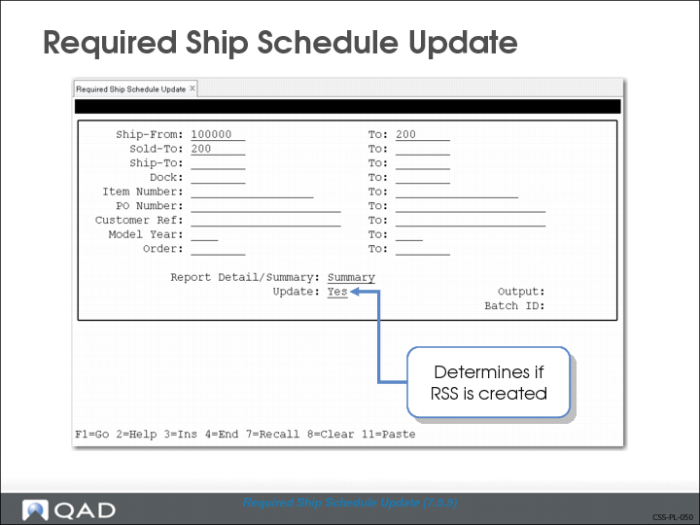
Required Ship Schedule Update (7.5.5)
Use Required Ship Schedule Update to generate a new RSS.
The RSS:
• Turns customer demand from the schedule release into dates, times, and quantities that you can then use for planning and production
• Information used to supply MRP allowing it to plan future replenishment orders
• Instructs the shipping dock what needs to be shipped
• Information used to generate the picklist/pre-shipper
Note: It is a good idea when first running this process to set Update to No. This gives you the ability to review the new schedule release prior to actually creating it.
Creating the RSS
When creating the RSS, the system first selects the active schedule release for each schedule type (sequence, shipping, planning). Then the system uses the customer requirement information from active schedule releases) and the following information to generate the RSS:
• Sequence scheduled order data (Week Offset, Cumulative, Transport Days, Req Sched Days, Weeks, Months, standard pack quantity, Netting Logic, and SDP codes)
• Your calendar
• Your customer’s calendar, if necessary
• System uses this to adjust dates or quantities if your customer does not schedule their requirements to coordinate with your open days, ship schedule, or shipment multiples
• QAD Enterprise Applications back-schedules all date adjustments
If Sequenced is set to Yes in Customer Scheduled Order Maintenance (7.3.13), the system knows this is a sequence scheduled order and updates the RSS with sequence schedule data. When sequences are involved:
• Netting logic works differently
• Netting logic is set up in the Netting Logic field of Customer Scheduled Order Maintenance
• If Include Seq in Req Ship Sched is set to Yes in Customer Scheduled Order Maintenance then the system includes the number of firm days from the sequence scheduled order
• Defined in the Firm Days field of Customer Scheduled Order Maintenance
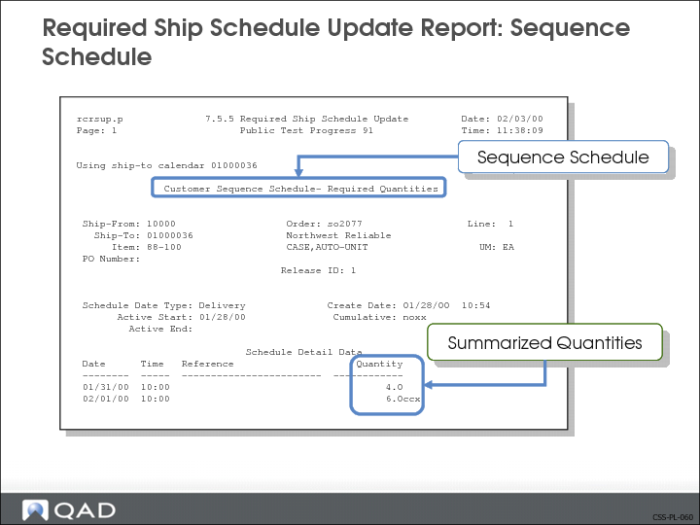
Required Ship Schedule Update Report: Sequence Schedule
The image above shows an example of a Required Ship Schedule Update report using a sequence schedule.
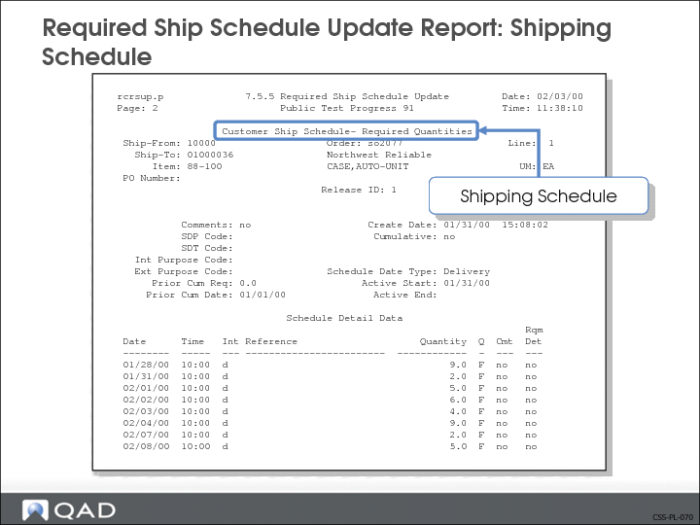
Required Ship Schedule Update Report: Shipping Schedule
The image above shows an example of a Required Ship Schedule Update report using a shipping schedule.
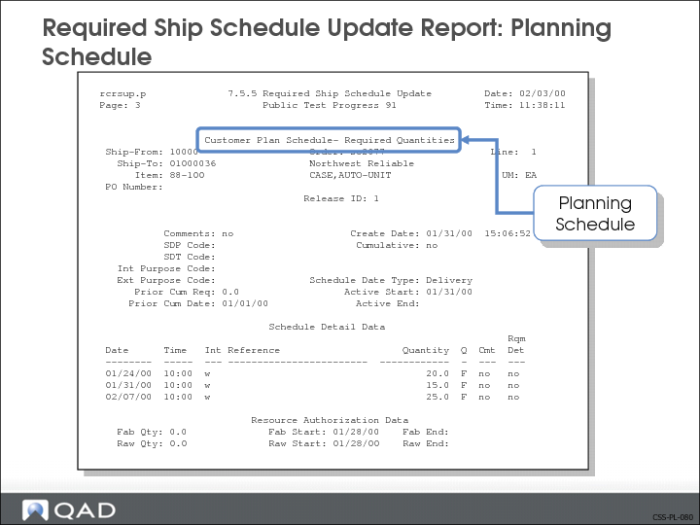
Required Ship Schedule Update Report: Planning Schedule
The image above shows an example of a Required Ship Schedule Update report using a planning schedule.
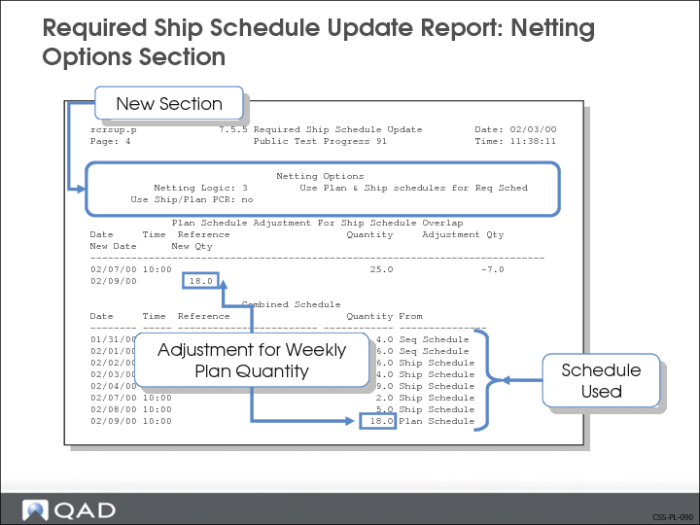
Required Ship Schedule Update Report: Netting Options Section
The image above shows an example of a report containing the new section, Netting Options.
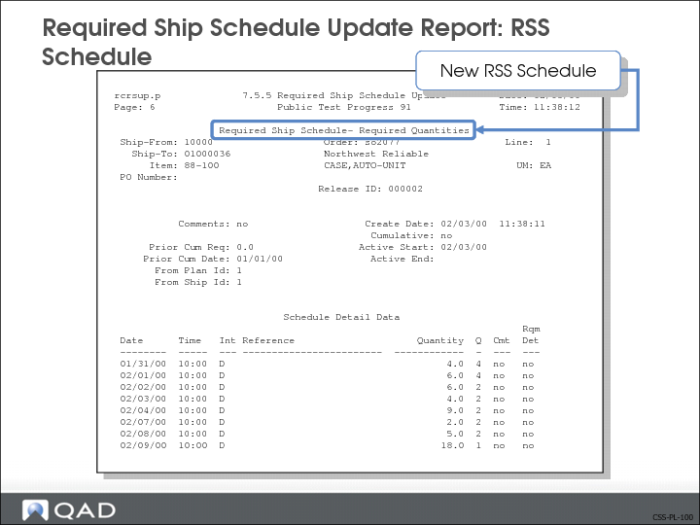
Required Ship Schedule Update Report: RSS Schedule
The image above shows an example of the new Required Ship Schedule.
Selective Req Ship Sched Update (7.5.6)
Use Selective Req Ship Sched Update to determine the sequence schedule requirements using a specific release.
• You do not necessarily have to use the active release
• System uses the sequence schedule release ID to select the sequence schedule
• Only sequence lines associated with the specified schedule order lines are used
The method for calculating the RSS is the same as used in Required Ship Schedule Update.
Exercise: Required Ship Schedule Update
Important: The data used in these exercises may not be the same as the data shown in the screen captures in this lesson. In an exercise, if a field is not listed, you can accept the default value or leave it blank.
The required ship schedule function identifies what needs to be shipped and when. In this exercise you are going to see the results of the Netting Logic used when setting up the scheduled order.
Use Required Ship Schedule Update (7.5.5) to run a preview of the required ship schedule by entering the following:
Field | Data |
Ship-To: | f001 |
To | f001 |
Report Detail/Summary: | Detail |
Update: | No |
1 Use the following information to verify all of the required ship schedules are correct, based on the Netting Logic.
Line 1:
Field | Data |
M-W | Requirements from sequence schedule |
Th-F | Requirements from sequence schedule |
Week 2+: | Requirements from sequence schedule |
Line 2:
Field | Data |
M-W | Requirements from sequence schedule |
Th | Adjustment from weekly planning schedule |
Week 2+: | Requirements from sequence schedule |
Line 3:
Field | Data |
M-W | Requirements from sequence schedule |
Th-F | Requirements from sequence schedule |
M-W | Requirements from sequence schedule |
Th | Adjustment from weekly planning schedule |
Week 3+ | Requirements from sequence schedule |
Line 4.
Field | Data |
M-W | Requirements from sequence schedule |
Th-F | Requirements from sequence schedule |
F | Adjustment from weekly planning schedule if planning requirements NOT consumed |
M-W | Requirements from sequence schedule |
W | Adjustment from weekly planning schedule if planning requirements NOT consumed |
Week 3+ | Requirements from sequence schedule |
Line 5:
Field | Data |
M-F | Requirements from sequence schedule |
M-W | Requirements from sequence schedule |
Th-F | Requirements from shipping schedule |
Week 3+ | Requirements from sequence schedule |
Note: The weekly intervals of the planning schedule of Line 5 are distributed according to the SDP before the requirements are combined.
2 To generate the RSS, enter the following:
Use Required Ship Schedule Update (7.5.5)
Field | Data |
Ship-To: | f001 |
To | f001 |
Report Detail/Summary: | Detail |
Update: | Yes |
Note: If the output report from the Required Ship Schedule Update fails to display, check the result with Required Ship Schedule Detail Report (7.5.14).
Run MRP
Once you have the new RSS, you are ready to run MRP. Running MRP determines the planning requirements for the customer’s demands.
Note: MRP only looks at the active RSS.
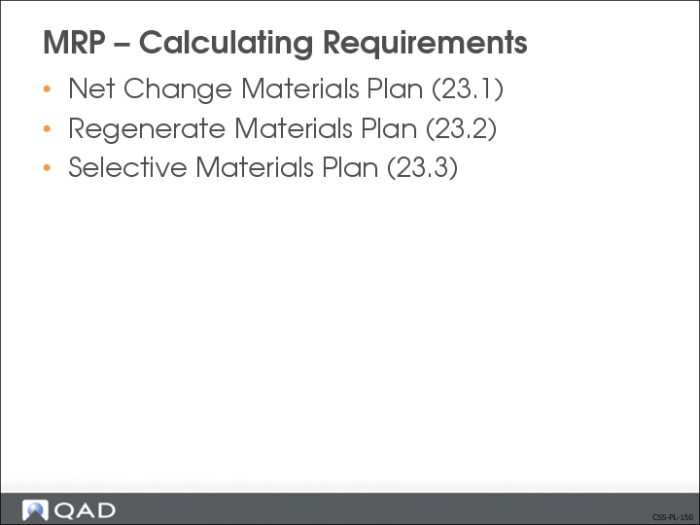
QAD Enterprise Applications offer you three ways to run MRP.
• Net Change Materials Plan (23.1)
• Calculates requirements only for those items that have changed since the last update
• Many companies use this option for their normal MRP runs
• Regenerate Materials Plan (23.2)
• Generates a plan for all items, not just those that have changed since the last run
• Recalculates demand and plans supply for all items in the site
• Selective Materials Update (23.3)
• Updates only the items and sites you select
MRP – Calculating Requirements
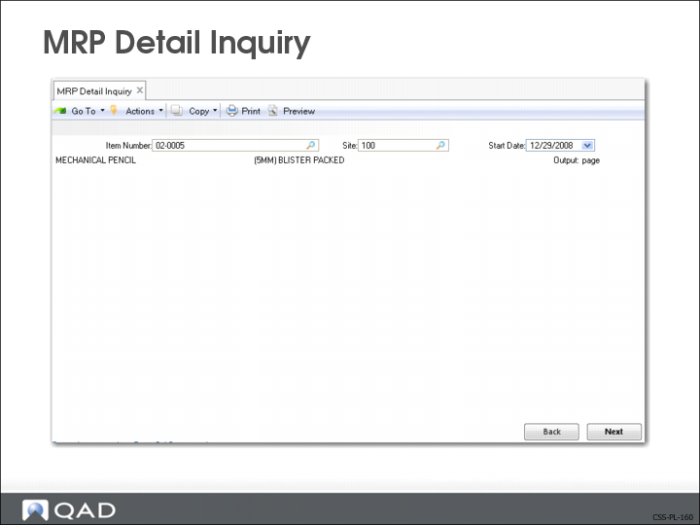
MRP Detail Inquiry (23.16)
Use MRP Detail Inquiry to see a detailed look at MRP for specified date buckets.
Selection Criteria
Item Number/Site/Start Date
Use one or more of the above criteria to select MRP detail information. To select all, leave the field blank.
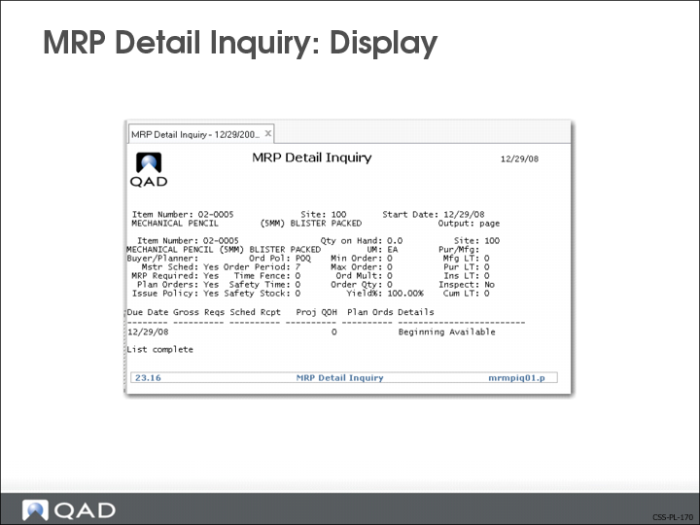
MRP Detail Inquiry: Display
Using your selection criteria, the system shows you the order information from the RSS.
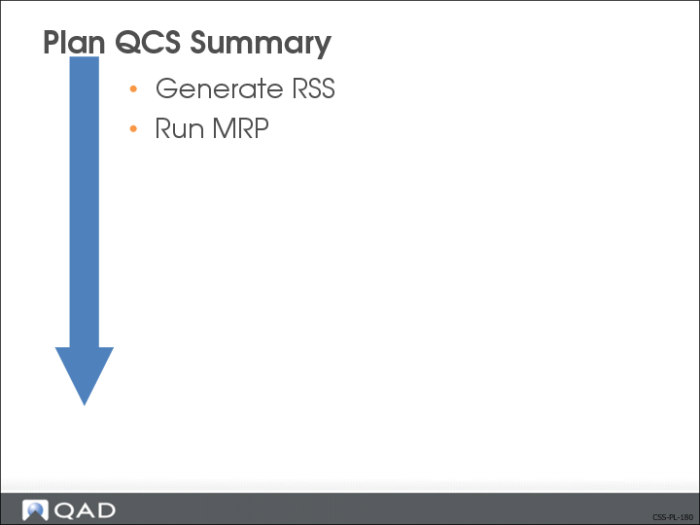
Plan QCS Summary