Features and Options
In this chapter we are going to discuss different features and options available to you when using QCS.
Multi-Item Sequences
QCS allows you to have multi-item sequences. Multi-item sequences simply means there is more than one item per sequence.
Using the above example for seat sets in a single vehicle:
• Two red front bucket
• Driver (D)
• Passenger (P)
• One red rear bench
Each item is a separate sequence scheduled order line item record.
• Three sequence scheduled order line item records
• Three different item numbers (driver red bucket, passenger red bucket, and red rear seat)
• One sequence number
Multiple Delivery Locations
Multiple Delivery Locations
For each item, there can be multiple delivery locations. These are customer defined and are specified on the sequence schedule release as one of the following:
• Customer dock
• Line feed
It is important to understand the customer dock specified on the sequence schedule release is not the same as a customer dock (dock address) specified on the scheduled order in Customer Scheduled Order Maintenance (7.3.13). The dock address specified on the scheduled order is set up in Dock Maintenance (7.3.6). Then on the pre-shipper/shipper, that dock address is used as the ship-to address. The entire scheduled order is shipped to that dock address.
QCS allows the customer to specify a dock (or a line feed location) for each part (item). In QCS the purpose of specifying a customer dock (or a line feed location) is to allow a sequence to be delivered to more than one delivery location at the same customer ship-to address. A customer dock (or a line feed location) is used to direct the items once they arrive at the customer site.
Note: A customer would not use a dock address (set up in Dock Maintenance) and a dock location (specified in the sequence schedule release) at the same time.
When a dock or line feed location is designated in QCS, it tells QAD Enterprise Applications two things:
• The sequence is made up of multiple items
• The sequence items are going to different delivery locations
• Items being shipped should not be packed together because they are going to different delivery locations at the customer site (ship-to)
• Shipper needs to be created for each delivery location, even if the ship-to address is the same for each delivery location
Note: In QCS these delivery locations (dock and line feed) are strictly customer internal locations. QAD Enterprise Applications does not validate them.
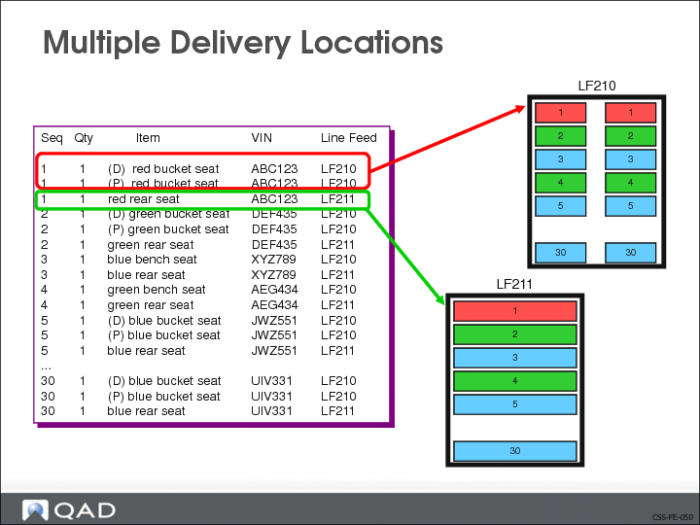
Using the above graphic as an example, there are three items in the same sequence being shipped. System detects that the sequence contains two different line feed locations. It puts each sequence item on a shipper specific for the designated line feed.
• Driver red bucket seat and the passenger red bucket seat are to be delivered to line feed 210
• Grouped on the same shipper
• Red rear seat is to be delivered to line feed 211
• Separate shipper
Deleting Sequences
QAD Enterprise Applications gives you two options for deleting sequences:
• Logical delete
• Use Sequence Schedule Maintenance (7.5.4.5)
• Does not physically remove (delete) the record from the database
• Physical delete
• Use Sequence Schedule Detail Delete (7.5.4.22)
• Selected sequence records are physically removed from the database
You also have the option of deleting/archiving inactive sequence schedules.
• Use Schedule Delete/Archive (7.9.23)
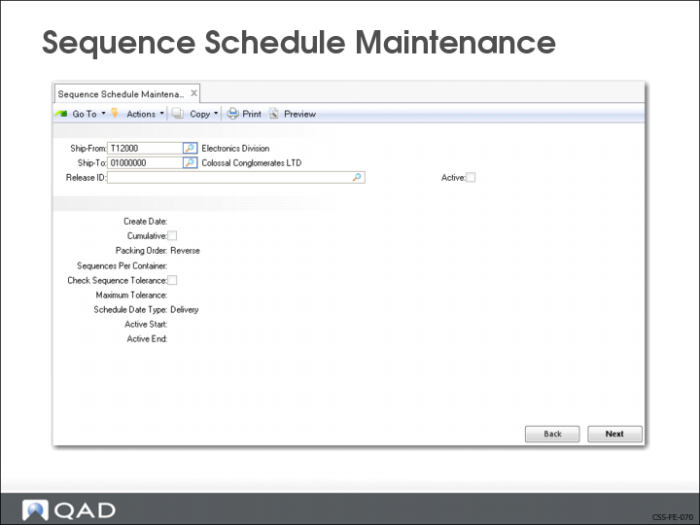
Sequence Schedule Maintenance (7.5.4.5)
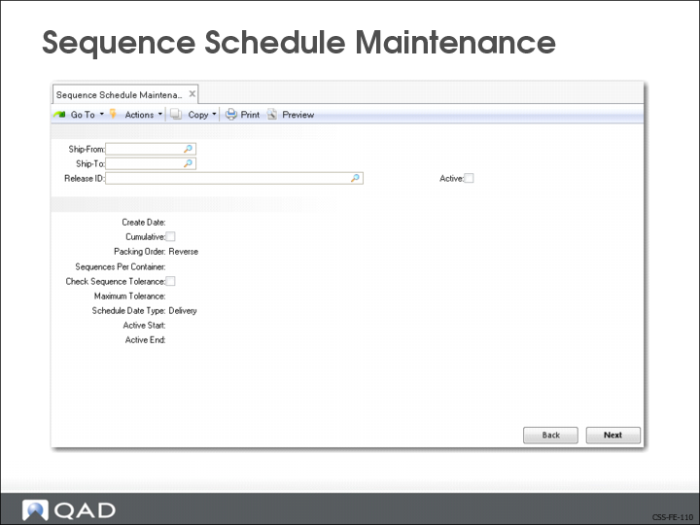
Use Sequence Schedule Maintenance to do a logical delete by setting the Delete field to Yes.
• Marks the sequence record as deleted
• Sequence record is inactive for this schedule release
• Sequence record is not removed/deleted from the database
You can mark for deletion any sequence record that is not picked or that is cross-referenced to a picked sequence on another sequence release.
• Once marked as deleted, the sequence record is frozen and is not included in normal processing
• Cannot be modified
• Not copied to next release
• Not included in planning or shipping
• Allows an audit of system
• Allows you to keep information in sync with your customer
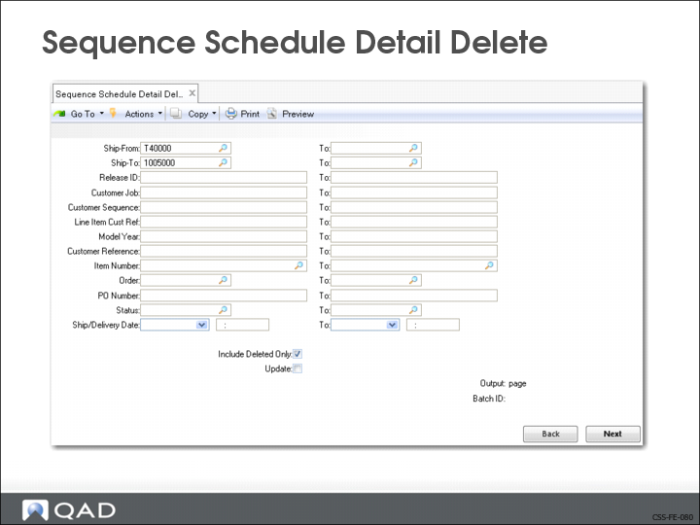
Sequence Schedule Detail Delete (7.5.4.22)
Use Sequence Schedule Detail Delete to specify which sequence records are to be deleted.
• Selected sequence records are permanently removed from the database
• System allows you to delete any sequence record that is not picked or that is cross-referenced to a picked sequence record on another schedule release
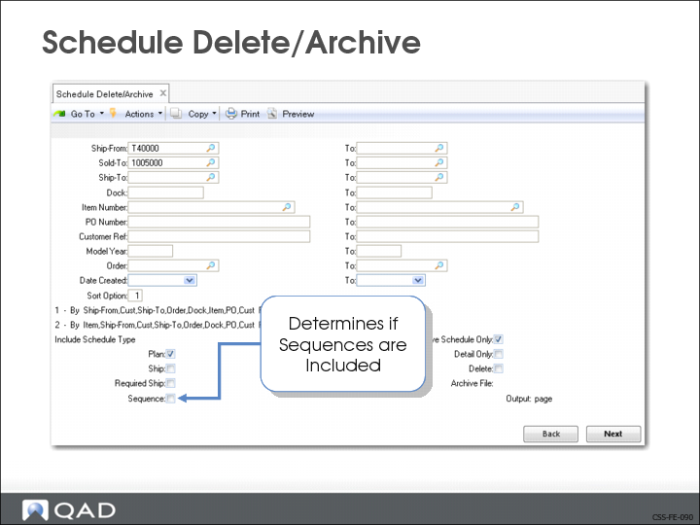
Schedule Delete/Archive (7.5.23)
Use Schedule Delete/Archive to delete or archive all inactive sequence schedules with one transaction.
All associated inactive detail and cross-reference sequence records are deleted or archived.
Sequence Cross-References
You use sequence cross references to handle duplicate sequence requirements.
• Same sequence is on separate schedule releases
For example:
Day 1
• Supplier receives sequence requirement from customer
• Supplier ships sequence on day 1
• Shipment does not reach the customer on day 1
Day 2
• Customer sends new sequence schedule release to supplier
• Contains sequence requirement from day 1
• Supplier shows the sequence requirement as already fulfilled
Sequence Schedule Maintenance (7.5.4.5)
In Sequence Schedule Maintenance when you are adding a new sequence schedule release for an existing ship-from/ship-to combination, the system gives you the option of copying data from the active schedule release.
• If you say Yes, the system then checks to see if any sequences on the active schedule release have been flagged as picked. If there are, you are given the option of creating cross-references between the sequences on the new sequence schedule release and the active sequence schedule release
• If you say No, then the system copies all sequences from the active sequence schedule release to the new sequence schedule release
• System resets any sequence records that were previously marked as picked or cross-referenced
• Resetting these sequence records makes them open requirements
Sequence Cross-Ref Maintenance (7.5.4.13)
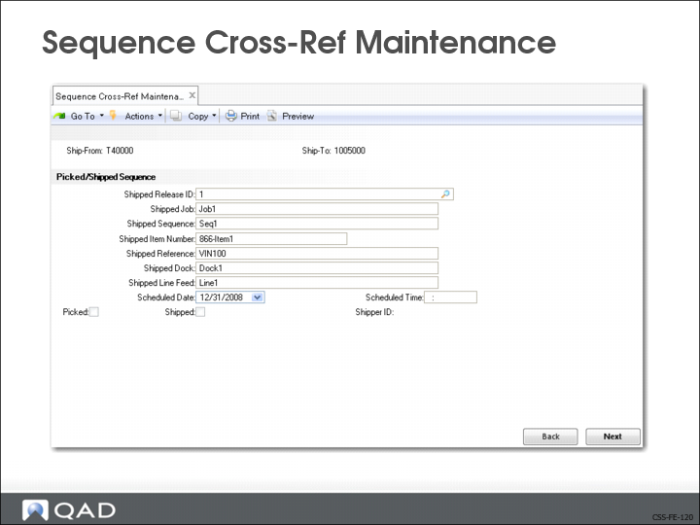
Use Sequence Cross-Ref Maintenance to manually create individual sequence cross-references and to maintain information on sequence cross-references.
Cross-referenced sequences can be:
• Marked as deleted
• Already cross-referenced
• Maintain information on sequence cross-references
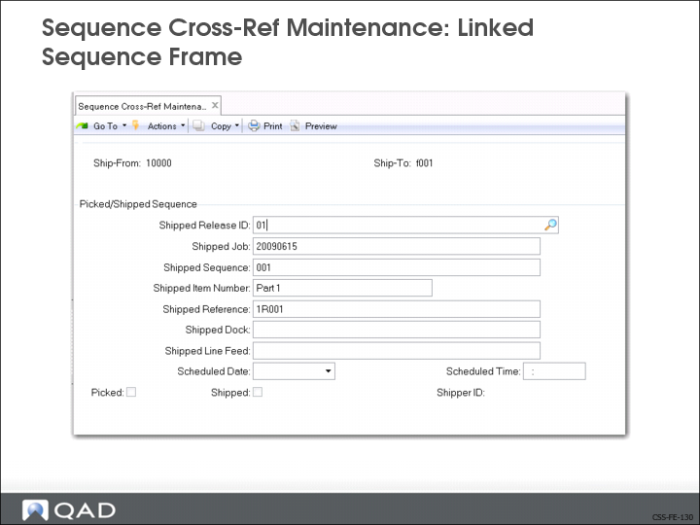
There are three frames:
• Header Frame
• Picked/Shipped Sequence
• Linked Sequence
Header Frame
In the header frame you identify the ship-from ship-to combination on the existing sequence schedule release.
Picked/Shipped Sequence Frame
The Picked/Shipped Sequence frame shows information on picked/shipped sequences. You can use this frame to select a previously picked or shipped sequence for the specified ship-from/ship-to combination.
Linked Sequence Frame
The Linked Sequence frame shows information on the linked or related sequence in the new sequence schedule release.
• System creates a cross-reference link between the picked/shipped sequence and this sequence
• The new cross-referenced sequenced (linked sequence) cannot be picked
• System considers this sequence to be a closed requirement
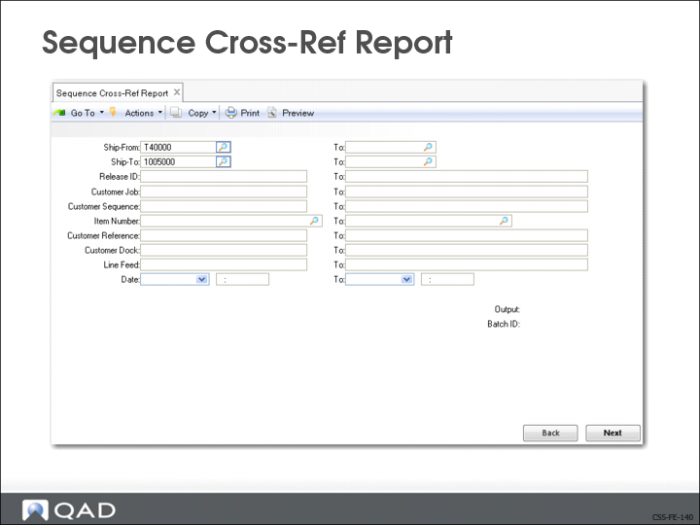
Sequence Cross-Ref Report
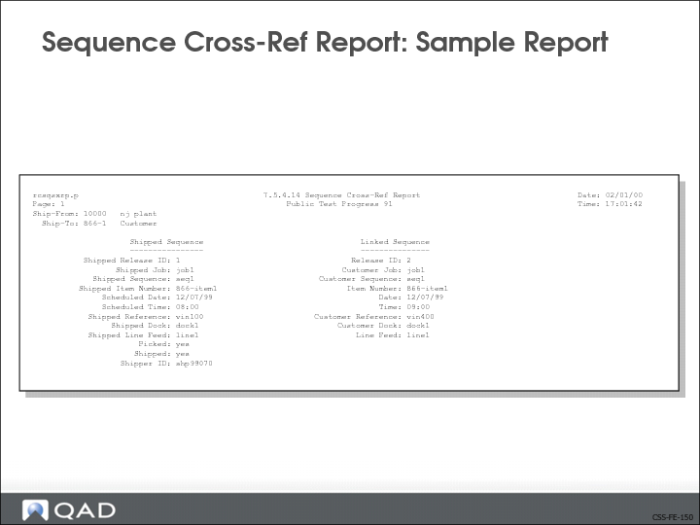
Use Sequence Cross-Ref Report to generate a report showing information on the shipped sequences and linked sequences. Shows cross-references created:
• Manually
• Automatically when sequences are imported using:
• eCommerce
• Shipper Gateway
The image above shows a sample Sequence Cross-Ref Report.
Sequence Cross-Ref Report: Sample Report
The image above shows a sample Sequence Cross-Ref Report.
Cumulative Quantities
Cumulative (cum) sequence schedules are rare.
• Currently found in one Ford plant
• Items are cumulative based
• Quantities are based on the cumulative amount shipped
• Discrete quantities are calculated
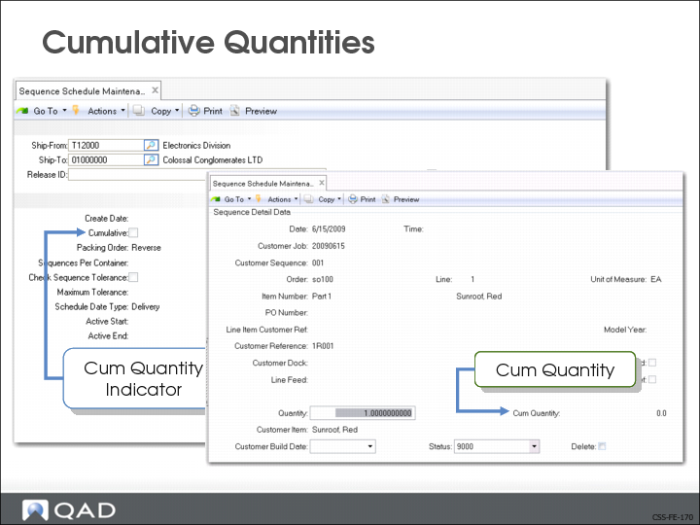
Sequence Schedule Maintenance (7.5.4.5)
When you set the Cumulative field in Sequence Schedule Maintenance to Yes, it flags the sequence schedule as cumulative. The cumulative quantity for the sequence schedule is shown in the Sequence Detail Data frame, the Cum Quantity field.